Using SEO Overrides in Super Speedy Filters

Super Speedy Filters allows you to customize the SEO elements of your shop pages on specific URLs. While the plugin already optimizes your shop pages for search engines, there are cases where you might want to customize the SEO elements for specific filter combinations or category pages to better target certain keywords or improve user experience.
The SEO Overrides feature lets you edit the HTML content above and below your shop pages, customize page titles, meta descriptions, and H1 headings for specific URLs. This is particularly useful for high-value landing pages where you want to add custom content or optimize for specific search terms.
Table of Contents
Step 1: Enable SEO Overrides
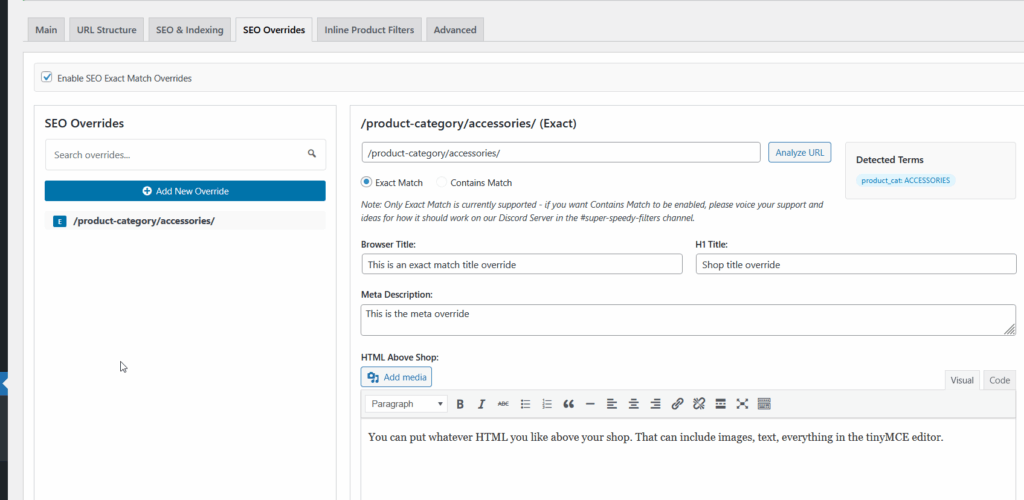
Navigate to the Super Speedy Filters settings page in your WordPress admin and go to the “SEO Overrides” tab. Check the “Enable SEO Exact Match Overrides” checkbox and save your settings.
This step is crucial – SEO Overrides will not work until you enable this checkbox.
Step 2: Create Your First SEO Override
To create a new SEO override:
- On the SEO Overrides tab, click the “Add New Override” button
- Enter the URL path you want to customize (e.g.,
/product-category/shoes/or/shop/color-blue/size-large/) - Select “Exact” as the match type (this ensures the override only applies to the exact URL you specified)
- Fill in the fields you want to customize:
- Browser Title: The title that appears in browser tabs and search results
- H1 Title: The main heading on the page
- HTML Above Shop: Custom content to display above the product listings
- HTML Below Shop: Custom content to display below the product listings
- Meta Description: The description that may appear in search results
- Click “Save” to create your override
The HTML fields support rich text editing, allowing you to add formatted text, images, and other HTML elements to enhance your shop pages.
Step 3: Test Your SEO Override
After creating an override, visit the URL you specified and check that your custom title, H1, and HTML content appears correctly. View the page source to confirm the meta description has been updated.
If your changes aren’t appearing, double-check that:
- The “Enable SEO Exact Match Overrides” checkbox is enabled on the SEO Overrides tab
- The URL in your override exactly matches the URL you’re visiting
- You’ve saved your override correctly
Summary
The SEO Overrides feature in Super Speedy Filters gives you precise control over how your filtered shop pages appear to both users and search engines. By customizing titles, meta descriptions, and adding relevant content to specific filter combinations, you can improve your SEO targeting and provide a better user experience for shoppers. Remember to enable the feature via the checkbox on the SEO Overrides tab before creating your first override.