The best WordPress control panel: 26 panels ranked
There are no affiliate links on this page. No panel, host or server company pays me anything for appearing here, or if you buy from them.
Written in November 2026. Panels change their prices, plans and features all the time, so read this as a snapshot of that month.
The question people actually ask me is “Which control panel should I put on my server?”, usually straight after I’ve told them to get off shared hosting. This is my answer, with the scoring shown so you can disagree with the weights rather than with me.
It sits under the WordPress scalability guide and alongside Choosing WordPress hosting for performance, which covers which server to rent. This page covers what to run on it.
Buy the panel and the server separately
My advice hasn’t changed: buy your control panel from one company and your server from another.
The reason is incentives. If a company sells you the panel and the hosting, it earns more when your site needs a bigger server. A slow site isn’t something it wants, but it isn’t something that costs it money either. A company that only sells the panel earns the same whether your server has 2 GB or 32 GB. The only way it makes more is by keeping you as a customer and keeping its support queue short, and the cheapest way to do both is a panel that works and a stack that doesn’t fall over.
That’s not a claim that bundled hosts are dishonest. Plenty of them tune hard and support you well. It’s that the panel-only vendor’s incentives line up with yours by default, and the bundled host’s only line up if it chooses to make them.
There’s a second benefit that’s easy to miss. When the panel and the server are separate, you can move. Hetzner gets more expensive in the US, DigitalOcean opens a region nearer your customers, a data centre has a bad week: you add a new server to the same panel, clone the site across, change DNS. The panel is the thing that stays.
When a managed host still makes sense
If you don’t want any server responsibility at all, a managed host is a perfectly reasonable choice. The two I point people at are GridPane’s PeakFreq when price matters most, and WP Engine when support does (more under “What I’d buy” below). You pay for that in two ways: you can’t bring your own server, and the company does earn more when you upgrade. If an hour of your time is worth more than the difference, buy it with your eyes open.
What I ranked on
Every panel I’d recommend needs three things: staging, backups and cloning. Ideally cloning to another server in another data centre, because that’s what makes moving cheap. The rest of the weighting follows from the argument above.
| Criterion | Weight | What earns a 5 |
|---|---|---|
| Bring-your-own-server freedom | 20 | Panel only, any provider, no server resale |
| Staging and cloning | 30 | A working copy of one site, to test plugin updates on, in one or a few clicks (or one command) on a server in another data centre, whatever the vendor calls it |
| Backups | 15 | Scheduled several times a day, off-server targets, incremental, easy restore |
| Stack | 15 | Nginx or LiteSpeed/OpenLiteSpeed, current PHP, Redis object cache, server page cache |
| Price | 10 | Cheapest tier that has staging, backups and cloning, for one or a few servers |
| Support and project health | 10 | Real support included, active development, no unhandled security history |
Each criterion is scored 0 to 5 from the vendor’s own pricing pages and documentation, read on 4 November 2026 (6 November for SlickStack, Virtualmin, Centmin Mod, Trellis, ISPConfig and Froxlor). Anything those pages left unclear I checked on 7 November 2026 against the vendor’s own forum, changelog, roadmap, source code or staff answers. I score staging and cloning as one thing, because what you want from both is a copy of your site to try updates on. A copy made in one or a few clicks, or one command, scores 5 if it can go to a server in another data centre, 4 if only to another server in the same data centre, and 3 if only on the same server, whether the vendor calls it staging, cloning or migration. Copying a whole server or account doesn’t count, and a copy you have to make by hand from a backup scores 1. Ties are broken by the combined staging and cloning and backups score.
What this ranking doesn’t measure is speed. I haven’t benchmarked these panels against each other, so I’m not going to guess.
The ranking
| # | Panel | Score /100 | Model | Price for staging + backups + cloning |
|---|---|---|---|---|
| 1 | Enhance | 96 | Panel licence, per site | $10/mo minimum ($0.15 per site) |
| 2 | RunCloud | 91 | Panel only | $19/mo (Professional, up to 50 servers) |
| 3 | SpinupWP | 88 | Panel only | $12/mo (Essentials, 1 server) |
| 4 | xCloud | 87 | Panel, also resells servers | $5 per server/mo (PRO) |
| 5 | EasyEngine | 85 | Open source, command line | $0 [open source] |
| 6 | Plesk + WP Toolkit | 83 | Server licence | €25.49/mo (Web Pro VPS) |
| 7 | FlyWP | 82 | Panel, also resells servers | $5 per server/mo |
| 8 | Virtualmin GPL | 82 | Open source, Pro edition sold separately | $0 [open source] |
| 9 | Ploi | 80 | Panel only | €13 / $16 per month (Pro, 10 servers) |
| 10 | ServerAvatar | 78 | Panel, also resells servers | $12/mo (5 servers) |
| 11 | Cloudways | 75 | Bundled hosting | $11/mo (1 GB DigitalOcean server, hosting included) |
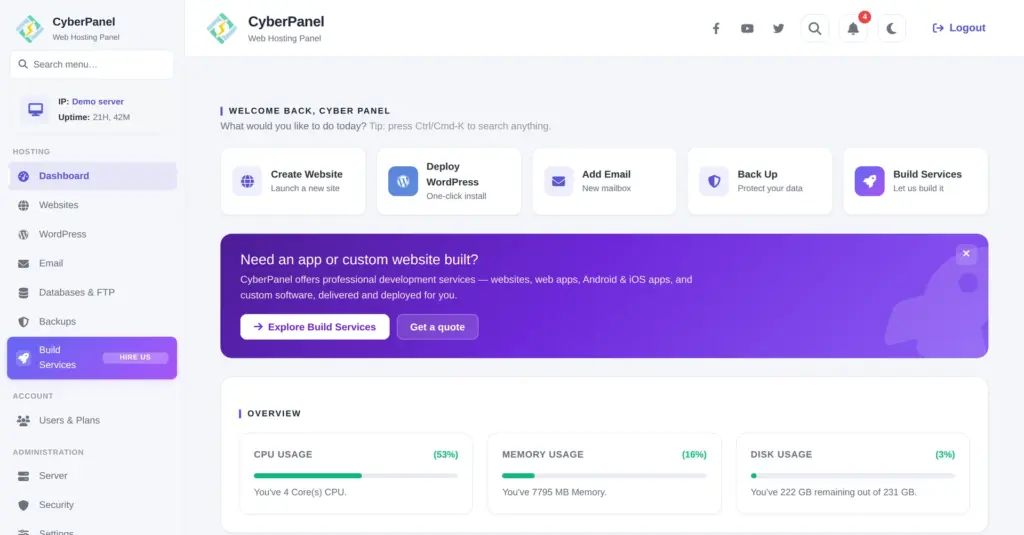
| 12 | CyberPanel | 75 | Open-source core, paid add-ons | $59/yr add-on bundle |
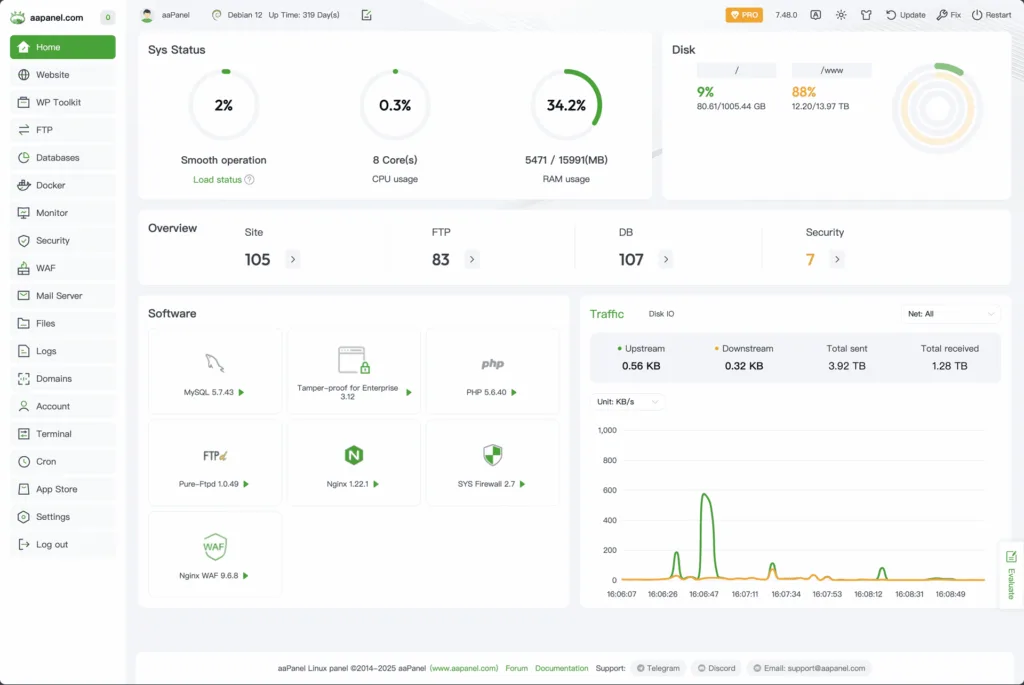
| 13 | aaPanel | 72 | Freemium, custom licence | Pro $198/yr |
| 14 | Webinoly | 71 | Open source, command line | $0 [open source] |
| 15 | SlickStack | 70 | Open source, command line, one site per server | $0 [open source] |
| 16 | WordOps | 68 | Open source, command line | $0 [open source] |
| 17 | cPanel + WP Toolkit | 67 | Server licence | $29.99/mo (Solo, 1 account) |
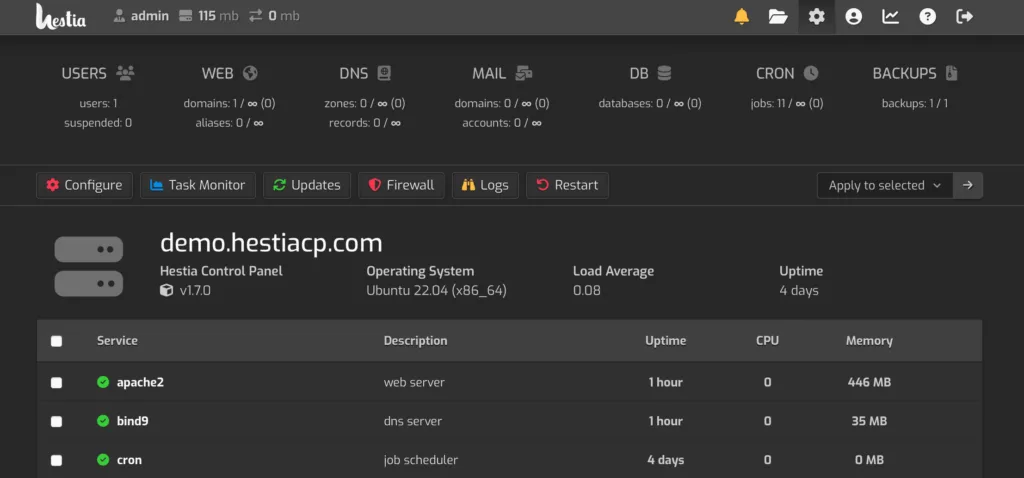
| 18 | HestiaCP | 61 | Open source | $0 [open source] |
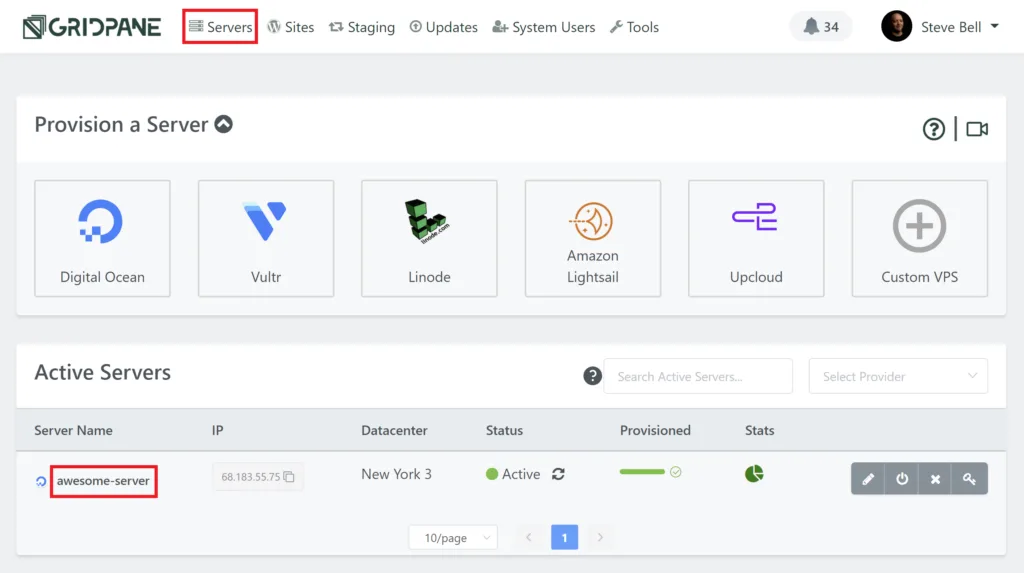
| 19 | GridPane (new accounts) | 61 | Free panel on Vultr, or resold Vultr servers | Free Core (no staging or backups); PeakFreq from $18.08/mo with server |
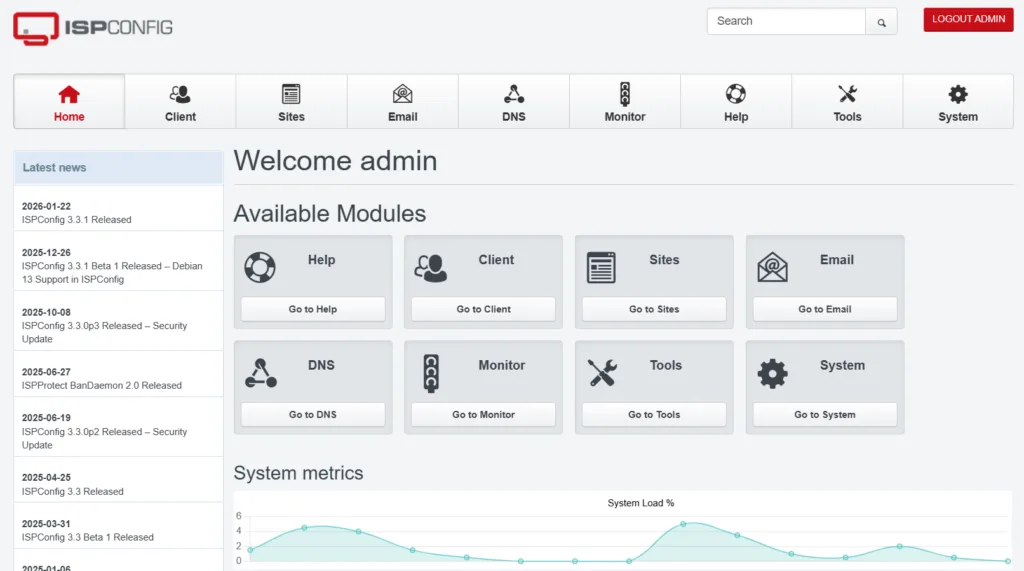
| 20 | ISPConfig | 57 | Open source, paid add-ons | $0 [open source] |
| 21 | Trellis | 57 | Open source, Ansible playbooks | $0 [open source] |
| 22 | Centmin Mod | 56 | Open source, shell menu | $0 [open source] |
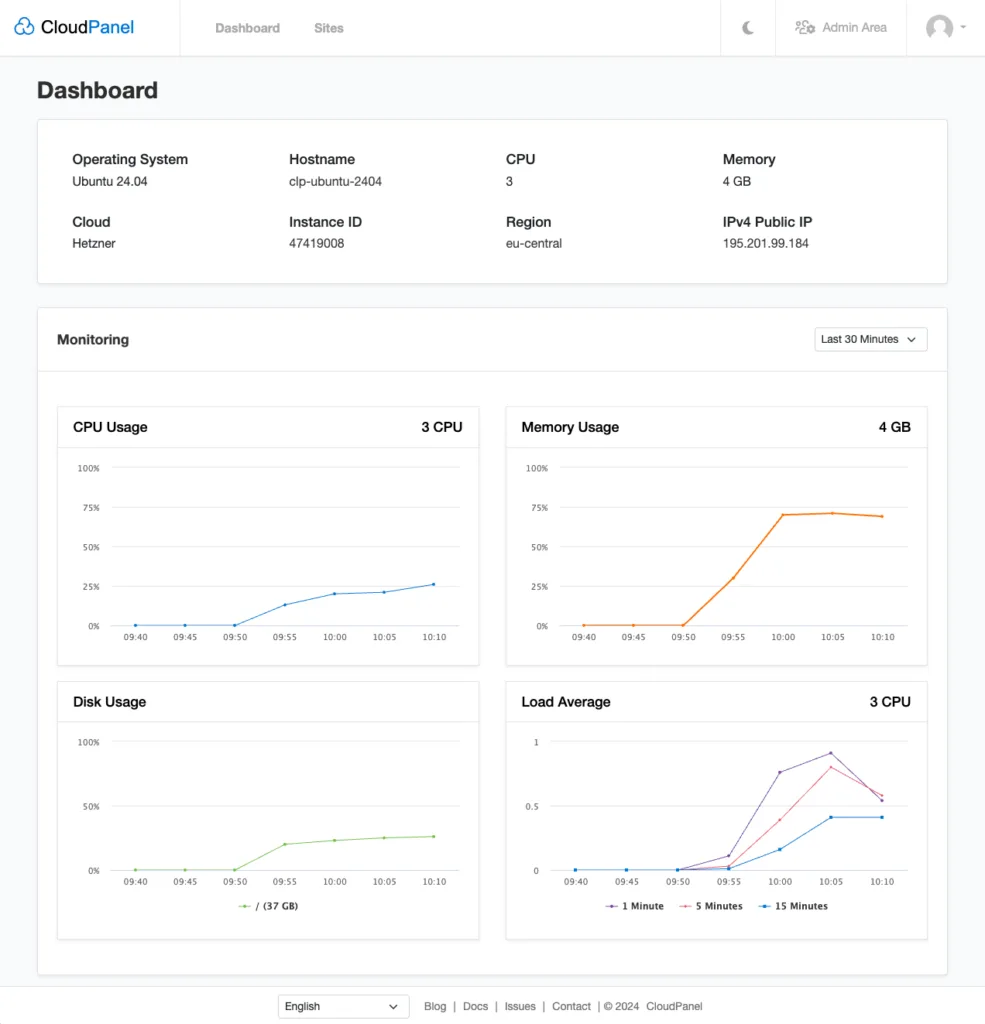
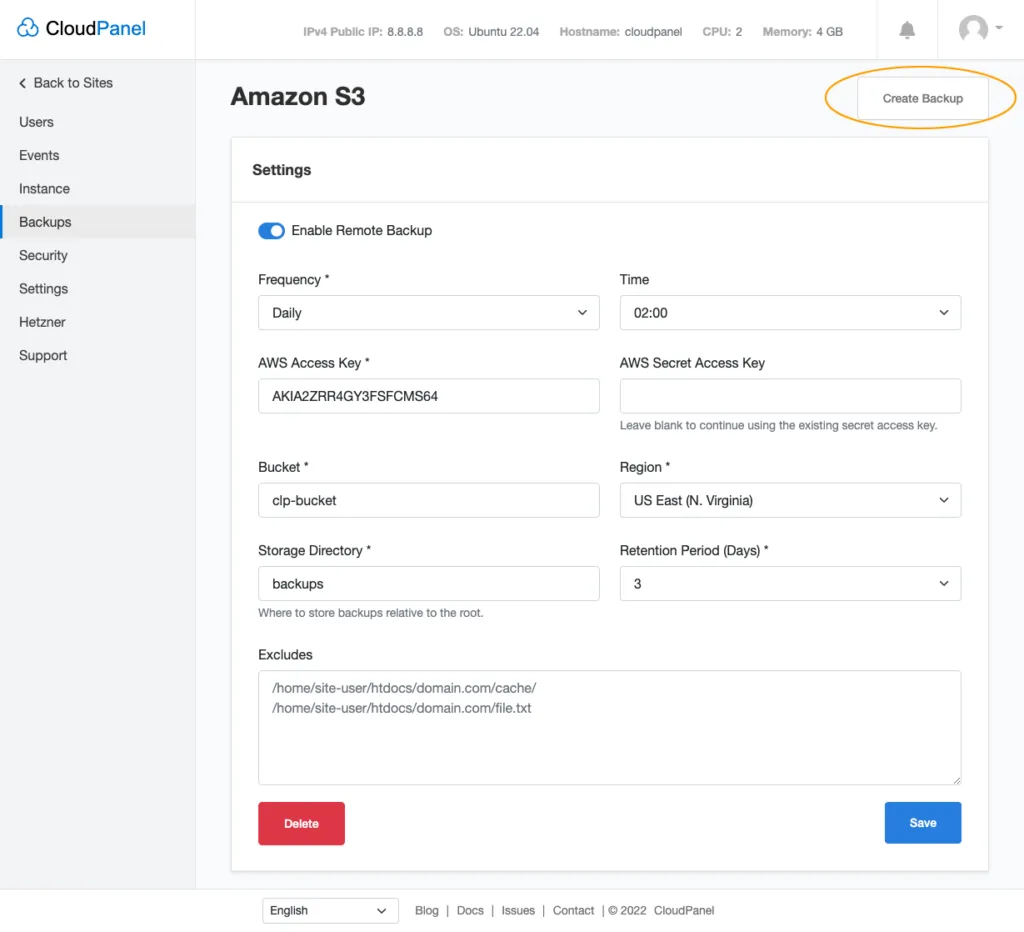
| 23 | CloudPanel | 56 | Free, closed source | Free (no staging or cloning) |
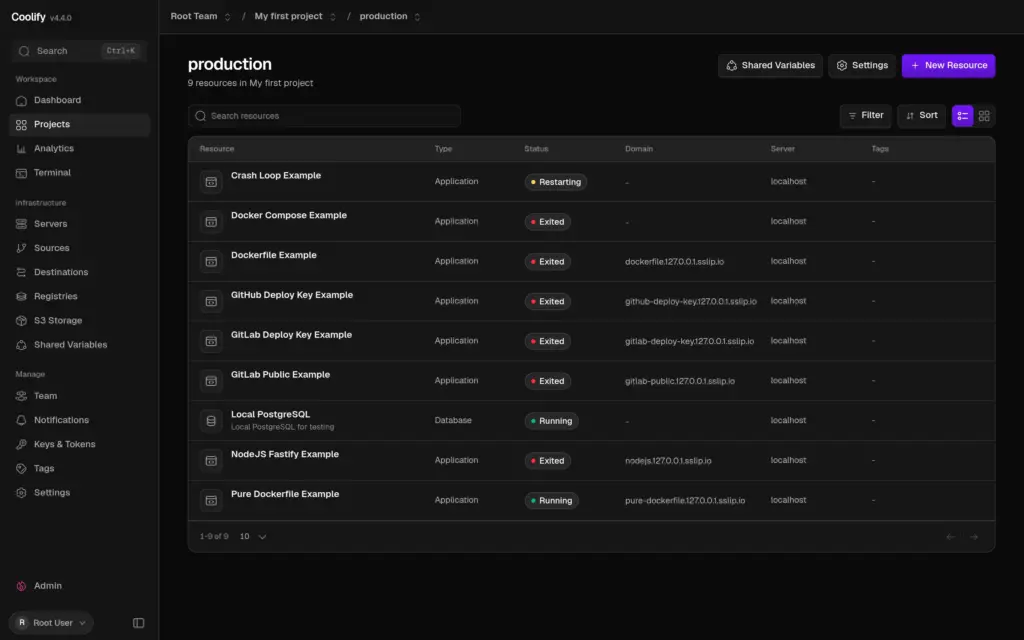
| 24 | Coolify | 50 | Open-source PaaS | $0 [open source] |
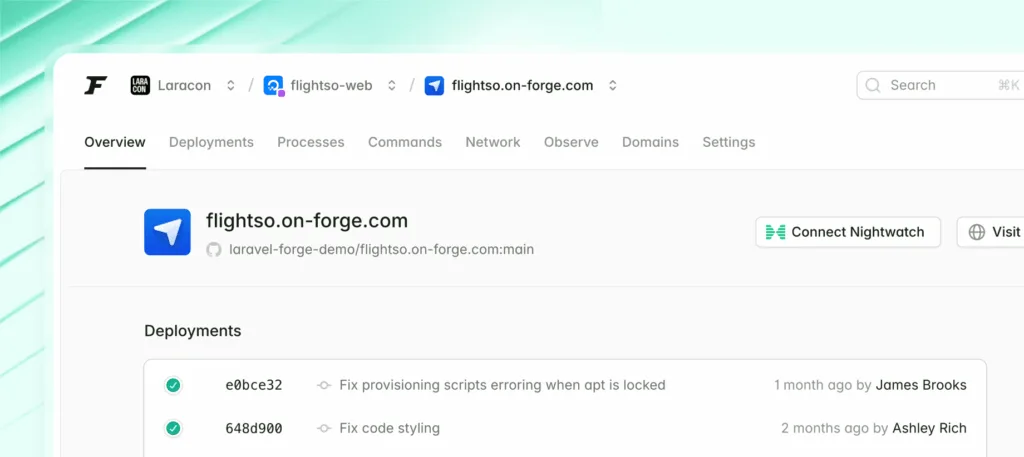
| 25 | Laravel Forge | 38 | Panel, also sells Laravel VPS | No WordPress staging or cloning |
| 26 | Froxlor | 37 | Open source | $0 [open source] |
1. Enhance
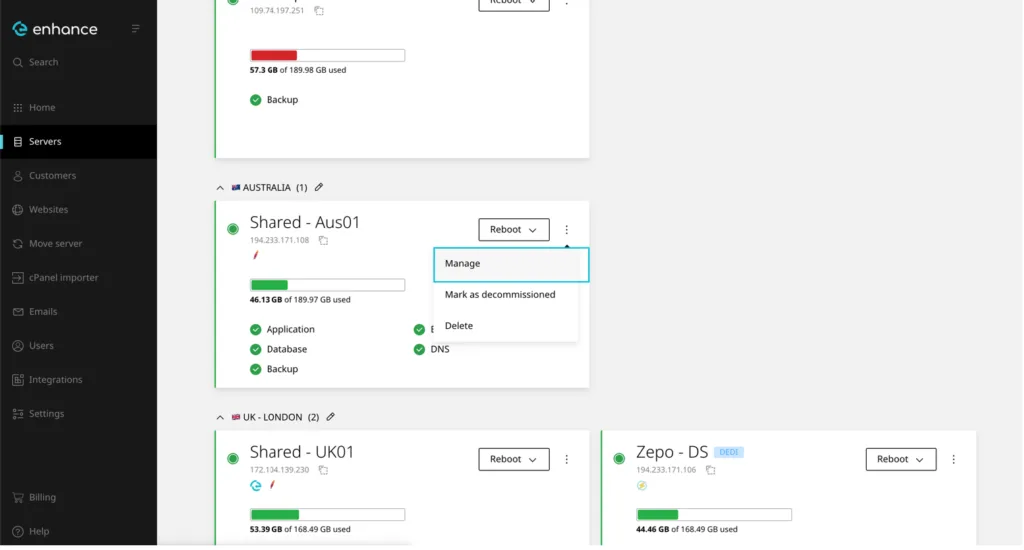
Enhance is the one most site owners haven’t heard of, because it’s sold mainly to hosting companies as a cPanel replacement. It’s priced per website across your whole cluster: $0.15 per site per month, with a $10 minimum. Servers and staging sites aren’t billed. So a single site owner pays $10.
It’s panel only, the stack choice is broad (LiteSpeed, OpenLiteSpeed, Apache or nginx, PHP 5.6 to 8.5, with Redis and a container per site), backups are incremental snapshots to S3-compatible storage with self-service restore, and support is included. The WordPress toolkit does cloning and staging with a push to live.
Servers in an Enhance cluster can be in different locations and at different providers, and the Move website tool moves a site between them. When someone asked on Enhance’s forum in August 2026 how to move from Hetzner to Netcup, Enhance’s answer was “Add the new server to your cluster, install the roles then proceed to move the websites across.” Two limits are worth knowing: moving a site to another server is an administrator’s tool, and between two separate Enhance clusters there’s no clone, only a backup downloaded from one and uploaded to the other. It also wants a fresh Ubuntu 24.04 machine with at least 2 GB of RAM and two cores, and it’s built for running hosting, which is more panel than one blog needs.
2. RunCloud
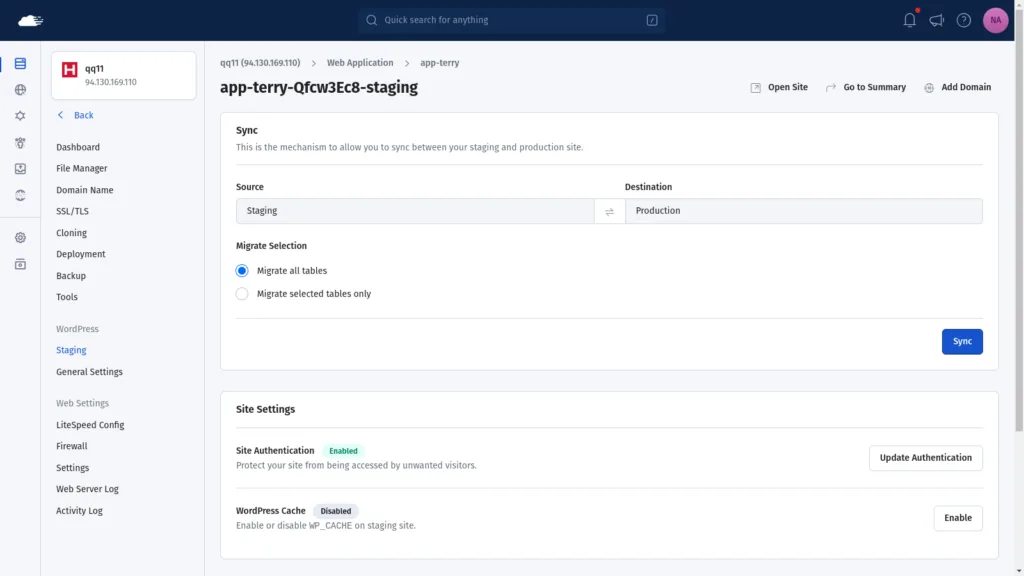
RunCloud does everything on my list, and it only sells the panel.
Staging is one click, and the sync works in both directions with an option to move “all database tables or only the selected tables”. That last part matters for WooCommerce. If orders have come in on live while you’ve been testing on staging, you want to push your settings tables back without overwriting the orders. RunCloud also takes a backup of production before it syncs.
Cloning is the one I wanted to check, because I’d been telling people RunCloud does what GridPane does here. It does. RunCloud’s own guide to moving sites between servers opens with “Whether you’re moving your website to a different cloud provider, or transferring it to an on-premises server”. You clone the web app to any server connected to your account, tick “Clone database”, and repoint DNS. A Hetzner server in Falkenstein and a DigitalOcean droplet in New York are both just servers to RunCloud.
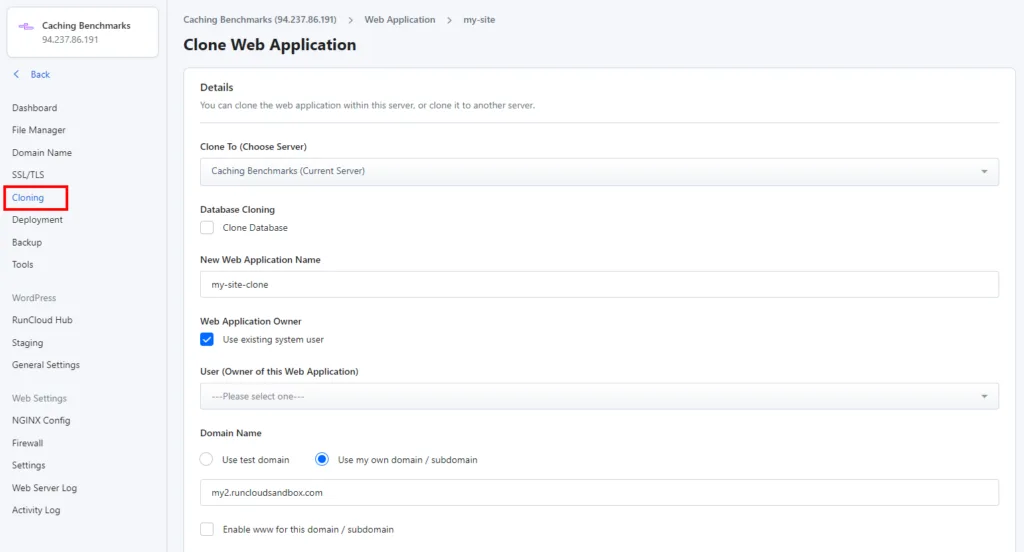
The catch is the tier. Cloning isn’t in Essentials ($9/mo, one server, one staging site). You need Professional at $19/mo, which also lifts you to 50 servers and 10 staging sites. That’s the plan I’d buy.
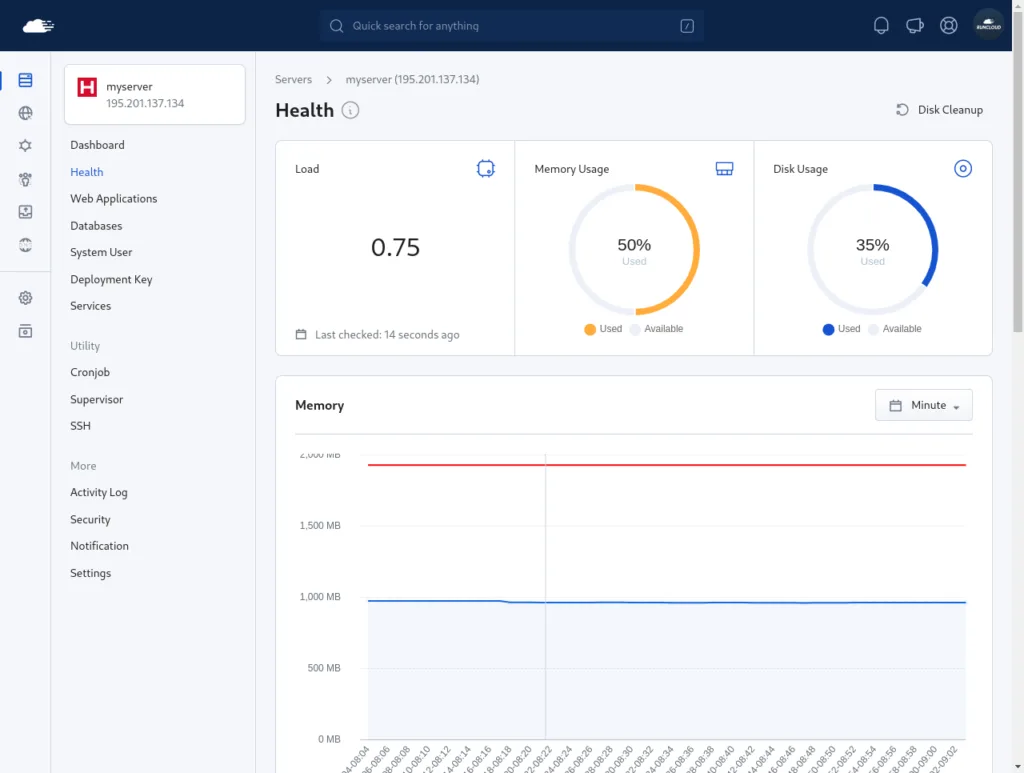
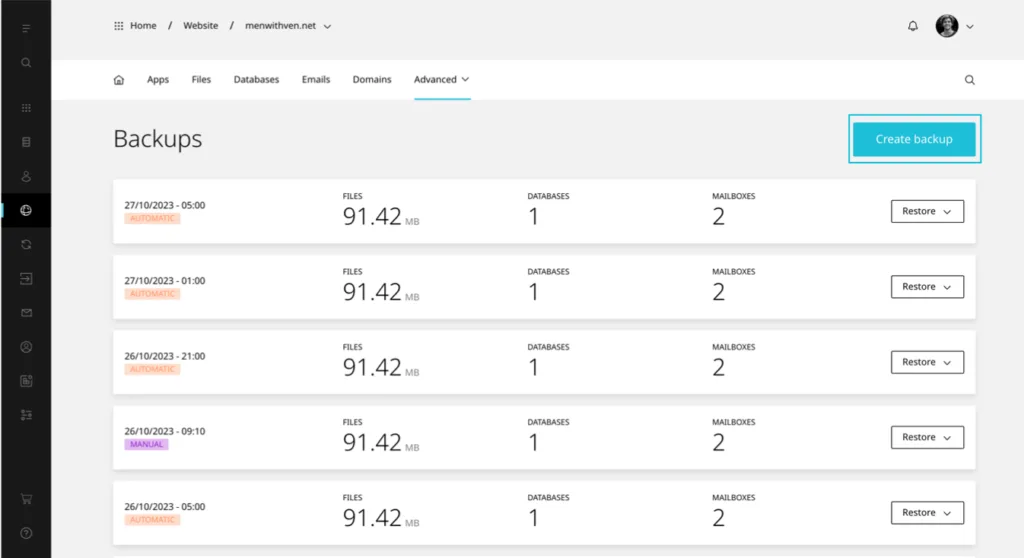
The stack is NGINX by default with OpenLiteSpeed available, multiple PHP versions per server, and RunCloud’s own cache doing NGINX FastCGI and Redis full-page caching plus a Redis object cache. Backups run anywhere from every 12 hours to every 7 days, kept for up to a month, with 2 GB of storage on Essentials and 10 GB on Professional, or your own S3 or SFTP.
Support is by ticket from the dashboard, the same on every plan. RunCloud says you’ll “typically” get a response within 24 hours and a resolution within 72, but it doesn’t publish support hours or promise a response time, which is why it scores 3 there.
3. SpinupWP
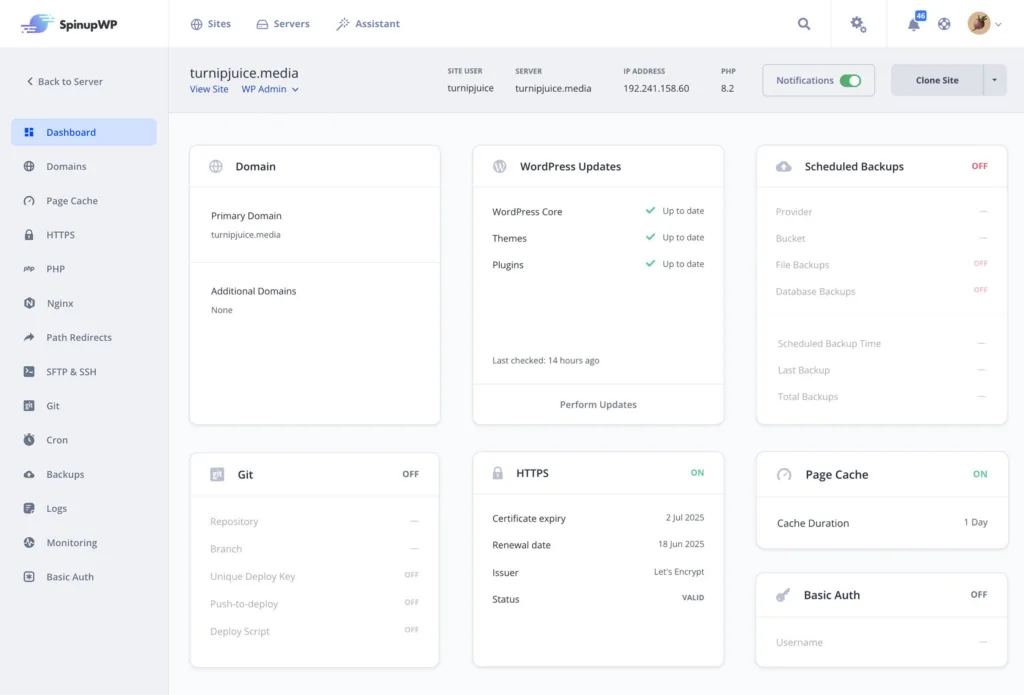
SpinupWP is the closest thing to RunCloud in spirit: panel only, any provider (Vultr, Linode, DigitalOcean and Hetzner are integrated, anything else works), and staging, cloning and backups on the cheapest plan. Essentials is $12 per month for one server, and extra servers get cheaper fast. Clone and Move both go to “another server in your SpinupWP account”, and the account can hold servers from any provider, so moving a site from DigitalOcean to Hetzner is a clone.
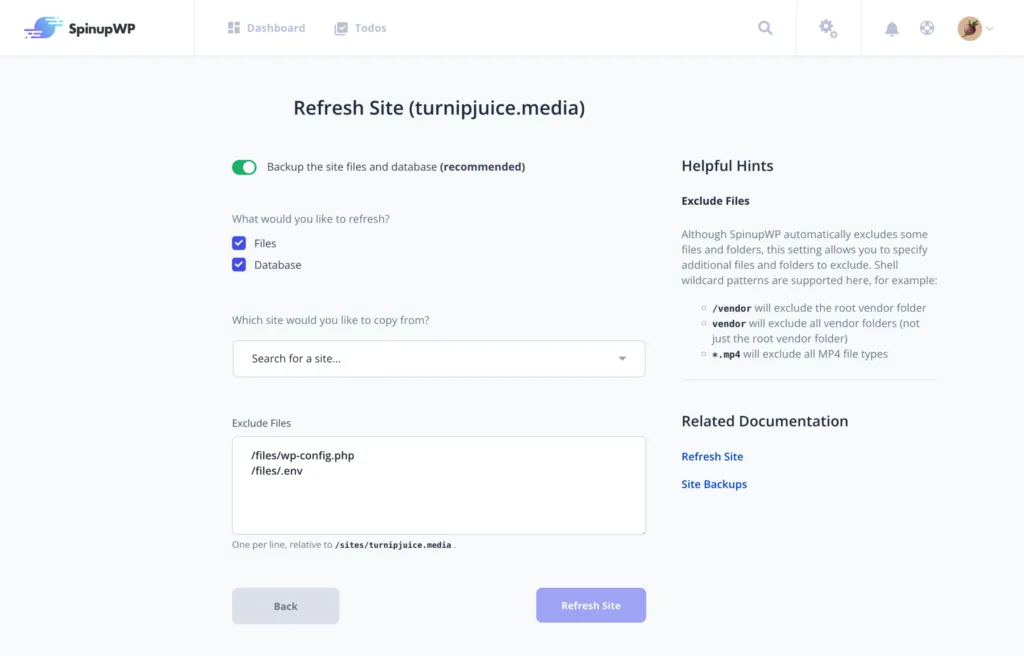
There’s no feature called staging. You clone a site, then use Refresh to copy files, database or both in either direction. It works, but it copies the whole database, so you can’t hold back the orders tables the way RunCloud, xCloud and Plesk let you. Backups go up to four times a day to the storage you supply. Support is email, 2am to 6pm US Eastern, weekdays only.
One history note: SpinupWP came from Delicious Brains, which WP Engine bought in 2022, but SpinupWP was not part of that sale and is an independent company.
4. xCloud
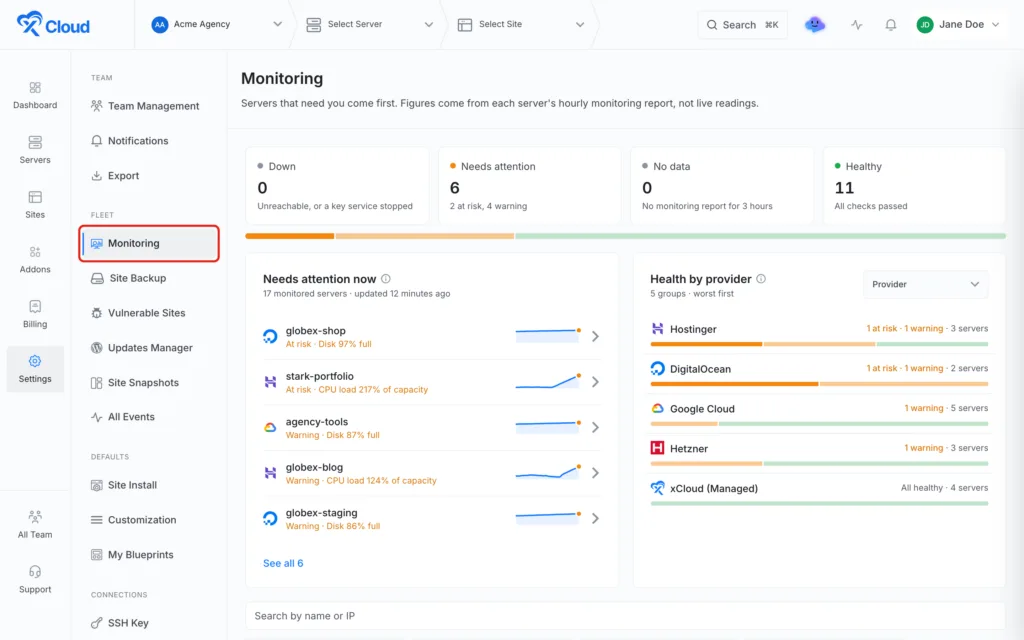
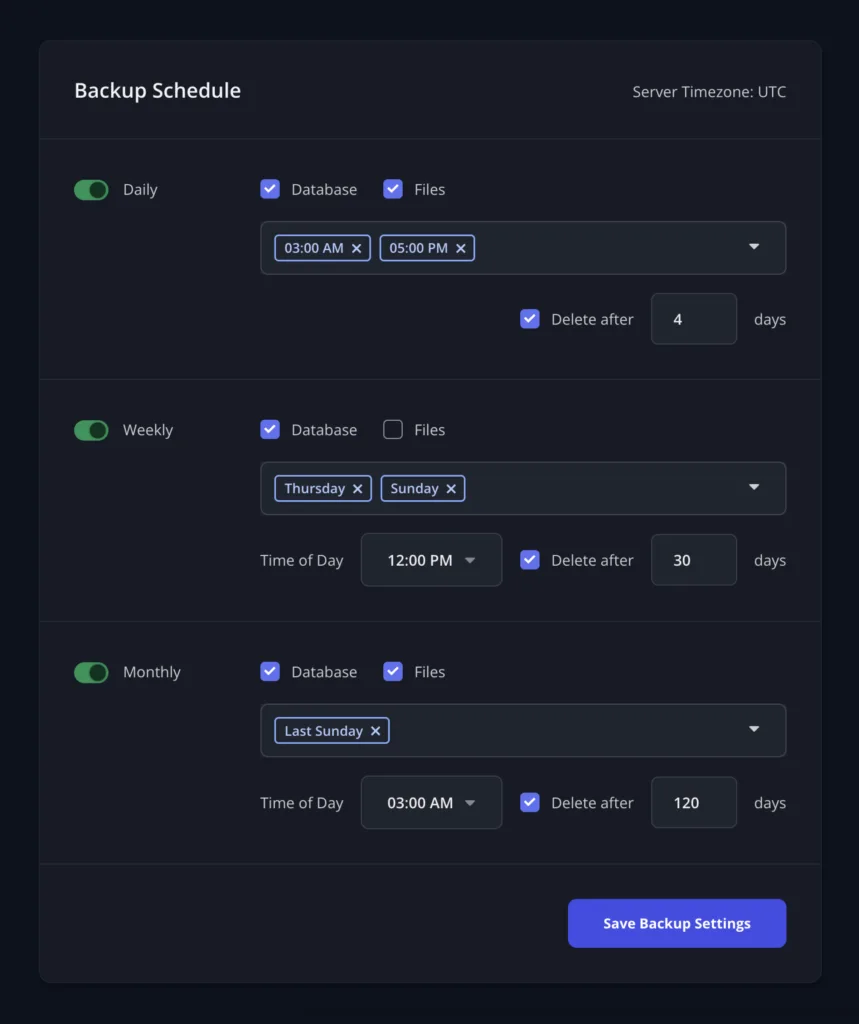
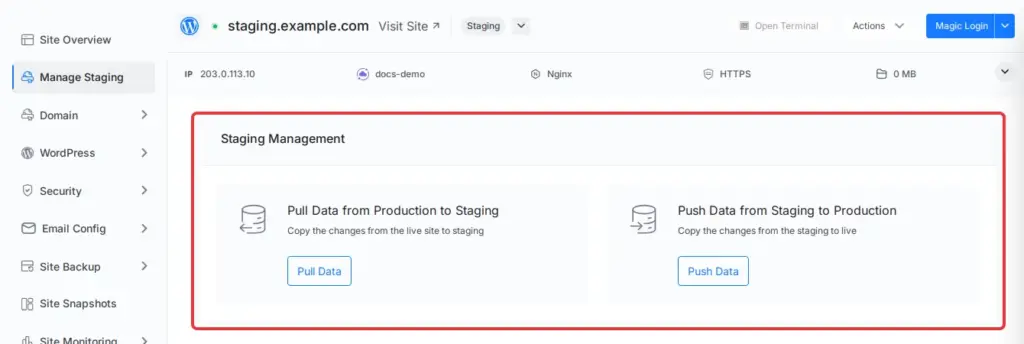
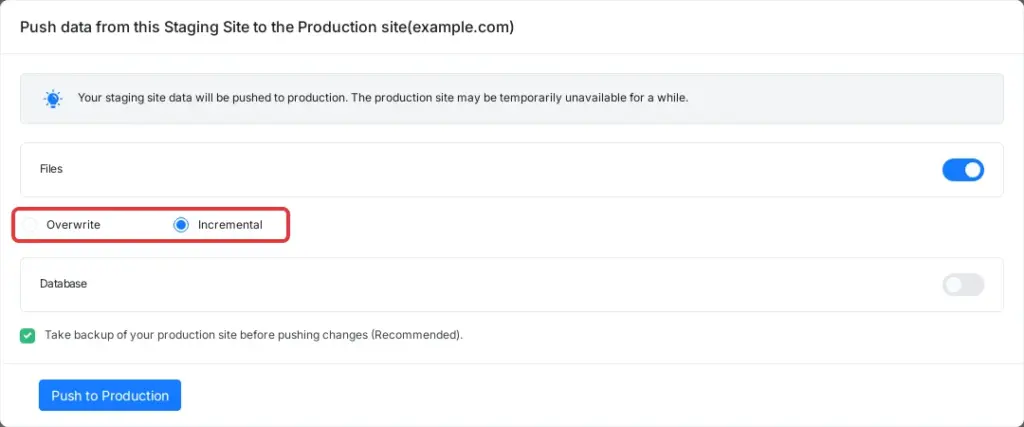
xCloud has the best staging tool I found. Push and pull both ways, incremental or full file copy, and the choice of full database or selected tables in either direction. It’s $5 per server per month for the PRO features, which is the lowest price on this list for all three of staging, backups and cloning. Stack-wise you choose NGINX or OpenLiteSpeed per server, with Redis, full-page cache and an edge cache, and it has 24/7 live chat.
Cloning goes to any server in your team, whichever provider it’s on, and xCloud’s documentation suggests cloning a whole server when you “need to switch to a different cloud provider”. Cloning only works for WordPress sites, which is all this ranking is about.
It drops points on the thing this article is about. xCloud also sells managed servers with the hardware included (its managed plans run on Vultr), so it does have something to gain when you buy a bigger one. You can still bring your own Hetzner, DigitalOcean, Vultr or any Ubuntu server, and nothing forces you onto theirs. It’s a mixed incentive, not a bundled one.
Note that the free tier (first server, up to 10 sites) has no staging, cloning or proper backups, so it doesn’t meet my minimum.
5. EasyEngine
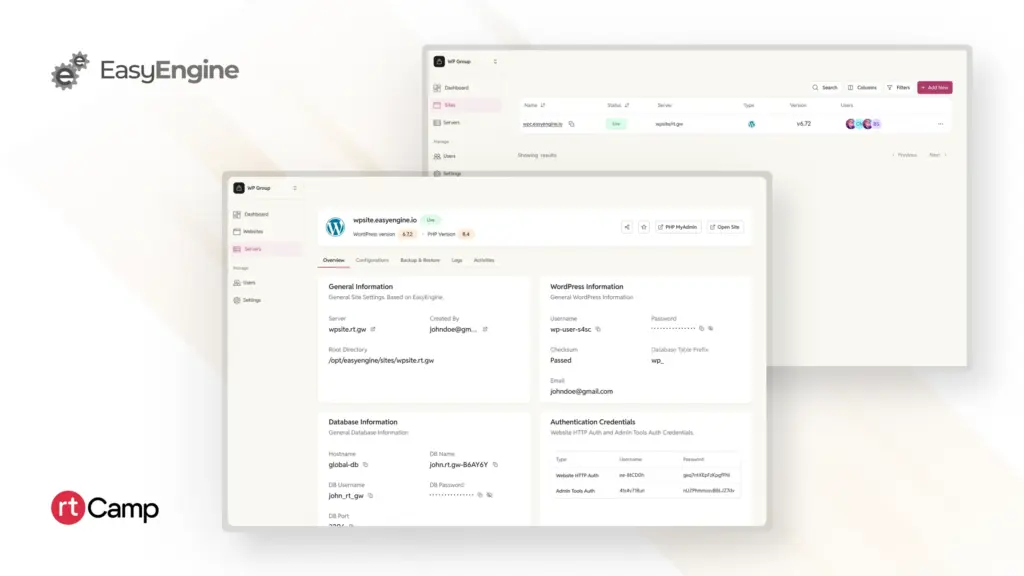
If you’re comfortable on the command line, EasyEngine scores higher than most of the GUI panels for one reason: ee site clone and ee site sync work between servers over SSH, and you can sync files, database or uploads on their own. It’s MIT-licensed, maintained by rtCamp, and had five releases between July and October 2026. Each site runs in Docker with nginx.
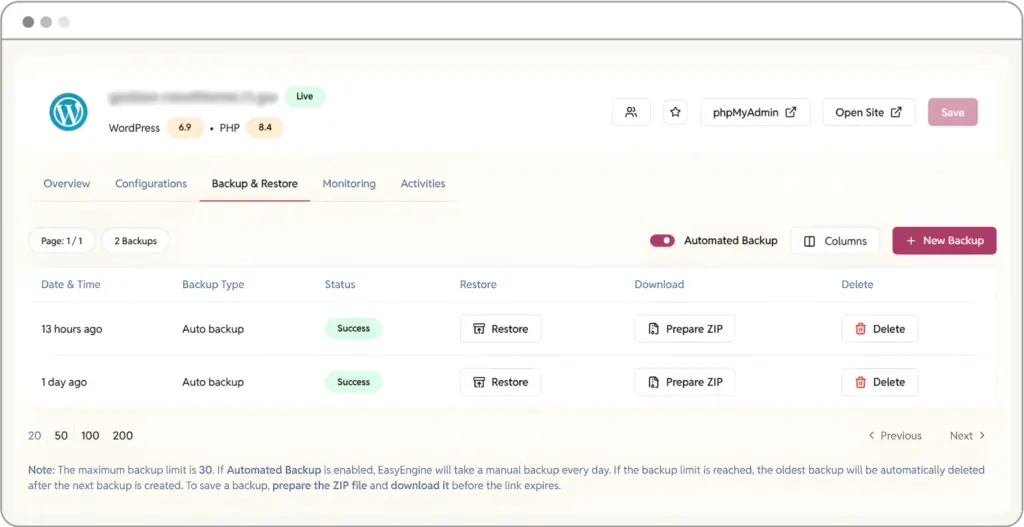
There’s no table-level sync, and support costs extra. If you’d rather have a screen than a terminal, rtCamp also sells the EasyEngine Dashboard, a control panel for sites on your own servers. Its free plan covers 2 sites on 1 server with automated daily backups and one-click restore, and paid plans are priced by the number of sites and servers. For a developer, the free CLI is a solid option. For anyone else, pick something from the top four.
6. Plesk with WP Toolkit
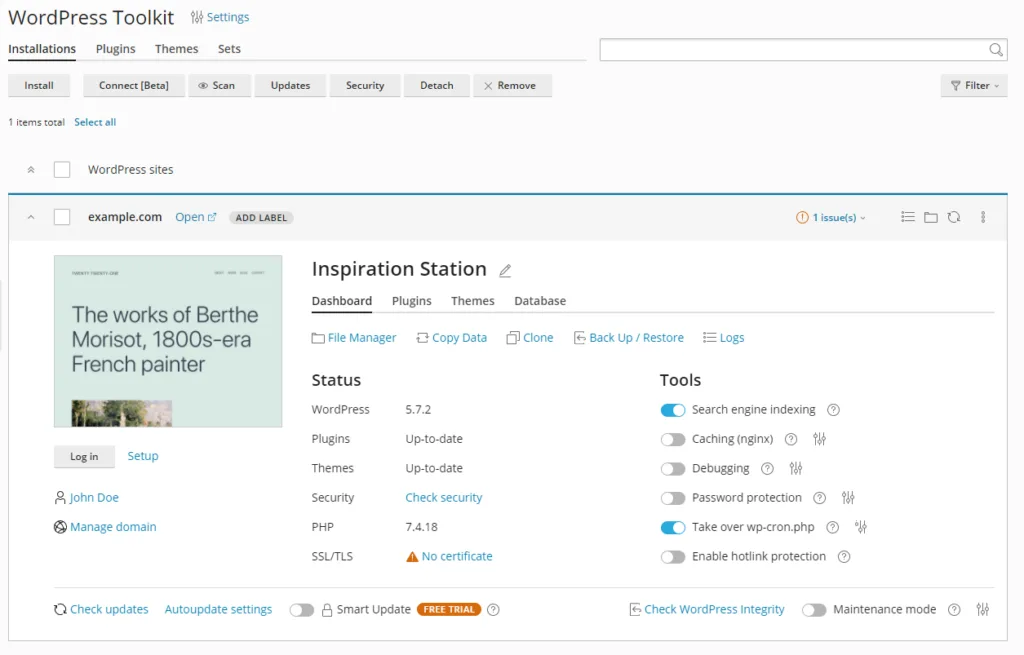
Plesk’s WP Toolkit has the most thoughtful staging sync on this list. By default it copies “all tables” except posts, postmeta, users and usermeta, which is exactly the content you don’t want to overwrite on live. You can also pick individual tables.
But you have to pay for the right edition. Web Admin (€14.29/mo on a VPS) only gets the cut-down WP Toolkit with no cloning, staging or sync. Web Pro at €25.49/mo is the realistic minimum. WP Toolkit’s Clone only copies a site to another domain or subdomain on the same server. To move a site to a different server you use Plesk’s Site Import, which pulls a site from any server, even one without Plesk. The stack is Apache with nginx in front, which is fine but not what I’d choose for a busy WooCommerce store. Plesk is owned by WebPros, the same company as cPanel.
7, 9 and 10. FlyWP, Ploi and ServerAvatar
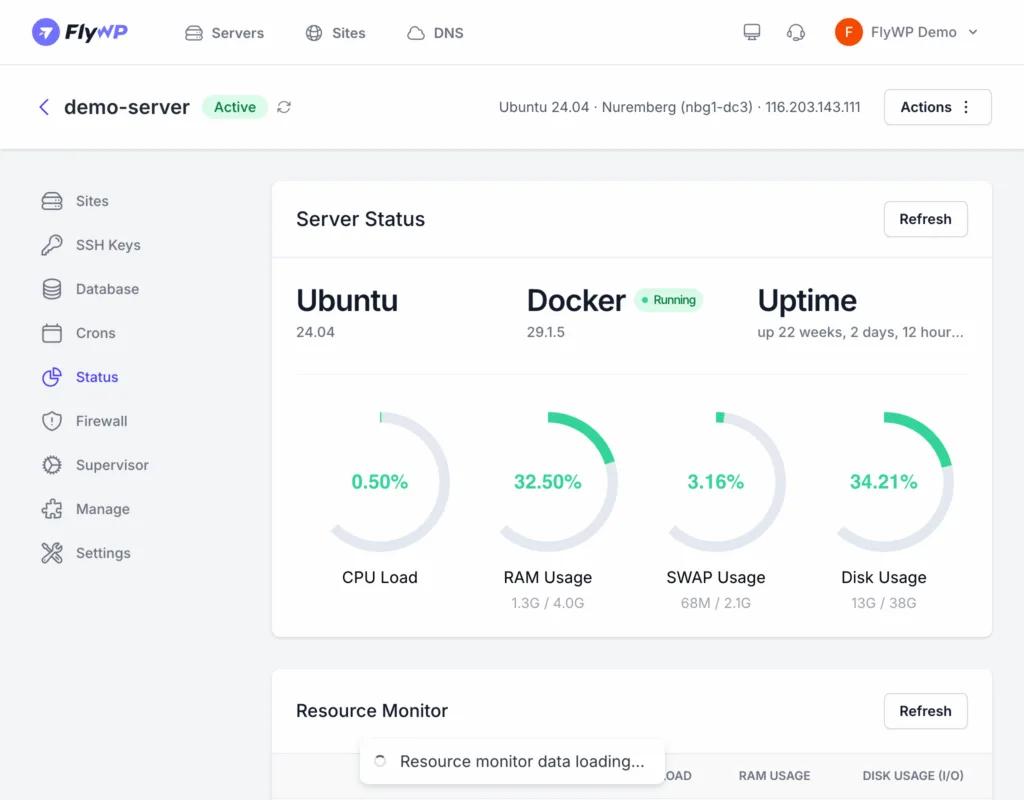
FlyWP is $5 per server, runs each site in its own Docker container with nginx or OpenLiteSpeed, and does hourly backups and cloning to another server. It can clone a site to another server, so you can always make a copy to test on, but its staging has no push to live and no pull from live. Two-way staging has sat on FlyWP’s public roadmap as “Planned” since May 2024. It also resells managed servers.
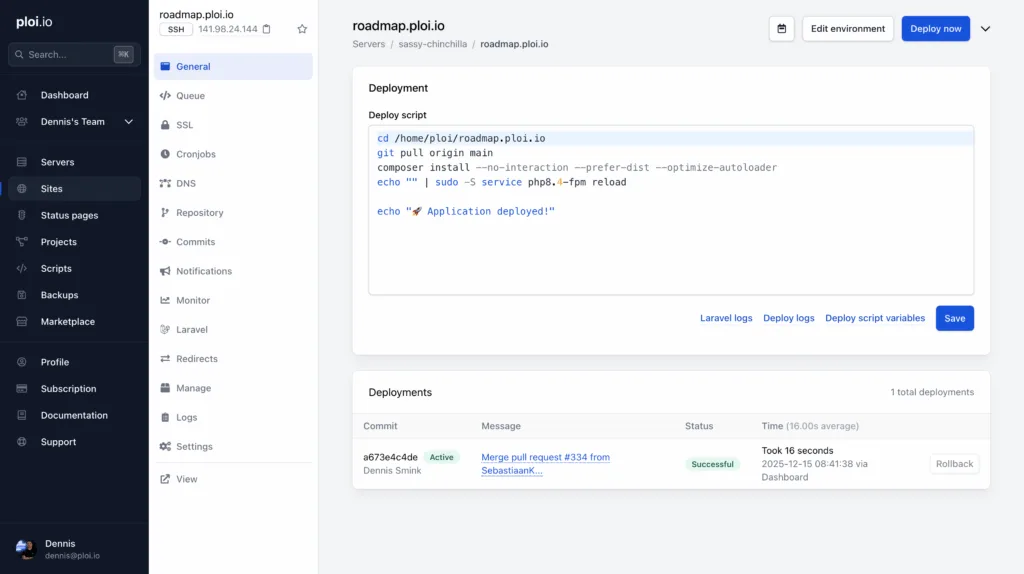
Ploi is panel only and good value at €13 / $16 a month for ten servers with cloning and backups. Its staging is weaker: you can only switch it on when you add a site, so an existing site has to be deleted and recreated to get it, and deploying to production pushes files only. Ploi has said on its roadmap that the database side is “a whole different (and time-consuming) story”, so neither direction moves the database. It’s NGINX only and doesn’t offer 24/7 support.
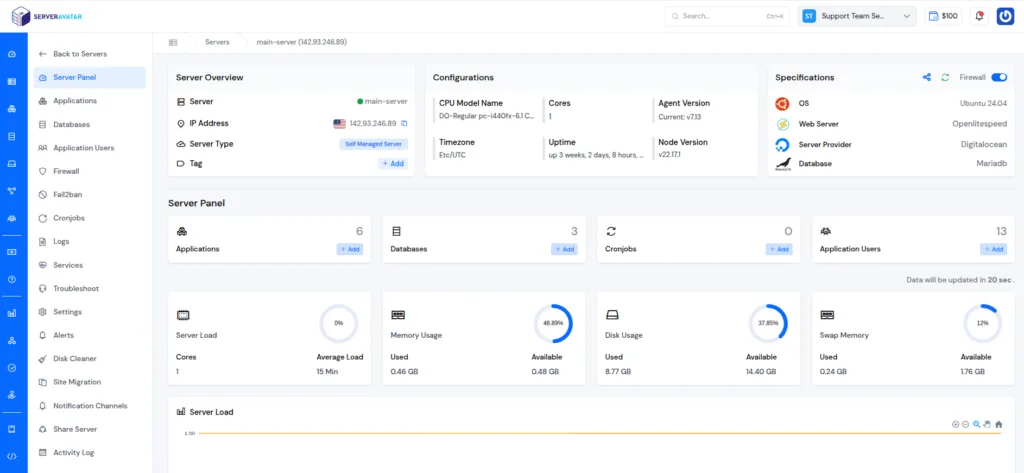
ServerAvatar has one-click push and pull staging (files and database go together, and neither its documentation nor its API offers a choice of tables), hourly backups and cloning, from $12/mo for five servers. Like xCloud and FlyWP it also sells managed servers.
11. Cloudways
On features alone Cloudways would sit near the top: proper staging that pushes and pulls in both directions with a choice of full database or selected tables, cloning an app or a whole server “to another provider with the location you want”, backups included, 24/7 chat. It loses 20 points because you can’t bring your own server. You buy a DigitalOcean, Vultr, Linode, AWS or Google server through Cloudways, at Cloudways’ price.
That’s the trade I described at the top. If you want no server responsibility, it’s a good one. The cheapest server, 1 GB on DigitalOcean, is $11 a month with the hosting included. Staging is free on every plan, and off-site backup storage is $0.033 per GB.
17. cPanel with WP Toolkit
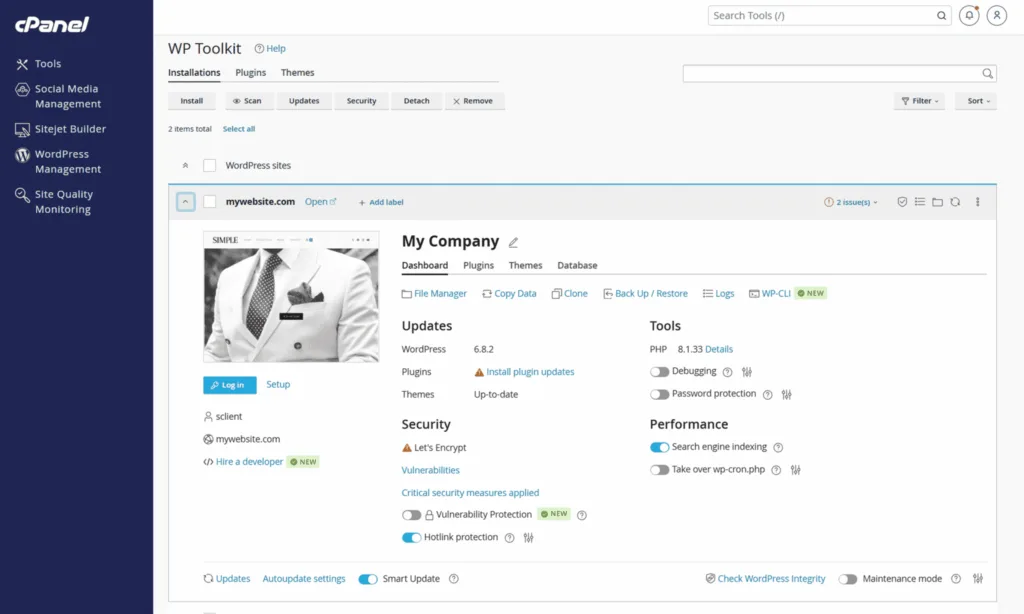
cPanel still has excellent backups, and WP Toolkit, including its staging and cloning, is included with the licence at no extra cost. As in Plesk, WP Toolkit only clones on the same server. Moving to another server is cPanel’s Transfer Tool, which copies whole accounts and needs root, so it doesn’t give you a quick copy of one site to test on. What sinks it is price and stack.
In October 2019 a cPanel Solo licence was $15 a month. In November 2026 it’s $29.99. The licence that used to give you unlimited accounts on a VPS for $20 is now $35.99 for five accounts. And the default web server is Apache, with nginx as an optional reverse proxy and LiteSpeed sold separately. If your host bundles cPanel, it works. I wouldn’t buy a licence for a new server.
The free and open-source tools
CyberPanel runs OpenLiteSpeed and is free. The clone and staging tools are in a paid add-on, but the free panel can pull chosen sites across from another CyberPanel server, which gets you a copy in another data centre. In October 2024 around 22,000 CyberPanel servers were hit by ransomware through command-injection flaws (CVE-2024-51567 and CVE-2024-51378). Patch it, put it behind a firewall, or pick something else.
Webinoly and WordOps are command-line tools with very good stacks (nginx, Redis, FastCGI cache, current PHP) and no staging. WordOps went 20 months without a release before picking up again in August 2026.
SlickStack is the only command-line tool here with a real staging site. It keeps a staging copy on a subdomain that refreshes from live on a schedule, and ss push staging sends it back. But that push replaces the whole live database, so any orders taken since the last refresh are lost, and staging shares live’s uploads folder. It’s built for one WordPress site per server (nginx, FastCGI cache, Memcached rather than Redis), its default backup is one hourly database dump that overwrites itself, and its root cron job re-downloads SlickStack’s own scripts from the project’s public mirrors unless you switch that off. Support for your own server is a free Discord; the company behind it, LittleBizzy, will also run a SlickStack server for you as managed hosting.
Centmin Mod is a shell menu for AlmaLinux and Rocky Linux with a very complete stack: its own nginx build, PHP 7.4 to 8.5, MariaDB, Redis, and a WordPress installer that sets up Cache Enabler, Redis or FastCGI page caching. Its backup script sends files and databases to S3, Backblaze B2, DigitalOcean Spaces or Cloudflare R2 (you schedule it yourself with cron), and menu 21 moves a whole server to another Centmin Mod server. There’s no staging, and it’s one developer, George Liu, plus a community forum.
Trellis, from the Roots team, is a set of Ansible playbooks, and it’s the only tool here that treats staging as its own server: you describe staging and production in config files and deploy code to each with git, with rollback. What it doesn’t do is move data. There’s no command to pull the live database or uploads into staging, and no backups at all, so you’d add both yourself. The stack is excellent (nginx, FastCGI cache, Redis or Memcached, Ubuntu 26.04), but deploys expect a Bedrock site, so an existing WordPress install has to be restructured first. Roots sells consulting and support packages if you want help setting it up.
HestiaCP is a well-maintained GPL fork of VestaCP with good incremental backups, but no staging or cloning. You move a site by backing it up and restoring it on the other server.
CloudPanel has a fast stack (NGINX, Varnish, Redis 8) and costs nothing, but it has no staging or cloning, backups go off-server only and are restored by hand, support is a Discord server, and it isn’t open source: the licence lets the vendor revoke it.
aaPanel is cheap and flexible. Scheduled site and database backups to S3, Google Drive, Google Cloud Storage or FTP are free, so is cloning a site to a new domain on the same server, and a migration plugin moves sites to another server. One-click staging is in Pro ($198 a year), and aaPanel doesn’t document a way to push staging back to live. It’s under a custom licence that isn’t open source, and it has a history of security flaws including WebSocket hijacking of its web SSH terminal.
Virtualmin, ISPConfig and Froxlor: hosting panels, not WordPress panels
These three are free graphical panels, but they’re built for running hosting for other people, with mail, DNS and reseller accounts, and WordPress is just one more thing you can put on them.
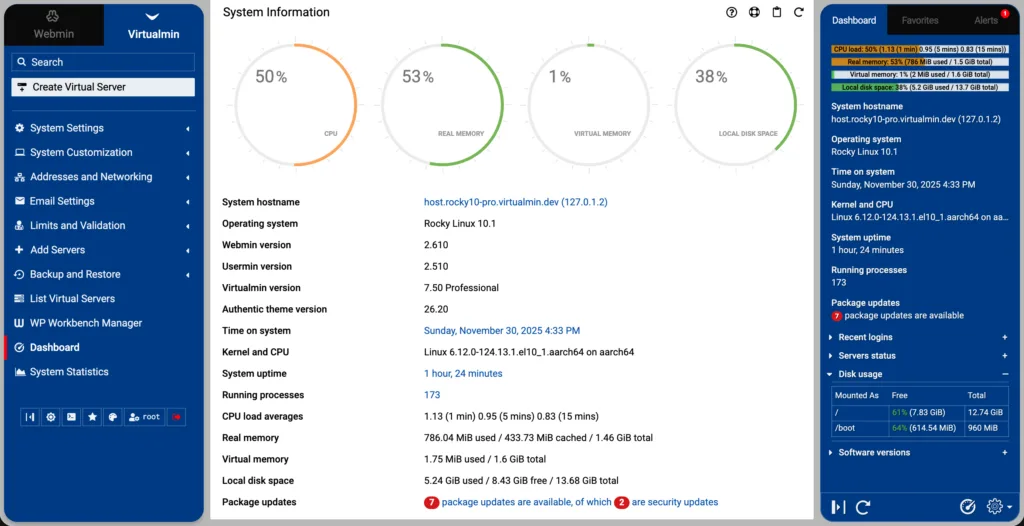
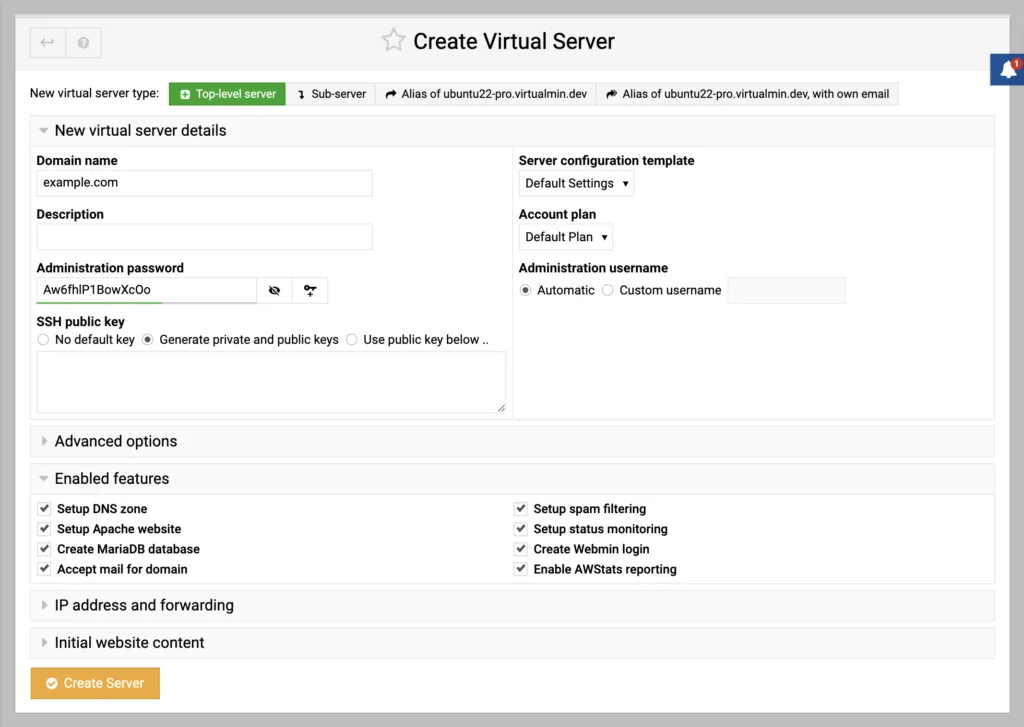
Virtualmin GPL, the free edition of a panel built on Webmin, does better on backups and moves than I expected. Scheduled backups can be differential and go to Amazon S3 or any S3-compatible storage (Google Cloud, Dropbox, Backblaze’s own API and Azure are Pro-only), there’s a Clone button, and Transfer copies a whole site to another Virtualmin server over SSH. There’s no staging, the default stack is Apache with no Redis or page cache management (nginx is an install option), and the WordPress tools worth having (WP Workbench) are Pro-only, from $7.50 a month. Webmin runs as root and had an authenticated root command-injection flaw in December 2024 (CVE-2024-12828), so keep it updated and don’t leave port 10000 open to the internet.
ISPConfig is a BSD-licensed panel for Apache or nginx with decent per-site backups: daily, weekly or monthly, a set number of copies kept, and restore from the panel. They go to a local folder, though, so getting them off the server means mounting remote storage yourself. There’s no staging or site cloning, moving servers needs the paid Migration Toolkit (€79 a year), and its WordPress Manager is still in beta with no price announced. An SQL injection in its remote API (CVE-2026-61518, rated high) was fixed in 3.3.2 in September 2026.
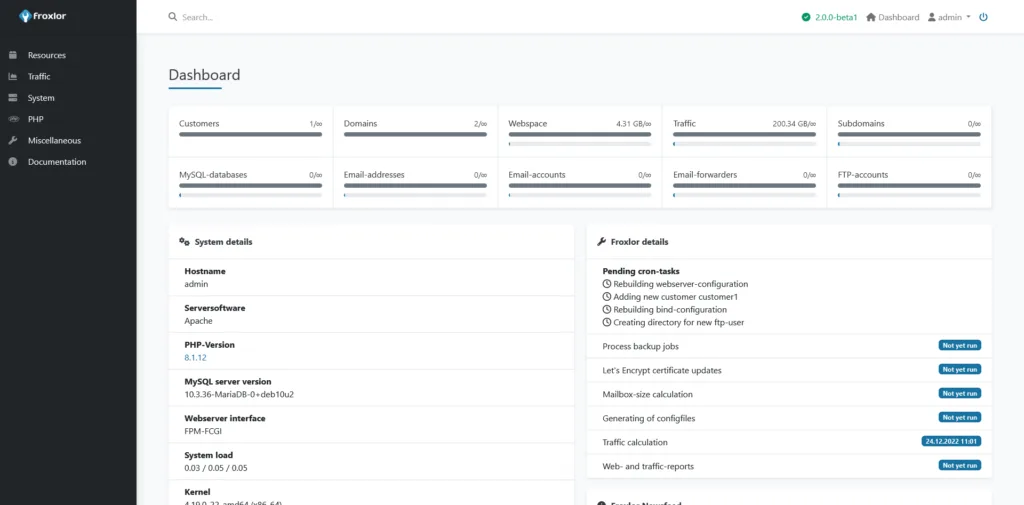
Froxlor has almost nothing a WordPress site owner needs: no staging, no cloning, no app installer, and its backup is an export a customer requests into their own home folder, with no restore. It also published 46 security advisories on GitHub in 2026, six of them critical, many about a customer getting admin or root access, which matters most when other people share your server. It’s last on this list.
19. GridPane: what’s changed
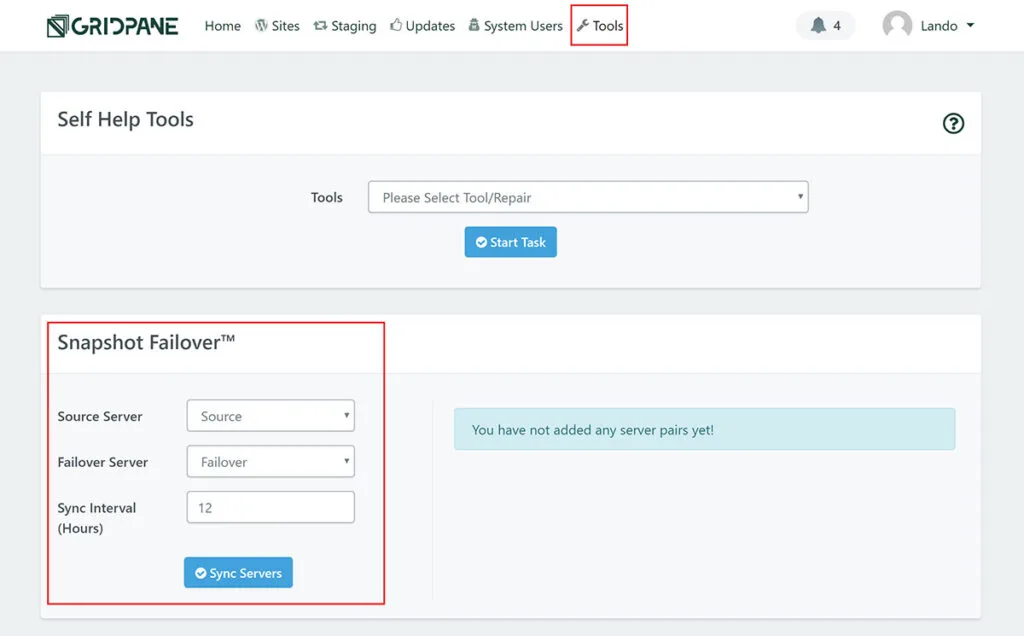
GridPane is the panel I’ve recommended to agencies for years, and on stack and cloning it’s still one of the best. Its Snapshot Failover, which clones every site on a server to a second server on a schedule as often as hourly, is the thing I’d point to when I say “cloning to another data centre”.
But if you sign up today, you can’t buy the panel I was recommending. GridPane withdrew its Panel and Developer Plus plans from sale in November 2024. A new account gets one of two things:
- Core, which is free, up to 25 sites, but only on Vultr servers (“Custom servers are only available on paid plans”), with no support beyond a community forum. GridPane’s own plan comparison shows no staging and no backups, local or remote, on Core.
- PeakFreq, where GridPane leases you Vultr servers by the hour, from $18.08 a month for 1 vCPU and 2 GB. In GridPane’s own words: “Like Cloudways … we pay for these servers directly, and then lease them to you.”
GridPane’s CEO was candid about why when he announced it: the company makes “significantly more profit” from managed hosting than from the panel, and it will “look more and more like a fully managed hosting solution”. That’s a fair business decision, and existing customers keep their plans. But for a new customer it’s now exactly the panel-plus-hosting model I’m arguing against, and that’s why it ranks 19th here. If GridPane starts selling its full panel for any server again (it has said add-ons are coming “in the near future” since 2024), it goes straight back near the top.
24 and 25. Coolify and Laravel Forge
Both are good at what they’re for, which isn’t WordPress. Coolify runs the official WordPress Docker image with no page cache, staging or cloning, though it does back up on a schedule to S3: databases, and since August 2026 the site’s files too. Forge has no WordPress staging or site cloning and only backs up databases on its $39 plan. I’ve included them because people ask.
What I’d buy
For my own sites I’d pick RunCloud or Enhance, on a server I rent myself from Hetzner in Europe, or Vultr everywhere else. The panel company only sells the panel, the server is yours, and every setting that matters for speed is yours to change. A lot of my customers run RunCloud, and it’s the easier of the two for one person with a handful of sites. Enhance scored highest, and it’s the better fit if you host sites for other people.
If you’d rather not run a server yourself, it comes down to what you want most.
- Affordable managed hosting: GridPane’s PeakFreq. GridPane leases you a Vultr server in whichever Vultr data centre you choose and looks after it for you, from $18.08 a month for 1 vCPU and 2 GB, with ticket support, monitoring, staging, cloning and backups to your own S3 or Backblaze B2. You give up bringing your own server, and in return you never have to manage one, and you get one of the best stacks on this list.
- The best support: WP Engine. You pay more for the hardware than you would on your own server, but its support is real WordPress people who’ll look at your site rather than read you a script.
For which server to put underneath, see Choosing WordPress hosting for performance.
What this ranking doesn’t measure
This ranking is features, prices and business models. It doesn’t say which panel’s stack is fastest, because I haven’t measured it and I’m not going to repeat other people’s numbers. To find out for your own site, try a panel on a staging copy and measure the pages that matter before you move.
Prices and features checked 4 November 2026 from each vendor’s own pricing pages and documentation, on 6 November 2026 for the six open-source tools added that day, and on 7 November 2026 for everything those pages left unclear.

Comments