Trashed items and deletes
Super Speedy Imports has separate actions for records missing from a feed, records associated with an import, saved import configurations and draft previews. Check which action you need before removing anything.
Remove records associated with an import
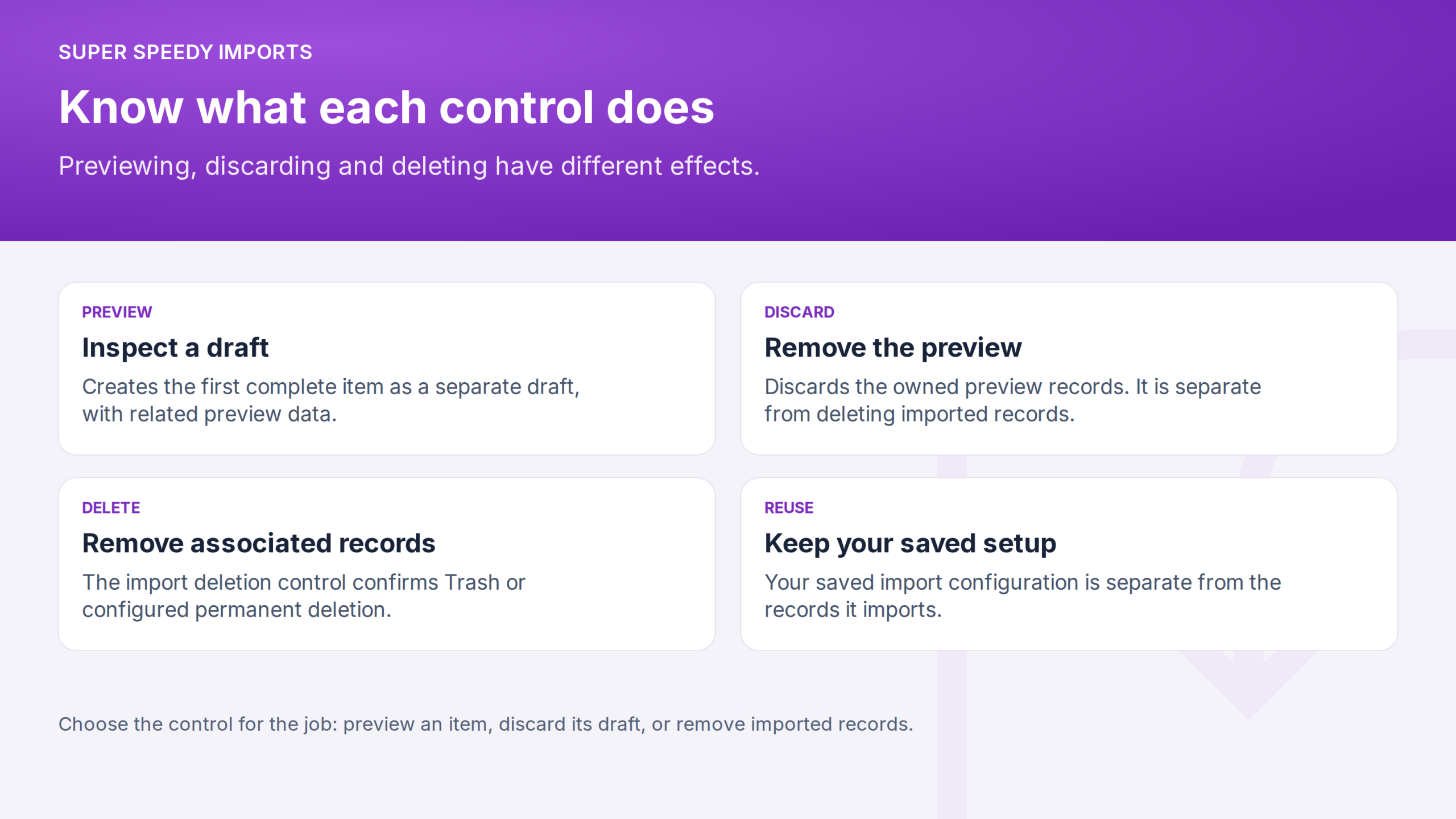
Use the record-removal control on the selected import. Its confirmation explains the scope and whether the records will go to Trash or be permanently deleted. Read it before continuing.
The association is not a list of only newly created records. It can include records that the import updated. Removal doesn’t restore their earlier field values.
The selected import’s summary carries a Delete all … loaded by this import link, with the number of items it covers. It moves those items to the Trash, or deletes them permanently when the import has Force delete (skip trash) on. On the command line, wp ssi <id> --delete-all does the same, whatever What should this import do? is set to.
Delete all removes every item the import loaded, sold or not: Keep sold items applies only to delete-missing.
Delete missing items during a run
Delete missing items compares the source with the records in the import’s scope: any item this import loaded that has no row in the current file is removed. Use it when the file represents the complete set that should remain. A price-only file or a truncated feed should not decide which catalogue items survive.
Check the import’s delete/trash settings before enabling it. Moving an item to Trash and permanently deleting it have different recovery consequences; do not assume every removal operation uses Trash.
- Off unless you turn it on. Delete missing items and Force delete (skip trash) are off for any import that has never saved them, including imports created with
wp ssi createor the MCPcreate-importability. The configuration screen shows them as off and saving keeps them off. - Nothing identified, nothing deleted. A file with a header but no data rows stops the run with
No rows found in CSVbefore anything changes, in the browser, on a schedule and in WP-CLI. If a run identifies no items in its file, for example because every row was skipped for a blank identifier, delete-missing does not run and the run fails withDelete missing items did not run: this run identified no items in the source file (every row was empty or skipped), so every item this import loaded would have been removed. Nothing was deleted. - The Run review shows the choice. Before a run starts, Items missing from your file states whether this run keeps them or removes them, and whether removal goes to the Trash or is permanent.
Keep sold items
On product imports, Keep sold items (ticked by default beneath Delete missing items) spares any product or variation that is a line item of a completed, processing or on-hold order. A sold variation also protects its parent product. It reads the orders themselves, so a product sold a minute before the import is protected. It works with High-Performance Order Storage and with the older posts-table order storage, reading whichever one WooCommerce is using.
An order that is pending, cancelled, failed or fully refunded does not protect its products. A partly refunded order stays completed and keeps protecting them.
See what a run removed
The completion screen, the run’s History record and the email report show how many items the run moved to the Trash and how many it deleted permanently. The counts cover only delete-missing and Delete all, not items an import updated.
Inspect and restore trashed items
The import shows live and trashed counts separately. Trashed records retain their association with the import, so an overall count alone doesn’t tell you how many are visible in the store.
Review records in WordPress Trash before restoring them. A later matching import can also bring trashed records back according to the mapped publication status. Check the status mapping as well as the matching identifier before re-running a file.
Permanently delete this import’s trashed items
Delete trashed items permanently runs a removal pass restricted to trashed records associated with the selected import. It permanently removes those records. It isn’t a restore action.
The optional WP-CLI equivalent uses --trashed-only with --delete-all on the selected import. You can use the WordPress control without a terminal.
Delete a configuration or discard a preview
Deleting an import definition removes its configuration, history and staging data, not the imported records. Don’t use it when your goal is to remove catalogue content.
Use the preview’s Discard control to remove the draft content owned by that preview. This is separate from removing records associated with a full import.
Removing records is not Undo. Super Speedy Imports doesn’t restore overwritten field values through these controls. Use a suitable backup or a checked corrective import when you need earlier values back.
Further reading
- Import stages – Understand where deletion fits into the import pipeline.

Written for Super Speedy Imports 3.40.0.

Comments