Import modes and what each stage writes
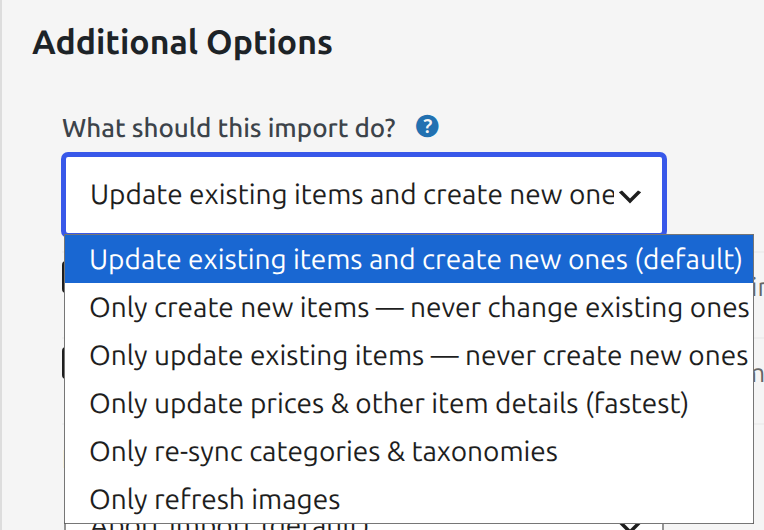
The import mode decides what an import is allowed to change on your site. You choose it on the import’s settings screen under Additional Options > What should this import do?, and the review dialog that opens when you press Run shows the same control so you can change it at the last moment. The mode is saved with the import, so scheduled and command-line runs use it too.
Available since 2.53.
Which mode should I choose?
Two of the six modes never create anything: Only update existing items and Only update prices & other item details. Both skip every row in your file that does not match an item already on your site. The difference is how much of a matched item they change.
- Update existing items and create new ones (the default): updates every item the file matches and creates the rest. It is also the only mode that can remove items, when Delete missing items is ticked.
- Only create new items: creates the items that are not on your site yet. Items the file matches keep their title, content, prices, stock, categories, attributes and images exactly as they are.
- Only update existing items: changes everything you have mapped on the items it matches: post fields such as title, content, excerpt, status and slug; categories, tags and attributes, including the option a variation is offered as on the product page; the product type; the featured image and gallery; and metadata such as prices and stock. It never creates an item.
- Only update prices & other item details: changes only metadata on the items it matches: prices, stock, sale dates, SKU and any other mapped item details. Stock status and the out-of-stock catalogue marker follow the stock you import, and variable products get their price range recalculated. Titles, content, status, slugs, categories, tags, attributes and images are never changed, even when they are mapped, and it never creates an item. Skipping those stages is what makes it the fastest mode.
- Only re-sync categories & taxonomies: replaces the categories, tags and other mapped taxonomy terms of the items it matches, and changes nothing else.
- Only refresh images: re-attaches or downloads the featured image and gallery of the items it matches, and changes nothing else.
Example: your supplier sends a daily file of SKUs and stock counts, it includes products you do not sell, and you only want the stock counts updated. Choose Only update prices & other item details. Rows for SKUs you do not have are skipped, and your titles, descriptions, categories and images are left alone. Choose Only update existing items instead when the same file should also correct titles, descriptions, categories or images.
Choosing Only update existing items for a stock feed whose file also maps the title, description or categories. That mode writes every mapped field, so the supplier’s titles and categories replace yours. For a stock or price feed, use Only update prices & other item details, which never touches them.
The rest of this guide is the detail behind those promises: which stages run in each mode, how a row is matched to an existing item, and what each stage writes.
Which stages each mode runs
Stages run in this order. A stage listed for a mode only runs when your import registers it: create posts needs at least one mapped post field such as the title, and so does update post fields except in Full mode, where it runs to restore matched items from the trash and to report rows it cannot create; the metadata stages need at least one mapped metadata field, image stages need a mapped image field, the variable-product stage needs variable-product settings, and the attribute stage needs a mapped attribute. Product-only stages never exist for a posts import.
| Stage | Full | Only create new | Only update existing | Only update prices/details | Only re-sync taxonomies | Only refresh images |
|---|---|---|---|---|---|---|
Fetch source and load the file (load-csv) | Yes | Yes | Yes | Yes | Yes | Yes |
Resolve and create terms (import-taxonomies) | Yes | Yes | Yes | No | Yes | No |
Match existing items (match-existing) | Yes | Yes | Yes | Yes | Yes | Yes |
Make new slugs unique (handle-slug-duplicates) | Yes | Yes | No | No | No | No |
Update post fields (update-posts) | Yes | No | Yes | No | No | No |
Create posts (insert-posts) | Yes | Yes | No | No | No | No |
Update metadata (update-postmeta) | Yes | No | Yes | Yes | No | No |
Add missing metadata (insert-postmeta) | Yes | Yes | Yes | Yes | No | No |
Featured image, library match (attach-existing-images) | Yes | Yes | Yes | No | No | Yes |
Featured image, download (upload-remote-images) | Yes | Yes | Yes | No | No | Yes |
Assign taxonomy terms (upsert-relationships) | Yes | Yes | Yes | No | Yes | No |
Link variations to parents (process-variable-products) | Yes | Yes | No | No | No | No |
Assign product type (assign-product-type) | Yes | Yes | Yes | No | No | No |
Gallery images (attach-gallery-images) | Yes | Yes | Yes | No | No | Yes |
Rebuild product attributes (fix-attributes) | Yes | Yes | Yes | No | No | No |
Delete missing items (process-deletes) | Yes | No | No | No | No | No |
Variable parent price range (sync-variable-prices) | Yes | Yes | Yes | Yes | Yes | No |
After Import jobs (post-import-jobs) | Yes | Yes | Yes | Yes | Yes | Yes |
Two consequences are easy to miss. Delete missing items only runs in Full mode, whatever the checkbox says. The After Import jobs run in every mode, including Only refresh images.
A command-line run can name its own stage list (wp ssi <id> load-csv,match-existing,insert-posts), which replaces the saved mode for that run: every named stage runs, including one the mode leaves out, in the order of this table. A name that is not one of the import’s stages stops the command before anything runs. The --delete-all flag overrides everything and runs only the delete stage.
Matching: how a row becomes “new” or “existing”
Matching happens once per run, in match-existing, and every later stage trusts its answer.
- The matching key. For products the default is the SKU. GTIN / UPC / EAN / ISBN is offered as an alternative. For posts and pages the default is the post title, with post title plus category as an alternative. Post ID matches a column of WordPress IDs from this site against each item’s ID; IDs that match nothing follow the import mode, and new items receive new IDs. The paid edition also offers Custom, a combination of post fields, metadata keys and taxonomies; a row matches only when every chosen field is equal. Every metadata key or taxonomy in a custom identity must be mapped in the import, or the run stops before loading.
- The comparison is exact text. The value in the file is compared with the value stored on the item. Leading zeros, trailing spaces and punctuation are part of the value. Whether upper and lower case match depends on your database collation; WordPress’s default collation treats them as equal.
- Post status. Every matching option ignores status: published, private, draft, pending and trashed items all match. Variations match by their own SKU, and a Post title, Post title + category or Custom combination of fields also finds product variations. When a live item and a trashed item have the same combined value, the run stops at matching with “matches more than one existing item” and names them.
- A blank identifier. Only an empty cell is blank; a cell holding
0is a value. The option Rows with a blank unique identifier decides. Abort import (the default) stops the run during file loading, before anything is written, and lists the offending row numbers. Skip blank rows and continue drops those rows, records each one as a warning in the run’s Issues list, and imports the rest. - The same identifier on two rows of the file. The run stops during file loading and names the rows. There is no setting to allow this. The message suggests a custom identity when it can see which column differs between the colliding rows.
- An identifier that matches more than one item on the site. The run stops at matching and lists the item IDs. Clean up the duplicates, or choose an identifier that is unique on the site, then re-run.
- Items in the trash. A trashed item that matches (see Post status above) is treated like any other matched item. In Full mode, and in Only update existing when the import maps at least one post field, it is restored: its status becomes the mapped status, or Published when status is not mapped; the
__trashedsuffix WordPress adds to the slug is removed. In the other modes it stays in the trash while its metadata, terms or images are written. - An item deleted while the run is in progress. If an item is permanently deleted after matching but before a stage writes to it, that stage skips it. No metadata, term or image rows are created for the missing item.
- An item created by something else while the run is in progress. If a matching item appears after matching but before creation, the row is treated as an existing item from that point on. It is not created twice and receives no creation defaults.
Stage by stage
For each stage: which modes run it, what it writes for a new row, what it writes for an existing (matched) row, and what it leaves alone.
Load the file (load-csv)
Runs in every mode. Reads every row into a staging table and applies the mappings. Nothing is written to your site. Cells that are not valid UTF-8 are converted from common Windows and ISO encodings. A cell that begins with an apostrophe followed by =, +, -, @, a tab or a carriage return has that apostrophe removed, because spreadsheet exports add it to stop the cell being read as a formula. Named value transforms configured on the import (for example, translating a WooCommerce Published column’s 1, 0 and -1 into publish, private and draft) are applied here. Rows whose every cell is blank are ignored.
For a product import, once loading finishes the WooCommerce creation defaults listed under “Defaults for new items” are filled into every top-level row that does not supply them. They are held in staging only; whether they reach the site is decided per row by the metadata stages below. Variation rows never receive them.
Resolve and create terms (import-taxonomies)
Runs in Full, Only create new, Only update existing and Only re-sync taxonomies. For every mapped taxonomy, each term named in the file is looked up and created if missing. Hierarchical paths (Men > T-Shirts) create each level under its parent. Terms are only ever added at this stage; none are deleted or renamed. When two spellings in the file sanitise to the same slug, Duplicate term-slug behaviour decides: Alert (the default) reports them as errors, Merge joins them onto whichever term was created first.
Match existing items (match-existing)
Runs in every mode. Writes only to the staging table: each row is stamped with the ID of its matched item, or left blank. When the slug is not mapped, a matched row’s staged slug is replaced with the item’s current slug, so a later stage can never regenerate it.
Make new slugs unique (handle-slug-duplicates)
Runs in Full and Only create new. Applies only to rows that will be created and only when the slug is not mapped. A derived slug that collides with a slug on the site, or with another new row, is numbered (shirt, shirt-2, shirt-3). Matched items are never touched. A mapped slug is written exactly as supplied, with no numbering, even when it duplicates another item.
Update post fields (update-posts)
Runs in Full and Only update existing. For each matched item:
- Every mapped post field is written: title, content, excerpt, status, author, parent, menu order, slug, comment and ping status, password, and so on. A blank mapped cell writes a blank, so a mapped but empty excerpt clears the excerpt.
- The modified date and modified GMT date are always set, to the mapped value or the current time.
- Post date, post date GMT and GUID are never changed on an existing item, even when mapped.
- The slug is written only when it is mapped. A title change on its own never changes the URL.
- An unmapped field is not in the statement at all and cannot change.
- Some mapped-but-blank cells receive a default rather than a blank before this stage: status becomes Published, author becomes the user who created the import, parent and menu order become 0, comment status becomes open, ping status becomes closed.
Never runs for new rows; those are created in the next stage. The superspeedyimports_filter_updates filter can exclude items from this stage.
Create posts (insert-posts)
Runs in Full and Only create new, for rows with no match. Each new item receives every mapped post field plus the defaults listed under “Defaults for new items”. The post type is the template’s type (post, page, your custom type, or product). Matched items are not touched.
Update metadata (update-postmeta)
Runs in Full, Only update existing and Only update prices/details. For each mapped metadata key, every matched item that has a row for that key has its value replaced. Rules:
- A blank mapped cell writes a blank, so a mapped but empty sale price clears the sale price.
- A key that is not mapped is not in the run and cannot change.
- Creation-only keys (see below) are skipped even when the item has a value, unless the key is mapped or derived from a mapped field.
- Keys derived from mapped fields are treated as mapped: the active price from regular and sale price; manage stock and stock status from a stock quantity; downloadable and its file list from a download URL; review count from rating count.
- The tracking key
ssi_updatedis set to this import’s ID on every matched item.
The superspeedyimports_filter_updates_postmeta filter can exclude items from this stage.
Add missing metadata (insert-postmeta)
Runs in Full, Only create new, Only update existing and Only update prices/details. Writes a metadata row only where the item has no row for that key. Which rows are eligible depends on the mode:
- Full: mapped and derived keys are added to both new and matched items where missing. Creation-only keys are added to new items only.
- Only create new: every key is added to new items only. Matched items receive nothing, not even the tracking keys.
- Only update existing and Only update prices/details: mapped and derived keys are added to matched items where missing, so an item that never had a price row gains one. Creation-only keys are not added at all.
In Only update prices/details, on a product import that maps a stock quantity or stock status and does not map Product Visibility, this stage also brings the out of stock catalogue marker in line with the imported stock status, so Hide out of stock items from the catalog shows restocked products and hides sold-out ones. Items whose stock status the file does not supply keep their marker.
A blank cell never creates a row, with two product exceptions: _stock and _tax_class are written even when blank, because WooCommerce expects those rows to exist. The tracking keys ssi_updated and _ssi_unique_item_id are added where missing under the same mode rules.
Creation-only keys are the WooCommerce fields the plugin supplies as constants when you do not map them: virtual, downloadable, sold individually, tax status, tax class, backorders, download limit, download expiry, total sales, review count, average rating, stock (blank), manage stock and stock status. They are written when an item is created and never added to or changed on an existing item unless the key itself, or a field it is derived from, is mapped.
Featured image (attach-existing-images, upload-remote-images)
Run in Full, Only create new, Only update existing and Only refresh images, when a featured image is mapped. A row is eligible only when it resolved to an item that still exists; in Only update existing and Only refresh images an unmatched row never causes a download. In Only create new, matched items are excluded, so their featured image and gallery are preserved.
- A remote URL that has been downloaded before (by any import) is reused from the media library; it is not downloaded again.
- A URL that has not been seen is downloaded once, however many rows share it, and attached to every row that names it. A failed URL is retried up to a cap within the run and listed in the run’s Issues.
- A local filename (no
//in the value) is matched against the media library by filename; with Thorough image search on, also by title and by filename within the URL, linking one featured image per item and preferring an exact file name. - The featured image is replaced when the mapped image resolves to a different attachment than the item has; an unchanged image is left alone. An item whose row has no image value keeps its current featured image.
- Mapped alt text, title, caption and description are set only on an image the run downloads for the first time, each taken from the first row of that image with a value. An image already in the Media Library keeps its text, so edits made there survive later rows and runs.
- Only the first URL of a pipe- or comma-separated list is used as the featured image.
Assign taxonomy terms (upsert-relationships)
Runs in Full, Only create new, Only update existing and Only re-sync taxonomies. For each mapped taxonomy, the terms of every item in the file (new and matched, in every one of those modes) are removed and replaced with the terms in the row. A row with a blank cell in a mapped taxonomy ends with no terms in that taxonomy. A taxonomy that is not mapped is never touched. A taxonomy that is listed in the mapping but has no source is skipped entirely. Assign every category level (on by default for new imports) assigns each level of a hierarchical path; off assigns the deepest term only. In Only update existing, the stage also rewrites each matched variation’s attribute selector value from its new variation attribute term (for example Blue to Green), so the product page offers the new value; in Full and Only create new, Link variations to parents does this.
Two additive rules follow. Any hierarchical taxonomy that is not mapped and has a default term configured (the default category for posts, the default product category for products) has that default assigned to every item in the file that has no term in it, except product variations, which never receive the default product category. When Polylang is active, items with no language receive the default language.
For products, unless you map Product Visibility as a taxonomy, the plugin derives the visibility terms from three sources, each owning its own terms: the Featured virtual field owns featured; the Catalog Visibility virtual field owns hidden from catalogue and hidden from search; the stock status (mapped, or derived from a mapped quantity) owns out of stock. Only the terms of a source you supply are written or removed. A file that maps none of them leaves every visibility term on matched items exactly as it was; a file that maps only a stock quantity updates the out-of-stock marker and leaves featured and hidden untouched. Only update prices/details does not run this stage; it keeps the out-of-stock marker in step in the add-missing-metadata stage instead.
Link variations to parents (process-variable-products)
Runs in Full and Only create new when the import has variable-product settings. Sets the parent of every variation row, marks parents as variable, converts variation rows to the variation post type, rewrites each variation’s attribute selector metadata for the mapped variation attributes, and rebuilds each parent’s default attributes from its first variation in the file. In Only create new this structural upkeep applies to matched rows too, which is what lets a top-up add variations to an existing parent; titles, prices and other metadata of matched items are not changed.
Assign product type (assign-product-type)
Runs in Full, Only create new and Only update existing. New rows with no type become simple. The product type term is rewritten for every row in the file that carries a type. A matched row with no type in the file keeps its type, and a matched product that has no product type at all becomes simple.
Gallery images (attach-gallery-images)
Runs in the same modes as the featured image stages, when gallery images are mapped. New URLs are downloaded once each; known URLs are reused. The item’s gallery is then replaced with the mapped set, in file order, so a changed gallery replaces the previous images rather than adding to them. An item whose row has no gallery value keeps its current gallery. Mapped gallery titles, alt text, captions and descriptions follow the featured image rule: they are set only on an image the run downloads for the first time, from the first row of that image with a value. A failed gallery download is tried up to three times, and a URL used as both the featured image and a gallery image is downloaded once.
Rebuild product attributes (fix-attributes)
Runs in Full, Only create new and Only update existing, when at least one attribute is mapped. Rebuilds the product attribute data for every item in the file from the mapped attributes. Attributes that exist on the item but are not mapped are not carried over; keep every attribute in the mapping when you re-import.
Delete missing items (process-deletes)
Runs in Full mode only, and only when Delete missing items is ticked. Selects every item whose ssi_updated tracking value is this import’s ID and which is not in this file. Because matched items receive this import’s ID when updated, “loaded by this import” means created or updated by it, whichever import created the item. Products with a completed, processing or on-hold order are excluded when Keep sold items is ticked. A run that identified no items in its file (for example, every row was skipped for a blank identifier) deletes nothing and fails with a message saying so. The superspeedyimports_filter_deletes filter can exclude more.
With Force delete ticked the items, their metadata, their term assignments, their WooCommerce attribute lookup rows and their WooCommerce product lookup rows are removed permanently, in one transaction. Otherwise the items are moved to the trash and their attribute lookup rows are removed.
The command-line --delete-all flag, and the import’s own delete controls, select every item carrying this import’s ID regardless of the file, ignore Keep sold items and the filter, and always delete permanently. --trashed-only (and Delete trashed items permanently) narrows that to items in the trash plus their variations.
Variable parent price range (sync-variable-prices)
Runs in every mode except Only refresh images, for product imports. For every variable parent touched by the run, the parent’s own regular and sale price rows are deleted and one price row is written per distinct published, visible child price, so price sorting and filtering see the current range.
After Import jobs (post-import-jobs)
Runs in every mode. See “After import” below.
Blank, zero and missing
- Not mapped: the field is absent from the run and cannot change on any item. New items receive the default for it, if one exists.
- Mapped, blank cell, post field: the blank is written, except for the fields that receive a default instead (status, author, parent, menu order, comment status, ping status, dates).
- Mapped, blank cell, metadata: an existing row is cleared to blank; a missing row is not created (except stock and tax class on products).
- Mapped, cell holds 0: zero is a value. It is written and it creates missing rows. A stock quantity of 0 turns stock management on and sets the item out of stock.
- Mapped to a fixed Value that is empty: behaves like a blank cell on every row, which is the intended way to clear a field across the file.
- Mapped taxonomy, blank cell: all terms in that taxonomy are removed from the item.
- Mapped image, blank cell: the item’s images are left alone.
Defaults for new items and how to change them
When a field is not mapped, a new item receives these values. An existing item never receives them.
Every post type
| Field | Default |
|---|---|
| Status | Published |
| Publish date | Current time |
| Author | The user who created the import; an import created by wp ssi create without --user uses the site’s first administrator |
| Slug | Derived from the title, numbered if it collides |
| Comment status | Open |
| Ping status | Closed |
| Parent, menu order | 0 |
| Password, excerpt, content | Blank |
| Category | The site’s default category, when the taxonomy is not mapped |
WooCommerce products (top-level products only; variations receive none of these)
| Field | Default |
|---|---|
| Product type | Simple, or Variable when it has variations in the file, or External when a product URL is mapped |
| Virtual, Downloadable, Sold individually | No |
| Tax status | Taxable |
| Tax class | Standard (blank) |
| Backorders | No |
| Download limit, download expiry | Unlimited (-1) |
| Total sales, review count, average rating | 0 |
| Manage stock | No, or Yes when a stock quantity is mapped |
| Stock status | In stock, or derived from the quantity when a stock quantity is mapped |
| Low stock threshold | None, so the store’s setting applies, unless the threshold is mapped |
| Active price | The sale price when it is lower than the regular price, otherwise the regular price |
| Product category | The store’s default category, when the taxonomy is not mapped |
| Visibility | Visible in catalogue and search, not featured, in stock, unless Featured, Catalog Visibility or stock is mapped |
| Featured image, gallery | None |
To change a default for the items you create, map the field. Three sources are available on every mapping row: a column of your file; Value, a fixed value written to every row (for example, draft for Status, or yes for Virtual); or, in the paid edition, a PHP function that returns the value per row. A mapped field is also written to existing items, so if you want a value on new items only, run the file in Only create new mode, or use a function that returns an empty value for rows you do not want to change.
There is no filter that changes a creation default. The filters below change which rows are written or add fields to the mapping screen; they do not alter what an unmapped field receives.
Developer filters
Each filter is applied by the plugin at the point described. Add them from a small plugin or your theme’s functions.php.
superspeedyimports_filter_stages_to_run ($stages, $config, $template). The stage list for the run, keyed by stage name, after the mode has been applied. Remove or add keys. Runs for the browser, command-line and scheduled runners.
add_filter('superspeedyimports_filter_stages_to_run', function ($stages, $config, $template) {
    unset($stages['attach-existing-images'], $stages['upload-remote-images'], $stages['attach-gallery-images']);
    return $stages;
}, 20, 3);
superspeedyimports_filter_updates ($where, $import_id). An SQL fragment appended to the post-field update. p is the posts table, import the staging table.
add_filter('superspeedyimports_filter_updates', function ($where, $import_id) {
    return $where . " AND p.post_status <> 'private'";
}, 10, 2);
superspeedyimports_filter_updates_postmeta ($where, $import_id). The same for every metadata update. pm is the postmeta table, import the staging table.
add_filter('superspeedyimports_filter_updates_postmeta', function ($where, $import_id) {
    return $where . " AND pm.post_id NOT IN (101, 102)";
}, 10, 2);
superspeedyimports_filter_deletes ($where, $import_id). Appended to the delete-missing selection. pm is the postmeta row carrying the tracking value; pm.post_id is the candidate item. Not applied to --delete-all.
add_filter('superspeedyimports_filter_deletes', function ($where, $import_id) {
    return $where . " AND pm.post_id NOT IN (101, 102)";
}, 10, 2);
superspeedyimports_template_mappings ($mappings, $template). The field definitions shown on the mapping screen. Add a metadata key so it can be mapped without typing it.
add_filter('superspeedyimports_template_mappings', function ($mappings, $template) {
    $mappings['post_meta']['_supplier_code'] = array(
        'description' => 'Supplier code', 'primary' => false, 'source' => '_supplier_code', 'data_type' => 'TEXT',
    );
    return $mappings;
}, 10, 2);
superspeedyimports_value_transforms ($transforms). Named per-column cell translations, applied while the file is loaded. Add your own and name it in the import’s value transforms.
add_filter('superspeedyimports_value_transforms', function ($transforms) {
    $transforms['upper'] = function ($value) { return strtoupper(trim((string) $value)); };
    return $transforms;
});
superspeedyimports_after_import_tasks ($tasks, $template). The After Import registry. A task you add appears in the After Import section, is saved with the import and runs after the data stages.
add_filter('superspeedyimports_after_import_tasks', function ($tasks, $template) {
    $tasks['acme-reindex'] = array(
        'label'        => 'Rebuild Acme search index',
        'group'        => 'other',
        'detect'       => function () { return defined('ACME_VERSION'); },
        'run'          => function ($template, $value) { acme_reindex(); return array('indexed' => 1); },
        'cli'          => 'wp acme reindex',
        'browser_safe' => true,
    );
    return $tasks;
}, 10, 2);
superspeedyimports_image_source_url ($url, $post_id). The URL actually fetched for an image. The value in the file stays the image’s identity for reuse; only the download location changes. Return an empty string to skip the image; the skip is recorded in the run’s Issues.
add_filter('superspeedyimports_image_source_url', function ($url, $post_id) {
    return str_replace('https://supplier.example/', 'https://cdn.example/', $url);
}, 10, 2);
superspeedyimports_allow_private_image_hosts ($allow, $url, $ip, $host). Image hosts that resolve to a private or reserved address are refused unless this returns true.
add_filter('superspeedyimports_allow_private_image_hosts', function ($allow, $url, $ip, $host) {
    return $host === 'images.internal';
}, 10, 4);
superspeedyimports_uid_postmeta_whitelist ($keys, $template). The metadata keys the Custom identity builder offers for products.
add_filter('superspeedyimports_uid_postmeta_whitelist', function ($keys, $template) {
    $keys['_supplier_code'] = 'Supplier code';
    return $keys;
}, 10, 2);
superspeedyimports_decode_html_entities_in_terms ($decode). Return true to decode HTML entities in term names before they are created, so Brand & Co and Brand & Co become one term.
Three actions are useful alongside these: superspeedyimports_attachment_created ($attachment_id, $url, $post_id) fires once per image the run downloads; superspeedyimports_posts_inserted ($post_ids, $import_id, $template) fires with the IDs of the items just created; superspeedyimports_after_import_stages ($template) fires when the stage loop finishes.
Edge cases
- A product is permanently deleted while the import is running. Stages that reach it afterwards skip it. No orphan metadata, term or image rows are written.
- A title changes. The URL does not. The slug is rewritten only when the slug field is mapped.
- A mapped slug duplicates another item’s slug. It is written as supplied. No numbering is applied to mapped slugs.
- Only update existing, and the item has never had the mapped key. The row is created with the file’s value. Creation-only keys are still not added.
- Only create new, and every row matches. Nothing on the site changes. Post fields, metadata, tracking keys, images, taxonomy terms and attributes of matched items are untouched. The one exception is a matched variable product that receives new variations from the same file: its attribute terms and attribute data are rebuilt so the new variations work.
- A price-only file against products that manage stock. Manage stock and stock status are not changed. Total sales, ratings, virtual and downloadable flags are not changed.
- A file maps a stock quantity and a cell is blank. The item is set to not manage stock, its stock quantity is cleared, and its stock status is set to in stock unless stock status is mapped.
- A file maps a stock quantity but not the low stock threshold. Each item keeps its own threshold; a new item gets none, so the store’s setting applies.
- Sale price equal to or higher than the regular price, or negative. It is treated as no sale: the sale price is written blank (clearing any sale on an existing item) and the active price becomes the regular price.
- A price file maps the regular price but not the sale price, and a product’s sale is running. The sale continues: the active price stays at the stored sale price while the sale is running at the import time (a sale with no dates is always running), and becomes the regular price once the sale has ended or when the sale price is not below the new regular price.
- Regular price blank on an existing item. The regular price and the active price are both cleared, so the product has no price, as when the price is cleared in WooCommerce.
- Sale dates mapped. “Date sale price starts” and “Date sale price ends” are stored as WooCommerce stores them. The sale price becomes the active price only while the import time falls inside the sale dates; WooCommerce starts and ends the scheduled sale after that.
- A price in the other decimal format (for example
19,99in a file read with a dot decimal mark). The price is refused and reported against its row and column, and the item’s regular, sale and active prices are left unchanged. - Zero versus blank versus missing. 0 is written. A blank clears an existing metadata row and does not create one. A field that is not mapped is not touched.
- Leading zeros in SKUs. Preserved.
00123and123are different SKUs. - A cell that begins with an apostrophe before
=,+,-,@or a tab. The apostrophe is removed before mapping. A SKU such as'-100imports as-100. - Duplicate SKUs in the catalogue. The run stops at matching and lists the item IDs sharing each SKU.
- Duplicate SKUs in the file. The run stops during loading. Rows are never merged or renumbered.
- A matched item is in the trash. Restored in Full, and in Only update existing when a post field is mapped (status from the file, or Published). Left in the trash in the other modes.
- Full mode, and the file maps only metadata (for example SKU and price). Matched items are updated and restored from the trash. Rows that match no item are skipped, because there is no title or other post field to create an item from, and each is listed as a warning in History.
- A product with no category. Receives the store’s default category whenever a mode with the taxonomy stage runs, even when categories are not mapped.
- A featured product, Featured not mapped. Keeps its featured mark in every mode. Only a file that maps Featured can set or clear it.
- A product marked out of stock, no stock fields in the file. Both its stock status metadata and its out-of-stock visibility marker are preserved. A file that maps a stock quantity or stock status updates the marker to match.
- Attributes on a variable product, some axes not mapped. The unmapped axes drop out of the rebuilt attribute data when the attribute stage runs. Keep every axis mapped.
- A gallery that changes between runs. Replaced, not merged. Images removed from the file are detached from the product; the attachments stay in the media library.
- A row’s image URL fails to download. Retried up to the cap within the run and listed in Issues; the item keeps its current featured image.
- Same URL on many rows. Downloaded once and attached to every row.
- A variable parent with no published, priced children. Ends with no price rows, as WooCommerce itself would leave it.
- A file with no rows for a mapped taxonomy source (the mapping row exists but no column is selected). The taxonomy is skipped; nothing is removed.
After import
The After Import jobs run in every mode, after the data stages, and are chosen per import under Additional Options > After Import. Each is saved with the import, so a scheduled run makes the same choices. The completion screen lists jobs that did not run, with a button to run each one for that run’s items and the equivalent command.
- Recount category, tag and attribute counts. Full recount (the default for new imports) uses WordPress and WooCommerce across each mapped taxonomy (and, for products, the product types and WooCommerce’s own recount). Imports saved before this choice existed keep it off.
- WooCommerce Attribute Lookup table. Rebuild after the import in bulk, let WooCommerce rebuild it in the background (the default for new imports), or leave it alone (what imports saved before this choice existed keep).
- WooCommerce Product Lookup tables. Rebuild during the import for this import’s products (the default), let WooCommerce rebuild the whole catalogue, or leave them alone. Imports saved before this choice existed keep WooCommerce’s rebuild.
- Clear WooCommerce caches and transients. On by default.
- Rebuild Super Speedy Search index and Rebuild Super Speedy Filters index, when those plugins are installed.
- Tasks added by add-ons through
superspeedyimports_after_import_tasks.
WooCommerce jobs are only offered for product imports. A job that fails leaves a warning on the run; the imported data is unaffected.
Further reading

Written for Super Speedy Imports 3.63.0.

Comments