AJAX transitions
When a shopper clicks a filter, the products and filters update through one AJAX request. The AJAX transitions decide what the shopper sees during that wait: a quick fade with your own logo pulsing over the filters, ghost images cycling through the sidebar, or the products greying out and shuffling places until the new ones arrive.
Available since 6.72.0.
Two settings control them, one for the filter sidebar and one for the product grid. Both sit on Super Speedy > Filters > Main, under Filter loading, and both apply to Bot-fighting AJAX, the way filters load on every site.
None of the transitions moves the page. The filters and products keep their space while they wait, so the layout shift score of a filter click stays the same as with every transition switched off.
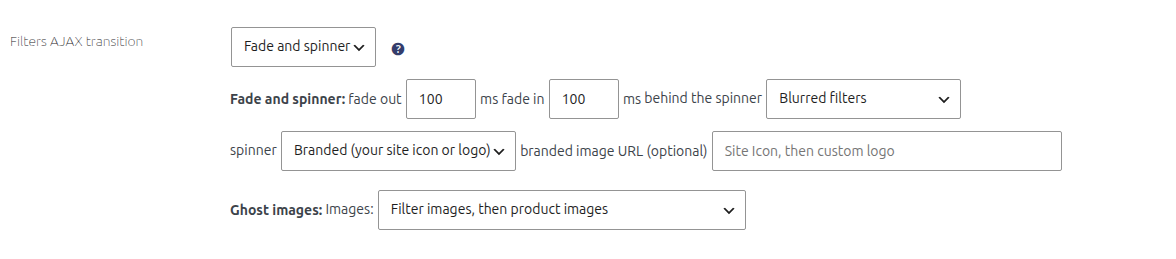
Filters AJAX transition
| Choice | What the shopper sees |
|---|---|
| Fade and spinner (default) | The filters fade to a blur, a spinner shows over the sidebar, and the new filters fade back in when the response arrives. |
| Ghost images | Faint images already on the page cycle through each filter, ten a second, until the new filters arrive. |
| None | The filters stay as they are until the response arrives, then change in place. |
Fade and spinner options
| Option | Default | What it does |
|---|---|---|
| fade out | 100 ms | How long the filters take to fade out after a click. 0 to 1000 ms. |
| fade in | 100 ms | How long the new filters take to fade in. 0 to 1000 ms. |
| behind the spinner | Blurred filters | Blurred filters and Greyed filters keep the filters visible but blurred or faded, so the shopper can still see what they clicked. Nothing fades them out completely. |
| spinner | Branded | Branded pulses your own image. Plain shows the standard spinner. |
| branded image URL | empty | The image the branded spinner uses. Leave it empty to use your site icon. |
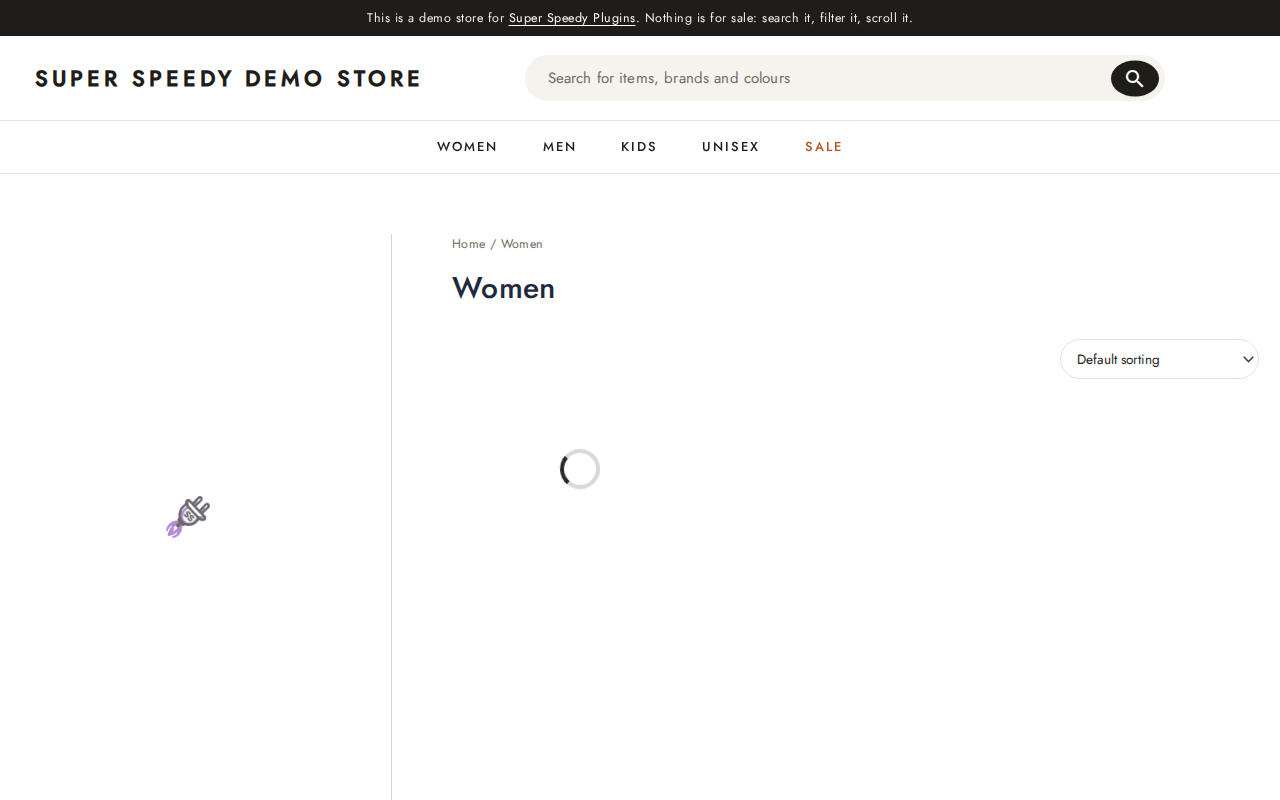
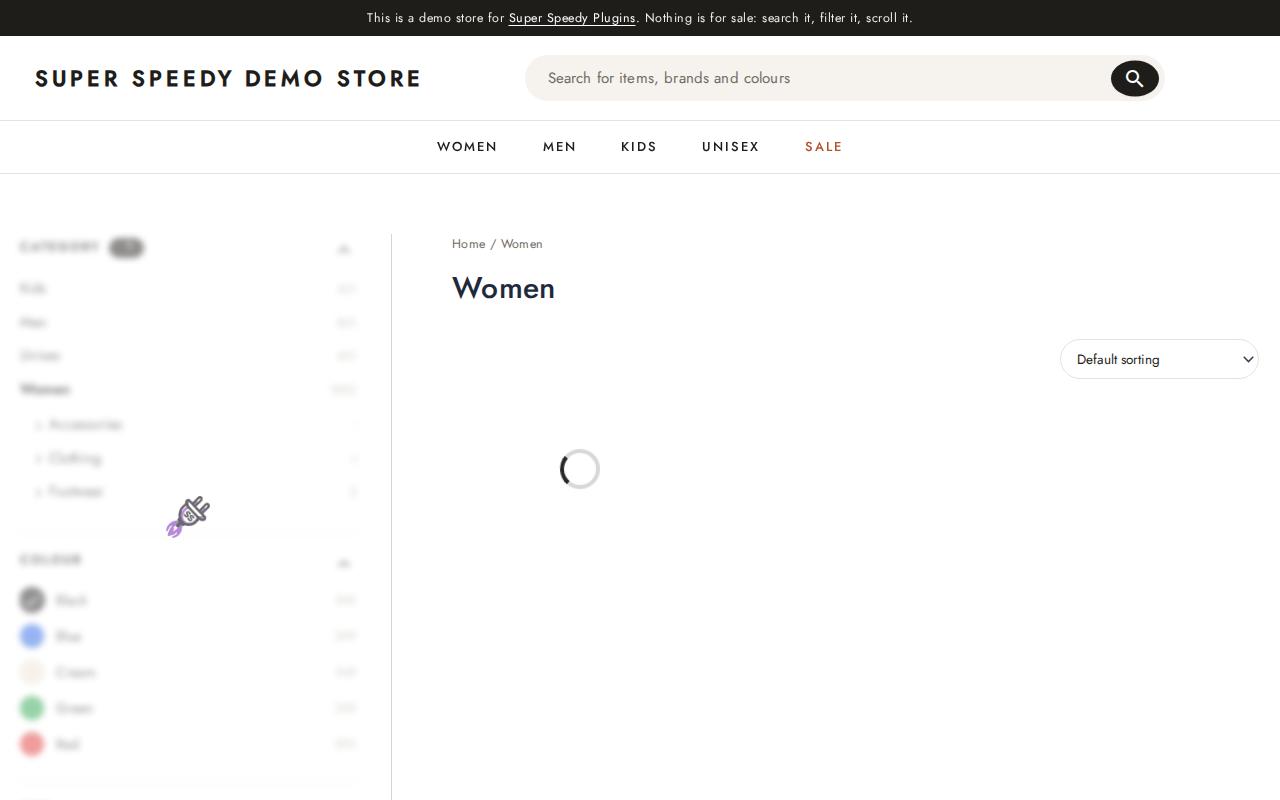
Branding the spinner
The branded spinner shows your image at 56 pixels with a slow pulse, in place of a spinning wheel. It takes the first of these that exists:
- The branded image URL in the settings.
- Your WordPress Site Icon, from Settings > General or Appearance > Customize > Site Identity, at 96 pixels.
- Your theme’s custom logo.
If none exists, the plain spinner shows instead.
Use a square image with a transparent background, at least 112 pixels across so it stays sharp on high-density screens. A small square icon reads better at 56 pixels than a wide logo with text.
The browser downloads the branded image once, on the shopper’s first filter click, and reuses it after that. Nothing extra loads with the page.
Ghost images
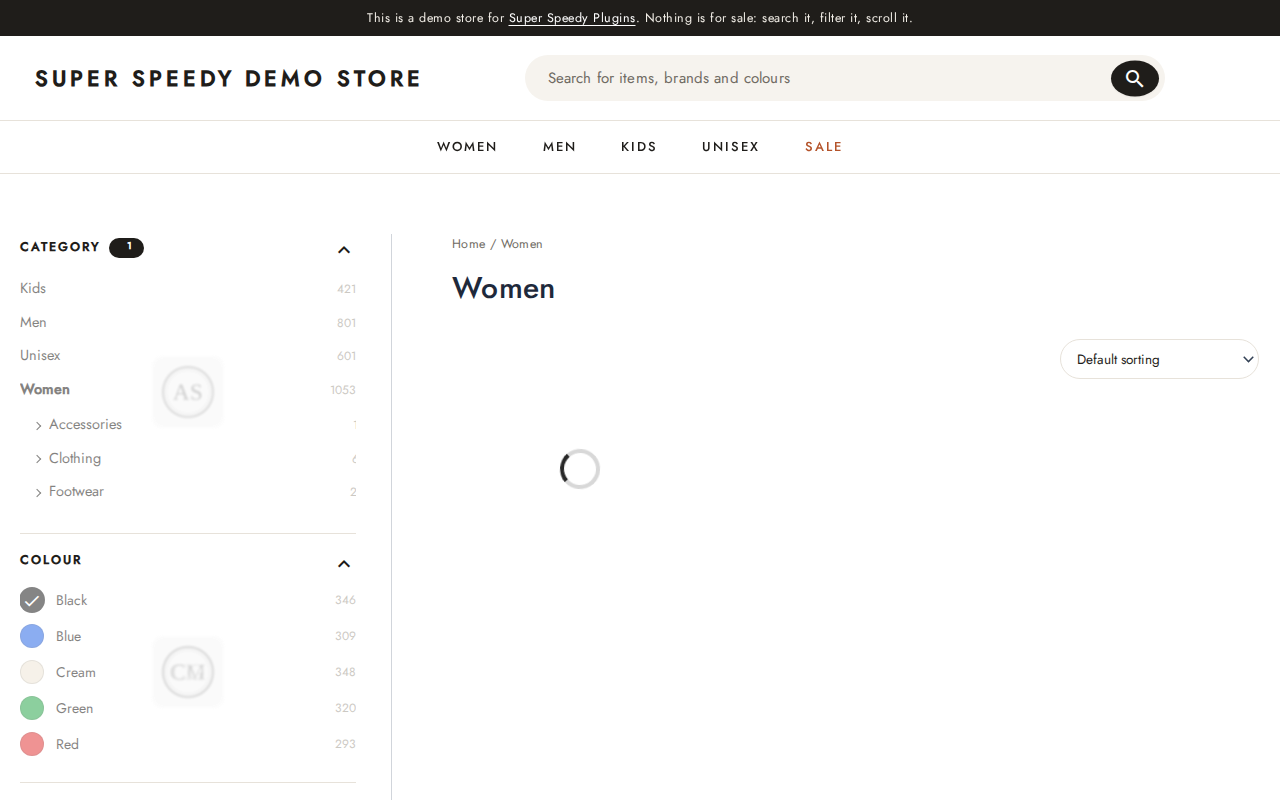
Ghost images only use pictures the page has already loaded, so they cost no downloads. The Images option chooses which:
| Option | Images used |
|---|---|
| Filter images, then product images (default) | Swatch and term images from the filters, topped up with the product photos on the page. |
| Product images already on the page | Only the product photos in the grid. |
| Each filter’s own images, product images for the rest | A filter with images cycles its own; a filter without them uses product photos. |
Products AJAX transition

| Choice | What the shopper sees |
|---|---|
| Shuffle (default) | The products on screen grey out and rotate places, pausing between moves, until the new products arrive. |
| Spinner | A spinner shows in the product grid until the new products arrive. |
| None | The current products stay until the new ones replace them. |
| Option | Default | What it does |
|---|---|---|
| behind it | Default | Default clears the grid behind the spinner, and greys the products for Shuffle. Greyed products and Blurred products keep the current products on screen, faded or blurred, behind the spinner. |
| Shuffle: move | 200 ms | How long each product takes to move to its next place. 50 to 1000 ms. |
| Shuffle: pause | 150 ms | How long the grid rests between moves. 0 to 2000 ms. |
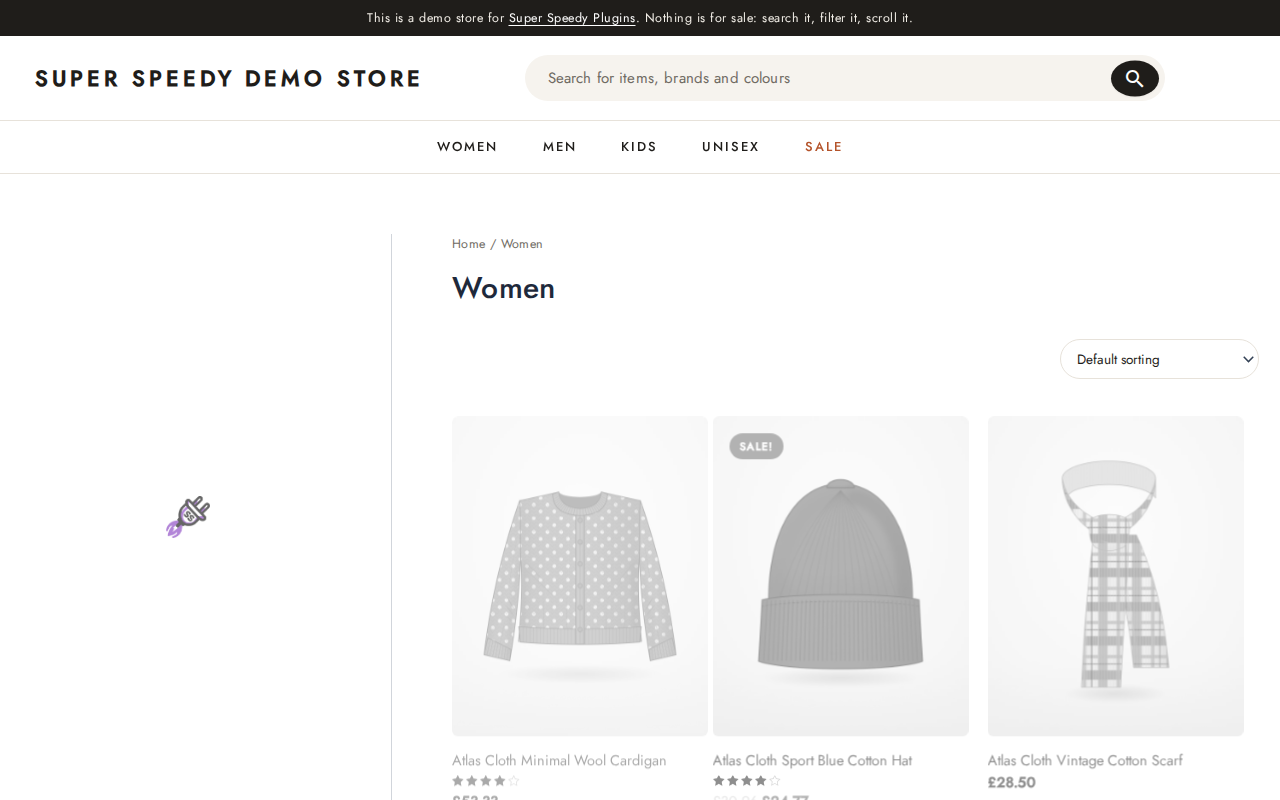
Shuffle, or the Spinner over Greyed products, keeps the grid full while the shopper waits. A cleared grid behind a spinner can read as “no results” for a moment on a slow connection.
Choosing a combination
- Branded stores: Fade and spinner with the branded spinner and Greyed filters, plus Shuffle for the products.
- Image-led catalogues such as fashion and furniture: Ghost images for the filters and Shuffle for the products.
- The calmest page: None for the filters and Spinner over Greyed products.
Shoppers whose device asks for reduced motion get a still version of every transition: the fades are instant, the branded image does not pulse, ghost images do not cycle, and Shuffle shows the greyed products without moving them.
A second click before the first response arrives cancels the first transition and starts again, and a failed request restores the filters and products as they were.
Troubleshooting
The branded spinner shows the plain spinner
The site has no Site Icon or custom logo and the branded image URL is empty. Set a Site Icon in Settings > General, or enter an image URL.
The spinner appears well below the filter that was clicked
The spinner centres on the visible part of the filter sidebar. On a very tall sidebar, choose Greyed filters or Blurred filters so the shopper can still see the filter they clicked.
No transition shows at all
Transitions run when a filter click loads through AJAX. Check Filter loading on the Main tab says Bot-fighting AJAX, and see Bot-fighting AJAX mode.
Further reading

Written for Super Speedy Filters 6.72.0.
Comments