Customising a Plugin with Your AI: the Toast Notifications Case Study
You want a plugin to do something slightly different on your site, and you still want every update and security fix it gets. This case study shows how we make that possible for you and your AI, using a real example from this website: the small notifications in the bottom-left corner that say a plugin has just been updated.
The method has two steps. First we build an interface into the plugin, a set of hooks, filters and functions that say exactly where outside code may change its behaviour. Then we write our own customisation against that interface, as a separate plugin, exactly the way you or your AI would. Every code sample below is copied from that real code.
Available since Super Speedy Welcome 1.10.7.
Table of Contents
- The problem: changes that survive updates
- Step one: build the interface into the plugin
- Step two: write the customisation against it
- How to do the same with your AI
- Ideas the same interface supports
The problem: changes that survive updates
The obvious way to change a plugin is to open its files and edit them. It works until the next update, which replaces those files and removes your change without a word. You then have two bad choices: stop updating, and miss fixes and security patches, or redo the change after every release.
An AI assistant makes this easier to get wrong, not harder. Ask it to “make the plugin do X” and the shortest route it can find is often an edit to the plugin’s own code.
The way out is for the plugin to offer an interface, and for every change to live in a separate plugin that uses it. Updates replace the vendor plugin’s files and never touch yours.
Step one: build the interface into the plugin
An interface is the part of a plugin that is written for other code to use. In WordPress it is usually three things:
- Actions, points where the plugin says “I’m about to do this” and lets other code run.
- Filters, points where the plugin hands a value to other code and uses whatever comes back.
- Functions and registries, named entry points such as “register a source of events”, which the plugin promises to keep stable.
Super Speedy Welcome is the plugin on this site that shows the welcome popover and the bar along the bottom of the screen. We gave it an “events” interface: small toast notifications in the corner, supplied by other plugins. Welcome itself supplies no events at all. It handles validation, caching, display, placement and accessibility, and leaves the content to whoever registers a source.
The functions and hooks
| Name | Type | What it is for |
|---|---|---|
ssw_register_event_source( $id, $callback ) | function | Register a source. The callback takes no arguments and returns a list of events. |
ssw_unregister_event_source( $id ) | function | Remove a source. |
ssw_flush_events_cache() | function | Drop the cached queue so the next request rebuilds it, for example straight after a release. |
ssw_events_register_sources | action | Fires just before the queue is built. Register sources here so they cost nothing on other requests. |
ssw_events_queue_built | action | Fires once per build with the final list and settings, for logging. Not on cache hits. |
ssw_event | filter | Change or veto one event. Return false to drop it. |
ssw_events | filter | Change the whole list: add, remove or reorder. |
ssw_events_display_settings | filter | Change the display settings: how many, how long, which side, which page elements to keep clear of. |
ssw_events_suppress_on_request | filter | Show no toasts on this page view. Defaults to true on the WooCommerce checkout and order-received pages only. |
The smallest possible source, from the comment at the top of Welcome’s events class:
add_action('plugins_loaded', function () {
    ssw_register_event_source('my-updates', function () {
        return array(array(
            'id'        => 'super-speedy-search-5.91.0',
            'title'     => 'Super Speedy Search',
            'message'   => '3 updates',
            'timestamp' => 1793350000,
            'link_url'  => 'https://example.com/changelog/',
            'link_text' => 'View updates',
        ));
    });
});
The event shape
Every event is an array with the same 12 keys. Welcome cleans each one and drops anything it cannot use, so a source never has to trust itself to get the markup right.
| Key | What it holds |
|---|---|
id | Unique within its source. Letters, digits and _ . : -, up to 100 characters. Required. |
source | The id the source was registered with. Welcome sets it, so one source cannot pose as another. |
title | Plain text, up to 120 characters, shown in bold. |
message | Up to 500 characters. Only strong, b, em, i, code, br and span, with no attributes. An event needs a title or a message. |
link_url | An http or https address. Anything else is dropped. |
link_text | Plain text, up to 60 characters. “View” when only a link is given. |
timestamp | When it happened, in Unix seconds. The browser turns it into “23 minutes ago”. 0 shows no time. |
icon_url | An http or https image address. |
icon_alt | Alt text for the icon. Empty means decorative. |
priority | Default 10. Higher shows first; ties go to the newest timestamp. |
expires | Unix seconds. Past this the event is dropped, both on the server and in the browser. |
seen_key | What the visitor’s browser remembers once they have seen it. Defaults to source:id. |
There are no links inside the message, on purpose. The link is its own field, so each toast has exactly one action.
What the interface takes care of, so a source doesn’t have to
Cache-safe delivery. Pages on this site are served from a full-page cache, so the toasts are fetched separately once the visitor first interacts with the page, from admin-ajax.php?action=ssw_events. We chose admin-ajax over the REST API because caching plugins and CDNs leave it alone by default. The response is the same for every visitor and Welcome keeps the built list for 60 seconds by default, so the sources run at most once a minute whatever the traffic.
Site-wide, never personal. Welcome builds the queue as a logged-out visitor and the browser fetches it without cookies. A source cannot leak one customer’s details into a response that gets cached and shown to everyone, even by accident.
One broken source costs only its own events. Welcome runs each source inside its own try/catch:
        foreach (self::$sources as $source => $callback) {
            try {
                $raw = call_user_func($callback);
An exception goes to the PHP error log and the other sources carry on. If the whole build fails, the endpoint returns an empty list and visitors see nothing at all.
Placement measured, not guessed. The toasts sit above the minimised bar at the bottom of the screen and keep clear of the chat bubble. Welcome measures those elements in the browser every time, because the bar’s height depends on its message and differs on every phone. It also hides a toast while it would cover something it cannot move around, such as the cookie consent dialog or the Copy button in the homepage hero. Both lists are CSS selectors in the display settings, so ssw_events_display_settings can add your own theme’s sticky footer.
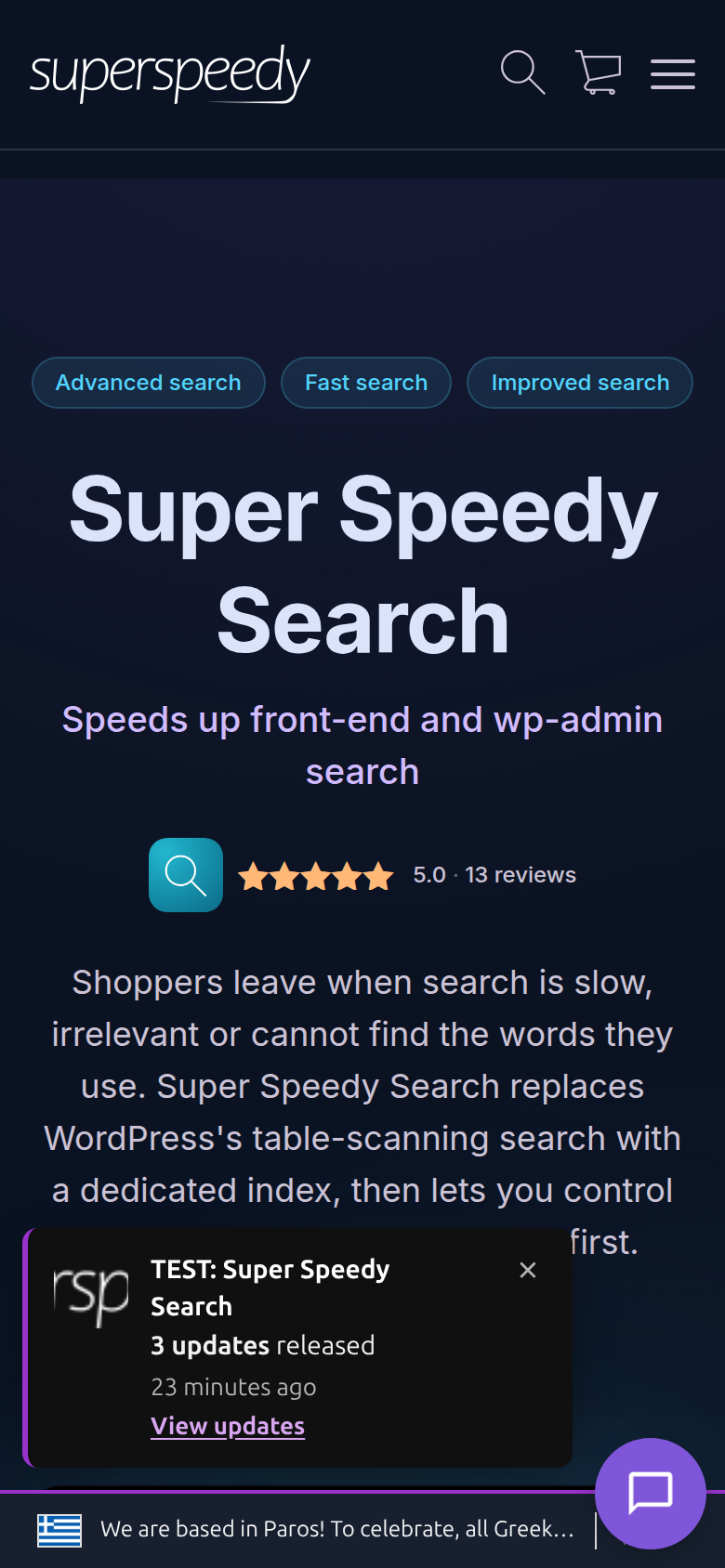
Accessibility. The toasts are announced to screen readers through a polite live region. Each has a close button labelled “Dismiss notification”, Escape closes the focused toast, and the timer pauses while the toast is hovered or focused. With reduced motion turned on, toasts appear without sliding.
Nothing loads unless something uses it. With no source registered, Welcome adds no script, no stylesheet and no extra request to the page.
Your AI can check it. Welcome’s MCP abilities include list-events, which builds the queue fresh and returns it, so an agent can see exactly what a source produces without waiting for a toast to appear. get-events-settings and set-events-settings read and change the display settings.
Step two: write the customisation against it
The first real source is our own: a toast for every Super Speedy plugin released in the last 24 hours, saying how many updates it had and linking to its changelog. It is a small add-on for this website called Super Speedy Update Notifications. It isn’t a product and we don’t sell it; it’s here because it is the customisation a customer, or a customer’s AI, would write.
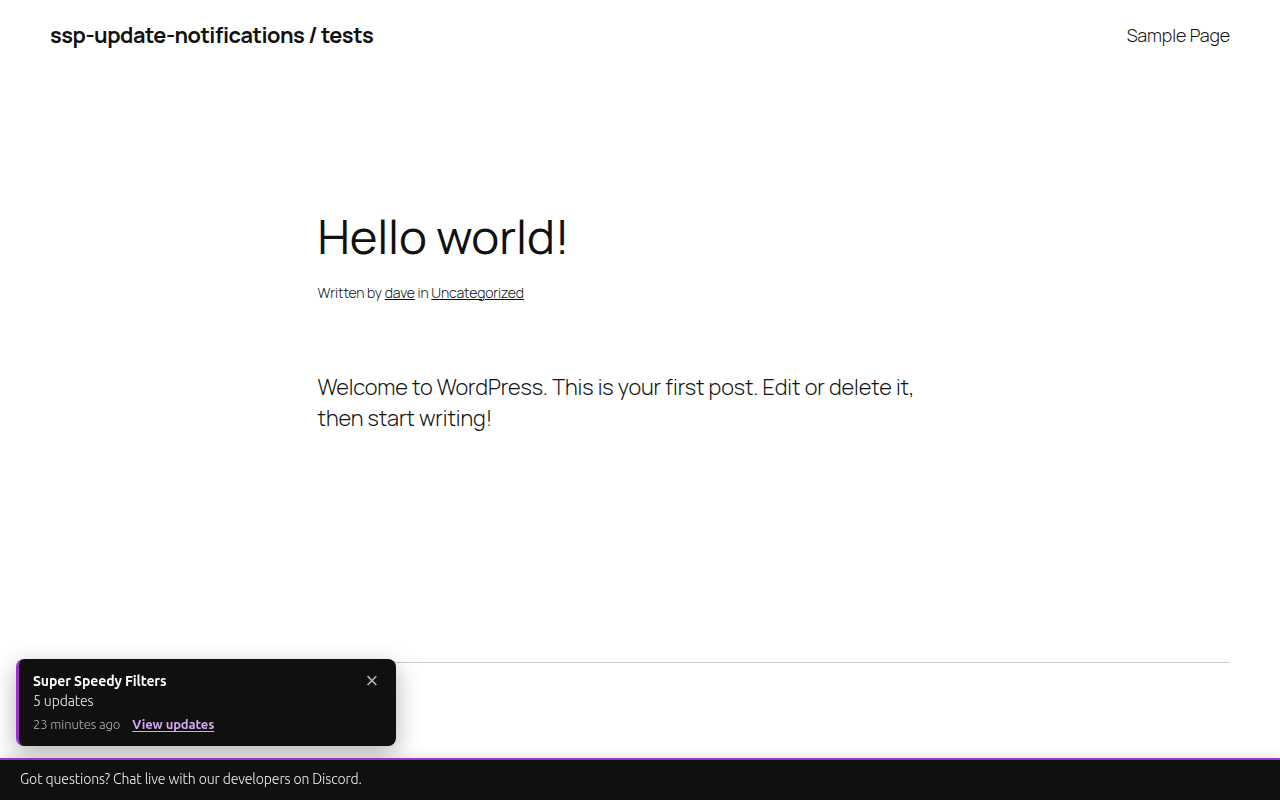
It joins two interfaces and changes neither of them:
- Super Speedy Welcome’s events, which show the toasts.
- Super Speedy Changelogs’ data functions, which say what was released.
ssp_changelog_summary( $since )returns one row per plugin with a release since that moment: its name, version, number of releases, number of changelog entries, release day, publish time when known, and changelog link.ssp_changelog_entries()returns the individual releases. Both read the same published readmes as the changelogs page.
Registering the source
The add-on checks that Welcome is there before touching it, and only hooks in when it can actually supply events:
function sspun_init() {
	if ( ! function_exists( 'ssw_register_event_source' ) ) {
		return;
	}
	if ( SSPUN_Plugin_Updates::is_available() ) {
		add_action( 'ssw_events_register_sources', 'sspun_register_sources' );
	}
}
add_action( 'plugins_loaded', 'sspun_init' );
is_available() is the same kind of check for the changelog data: function_exists( 'ssp_changelog_summary' ). Checking on plugins_loaded means the order the plugins load in doesn’t matter. If either plugin is switched off, the add-on does nothing, and because it never hooks the action, Welcome loads no toast script on its account either.
Registration itself is one line:
function sspun_register_sources() {
	ssw_register_event_source( SSPUN_Plugin_Updates::SOURCE, array( 'SSPUN_Plugin_Updates', 'events' ) );
}
Building an event
Each plugin’s summary row becomes one event in Welcome’s shape:
		return array(
			'id'        => $plugin['slug'] . '-' . $plugin['latest_version'],
			'title'     => $plugin['plugin'],
			'message'   => $message,
			'link_url'  => $plugin['changelog_url'],
			'link_text' => __( 'View updates', 'ssp-update-notifications' ),
			'timestamp' => $published,
			'expires'   => $released + $window,
			// A newer release inside the window is new news, so it shows again.
			'seen_key'  => self::SOURCE . ':' . $plugin['slug'] . ':' . $plugin['latest_version'],
		);
The seen_key carries the version. A visitor who has seen “Super Speedy Filters, 5 updates” doesn’t see it again, but a second release the same day has a new key and a new count, so it shows.
expires is set to the moment the changelog data itself would stop listing the release, so the toast and the data agree on when it is old news.
The honesty rule
A readme changelog heading gives a release day, never a time. It would be easy to invent one, say midday, and print “4 hours ago”. The add-on refuses to:
	private static function published_at( $plugin ) {
		$real = in_array( $plugin['published_source'], array( 'update-json', 'readme-mtime' ), true );
		return $real ? (int) $plugin['published_at'] : 0;
	}
Only two sources count as a real publish time: the update server’s last_updated for that exact version, or the published readme’s file time on the release day. Anything else gets a timestamp of 0, so Welcome shows no “time ago”, and the message says “5 updates, updated today” or “updated yesterday” instead.
A customisation should never make the plugin say something that isn’t true. If the data doesn’t hold a fact, leave it out rather than fill the gap with a plausible guess.
Its own small interface
The add-on has three filters of its own, so a later change doesn’t mean editing it either: sspun_updates_window (how long a release stays newsworthy, default one day), sspun_updates_min_count (the fewest changelog entries worth a toast, default 1) and sspun_updates_max_events (the most toasts it offers, default 5).
Why it lives in its own plugin
- Welcome and Changelogs can be updated at any time without touching it.
- Turning it off removes the feature completely, and nothing else needs changing.
- It has its own version number, changelog and tests. It was tested against the real Welcome and Changelogs code on a test site, including with each of them switched off, before it went near our staging site.
- The next source, such as “Someone bought Super Speedy Filters, 4 hours ago”, is one more class and one more registration line in the same add-on. Welcome’s event shape covers it without a new field.
The interface and the add-on were both written by AI coding agents (Claude Code), working from a written plan of the interface. That is the point of the exercise. An agent given a clear interface and its documentation builds the change in the right place.
How to do the same with your AI
Super Speedy Welcome runs only on this website, but every Super Speedy plugin you install is built the same way, with hooks and filters documented in its knowledge base. Your AI can follow the same two steps against them.
A prompt like this is a good start:
Read https://www.superspeedyplugins.com/start.md and the developer reference for
<plugin name> in the Super Speedy knowledge base. Build me a separate add-on plugin
that <what you want>, using only that plugin's documented hooks, filters and
functions. Do not edit any file inside the <plugin-slug> folder.
What makes it work:
- Point it at the guide written for it. Start with AI is written for AI assistants and covers customising a plugin without losing updates.
- Ask for an add-on, not an edit. Say so explicitly, and name the folder it must not touch.
- Give it the right files to read. The plugin’s developer reference or hooks guide in our knowledge base, plus the plugin’s own source for the hooks it names. Reading the vendor plugin is fine. Editing it is not.
- Make it check before it calls. Every call into the vendor plugin should sit behind a
function_exists()orclass_exists()check, as in the add-on above, so switching the vendor plugin off can’t take your site down. - Test on staging. Install the add-on on a staging copy of your site, check it does what you asked, then switch the vendor plugin off and check the site still loads. Do the same with each plugin update before it goes on the live site.
- Keep the add-on in git. It is your code. A repository gives you its history and a way back when a change goes wrong.
Letting your AI “just fix it” inside the vendor plugin’s folder. The change works today and is gone after the next update, usually without anyone noticing until a customer does.
If the hook you need doesn’t exist, ask for it on the public issue tracker. Approved requests are built into the plugin and released in a normal update, and from then on your add-on can use the new hook.
Ideas the same interface supports
Anything that fits the event shape is one source away. Some examples that need no change to Welcome:
- A recent purchase: “Someone bought Super Speedy Filters”, with the order time as the timestamp and the product image as the icon.
- A new knowledge base article or blog post, linking to it.
- An offer that ends on a set date, with
expiresset to that date so it disappears on time even from cached responses. - A planned maintenance notice with a high
priority, so it shows ahead of everything else.
What it won’t do is personal messages. Events are built once and cached for every visitor, so “your licence renews next week” needs a different, uncached interface.
Further reading



Written for Super Speedy Welcome 1.10.8.

Comments