A tour of the import mapping screen
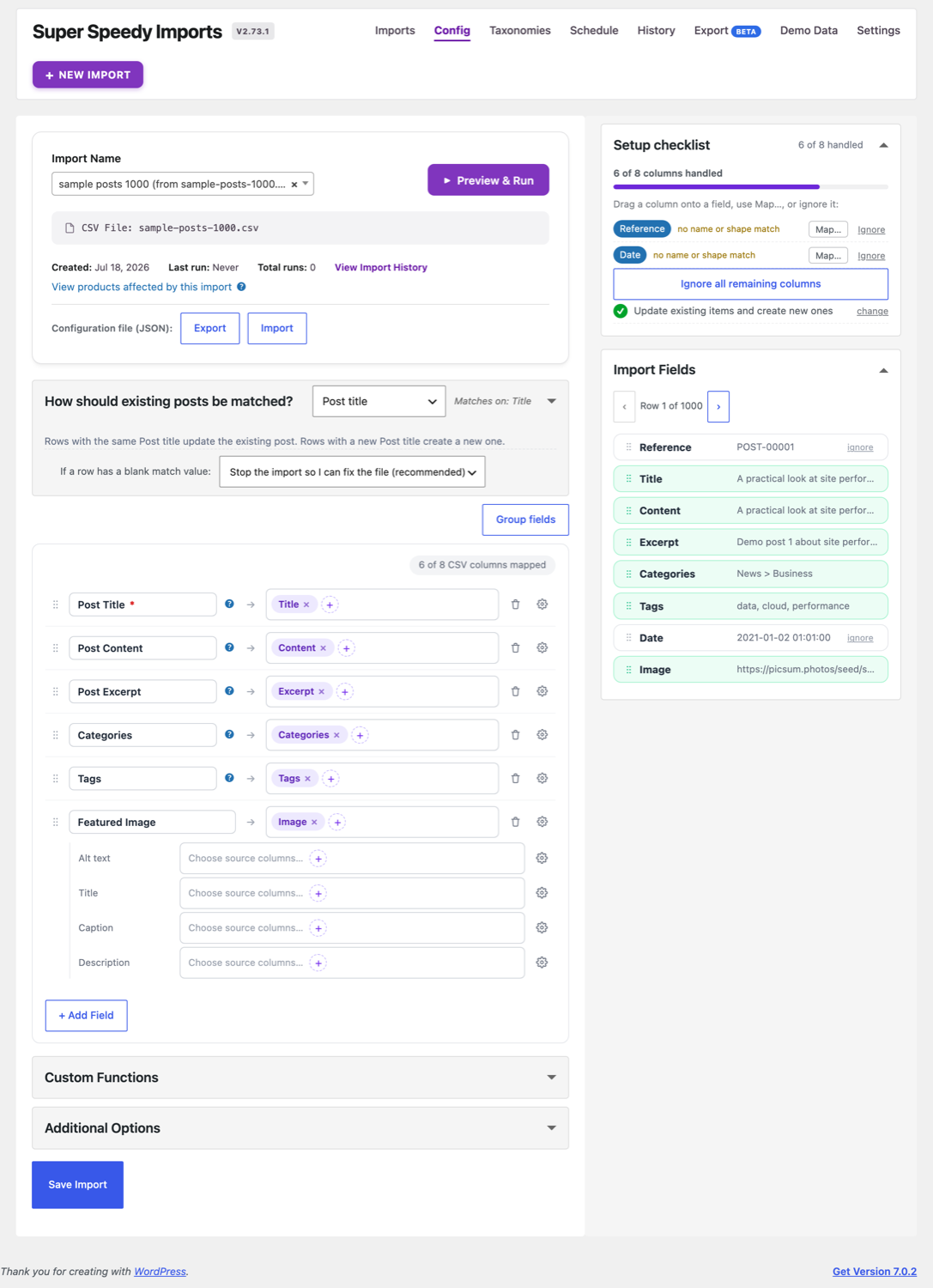
Use the visual mapping screen to connect source fields to WordPress destinations, inspect sample values and prepare an import without code. SSI suggests mappings from column names and sample data; you can accept, dismiss or change them.
Open it from Super Speedy → Super Speedy Imports → Config, then pick an import (or start a new one). The screen has two columns: the mapping form on the left, and the Import Fields panel on the right that shows your source file’s fields.
The header
At the top you choose which saved import you are editing, see its source file and run history, and start a run with Preview & Run. The Configuration file (JSON) Export and Import buttons save and load the whole field mapping, so you can copy a set-up between imports or sites without redoing it.
How existing items are matched
The “How should existing posts be matched?” box is the one place matching is decided. Pick the field that identifies a row uniquely (Post title, SKU, a custom identifier, and so on). Rows whose match value already exists get updated; new values create new items. You also choose what happens when a row’s match value is blank; the safe default is to stop the import so you can fix the file.
The mapping rows
Each row maps one WordPress destination to one or more CSV columns.
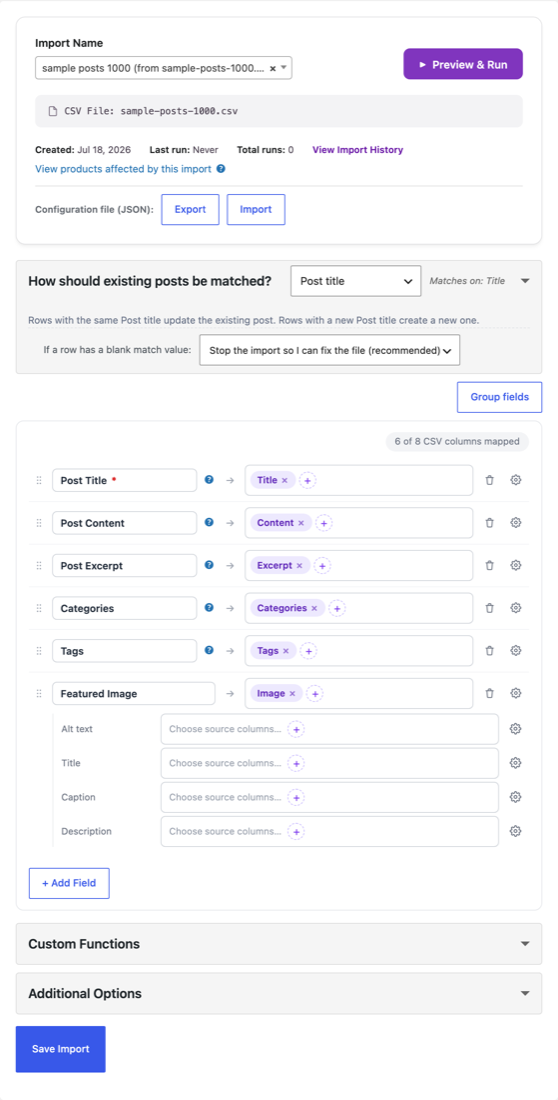
Reading a row left to right:
- Drag handle: reorder rows, or drag to group them.
- Destination field: the WordPress field being filled (Post Title, Post Content, a taxonomy, a product field, a custom field, and so on).
- Arrow: points from the destination to its source.
- Source pills: the CSV column(s) feeding this field. Click the + to add a column; each column shows as a removable pill. Mapping more than one column into a field merges them.
- Delete: removes the row.
- Cogwheel: opens the advanced options for that field (see below).
A counter above the rows shows how many CSV columns are mapped, so you can see at a glance what is still unhandled.
The cogwheel: advanced per-field options
Most fields need nothing more than a column pill. The cogwheel is there when you want more: merging several columns with your own separators or literal text, editing content in a rich editor, or (in the paid edition) transforming a value with a custom PHP function. A field whose cogwheel holds more than plain pills is marked so you can spot it.
Grouped vs ungrouped views
The Group fields button toggles how the rows are arranged. Ungrouped (the default) is one flat list. Grouped clusters related rows (for example a featured image with its alt, title, caption and description) so long mappings stay tidy. Product attributes, galleries and custom fields appear as their own rows inline in both views.
The Import Fields panel
On the right, every column in your file is a draggable chip card showing a sample value from the row you are previewing. Step through rows with the arrows at the top (“Row 1 of 1000”).
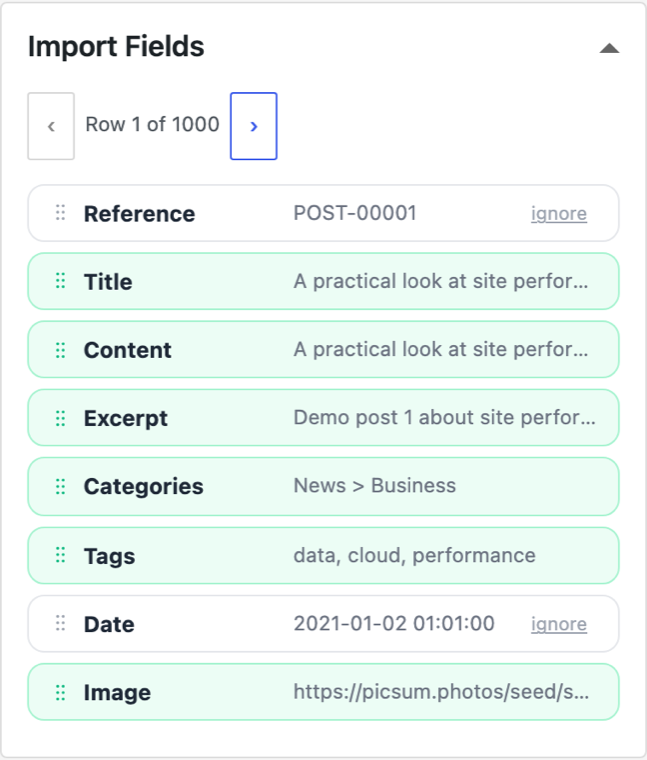
- Drag a chip onto a destination field to map it, instead of using the + picker.
- A column fills green once it is used by a mapping, so unmapped columns stand out.
- Columns you do not want to import show an ignore button; ignoring one keeps it out of the “unmapped” count without mapping it.
- Hover a card to see the full content of the currently previewed row for that column.
Required fields and running
Some destinations are required before an import can run (at minimum a match field and the payload it needs). Until those are set, Preview & Run will tell you what is missing. Once the required fields are mapped, use Preview first item to create a separate draft of the first complete item. Inspect it through the review links and discard it when finished. The preview writes draft content and related data; it does not validate the whole source or show a before-and-after diff of live updates. Use Preview & Run to review the settings and start the browser import.
The Setup checklist (Beta)
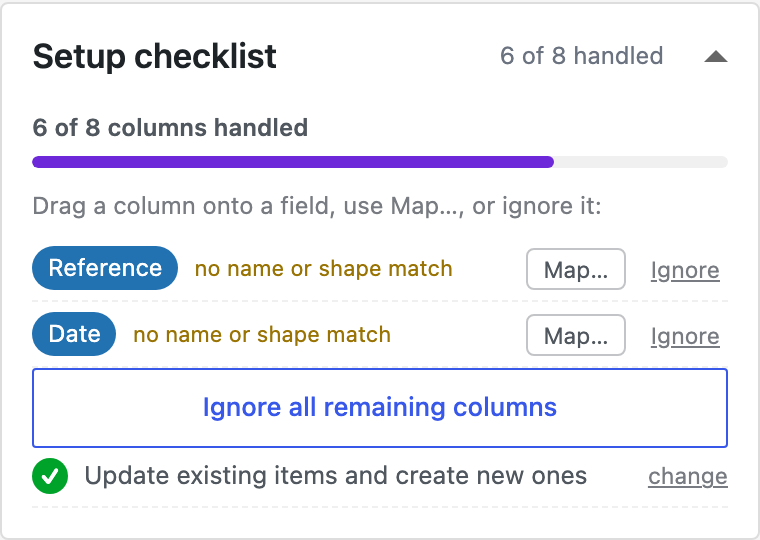
If you turn on Settings → Beta features → Setup checklist, a card appears above Import Fields listing every column that is not yet mapped or ignored, with quick Map… and Ignore actions and a progress bar. It is an optional triage aid for wide CSVs; leave it off if you prefer the plain Import Fields panel.
Saving
Save Import stores the mapping so you can re-run it later or on a schedule. Preview & Run also works without saving first, but saving keeps the configuration for next time.
Dates
Post Date accepts a date only when its day and month cannot be confused:
- a four-digit year first:
2026-01-15,2026-01-15 10:00:00,2026/01/15, or ISO 8601 such as2026-01-20T10:00:00Z; - a month written in letters:
19 January 2026,Jan 21, 2026,21 Jan 2026.
A date written only in numbers, such as 01/02/2026 or 01-02-2026, is refused, because it could be 1 February or 2 January and a wrong guess would store a plausible but wrong date. A bare number such as a Unix timestamp is refused for the same reason. A date carrying a time zone or offset is converted to your site’s time zone; a date without one is read as site time.
A refused date is reported against its row, with the reason, on the completion screen, in History and in the email report. What happens to the row depends on whether it matches an item you already have:
- It matches an existing item: the row imports, every other mapped field is applied, and the item keeps the date it had.
- It would create a new item: the row is skipped, because there is no date to keep and the importer will not invent one.
A mapped date also sets the matching GMT date, which WooCommerce shows as a product’s created date. Post Status follows WordPress’s own scheduling rule: a publish row dated a minute or more ahead is scheduled and goes live on its date, and a future row with a past date is published.
XML, JSON and migrated configurations
An XML or JSON import uses this same screen. Its fields come from the record path chosen in New Import, and the Source row names your own file, for example Source: catalogue.xml (XML file). See Importing XML and JSON feeds.
Migration Tools converts your saved WP All Import jobs into configurations for this mapper. For migrated jobs, review the reported differences as well as the visible mappings.
Further reading

Written for Super Speedy Imports 3.40.0.

Comments