I built my own WooCommerce importer because nothing else was fast enough
Imports were the last big performance problem in my plugin suite.
Scalability Pro had already made WP All Import a fair bit faster. But I wanted to build massive test stores to benchmark everything else I make, up to a million products at a time, and even a faster WP All Import was nowhere near quick enough for that. So I wrote my own import engine and built it for one thing: speed.
It now imports a million WooCommerce products in 22 minutes 30 seconds on a four-vCPU server. The file, the timings and the setup are all published, so you can check it yourself.
Speed came first, so early versions asked you to use the command line. Now the same engine sits behind a visual interface in WordPress. Give it your file and it maps the columns for you, preview a product before anything changes, then save the import to rerun whenever your supplier sends a new file, or put it on a schedule.
Start with the job you need to do
| Your job | How Super Speedy Imports handles it |
|---|---|
| Put your first product catalogue online | Upload CSV or XML, let the auto-classifier map the fields, preview a product and run the import visually. |
| Keep a dropshipping catalogue synchronised | Reuse a saved import for each supplier and schedule the updates against its latest source file. |
| Refresh affiliate prices and links | Match existing products by a stable identifier and update prices and affiliate links while keeping your editorial work. |
| Move existing WP All Import jobs | Bring the jobs across with the built-in migrator and run them through the faster bulk import engine. |
| Add variations, images or categories to a catalogue | Map the extra data into your existing products and use the preview to inspect the result. |
| Import articles, directory entries or other WordPress content | Use the post, page or custom post type template, with its fields, custom data and taxonomies. |
Here’s what those jobs look like in practice.
1. Get your first product catalogue online
A supplier spreadsheet rarely looks like your WooCommerce product editor. One calls the SKU “Item Number”, another calls the price “Retail”, and the image column contains a long URL. You shouldn’t have to work through the same puzzle for every column.
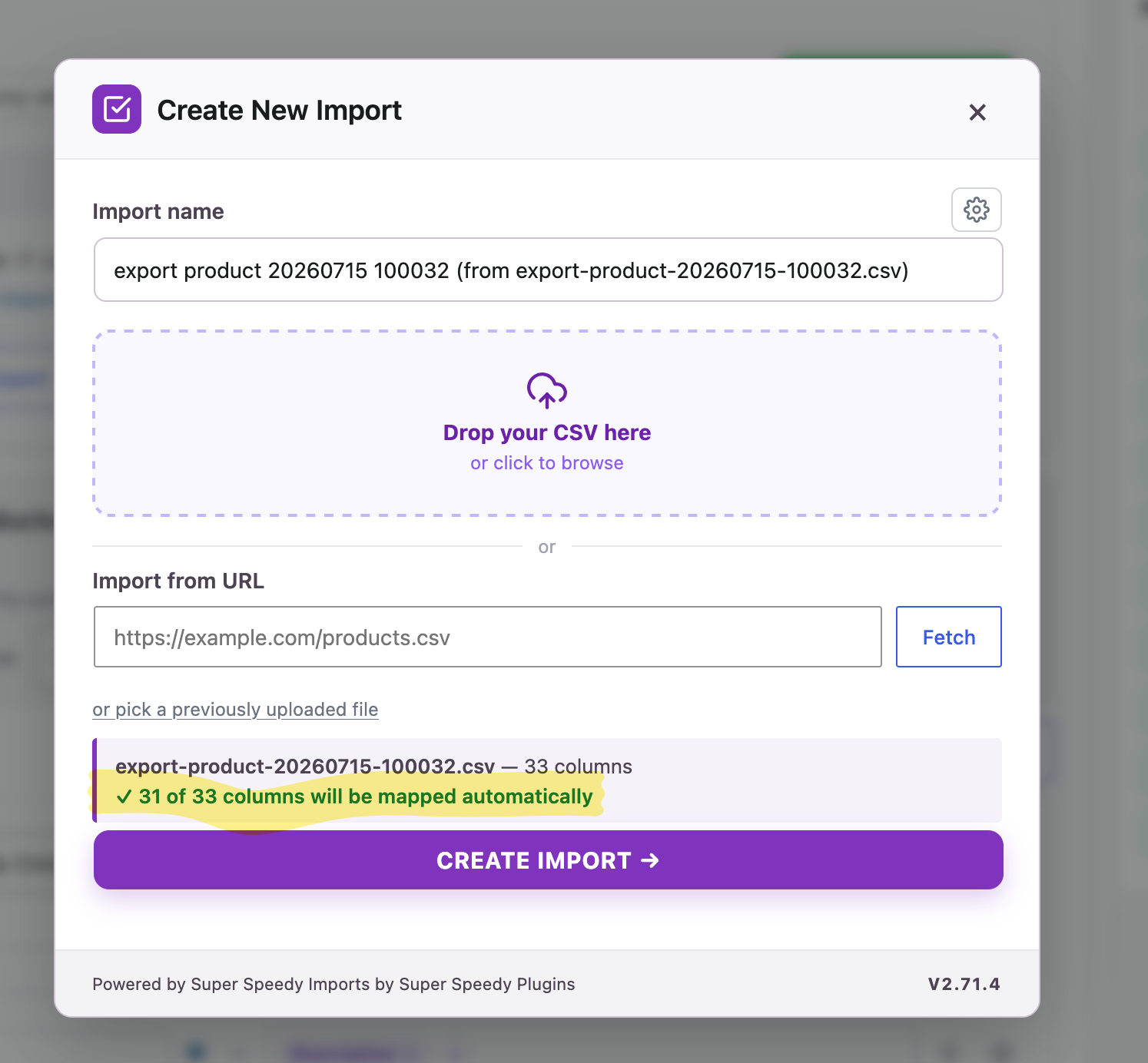
Create a new import with your file selected. Super Speedy Imports looks at both the column names and the values underneath them. It recognises product names, identifiers, prices, stock, images and other fields, then fills in the mapping. In most cases, that does the setup work for you.
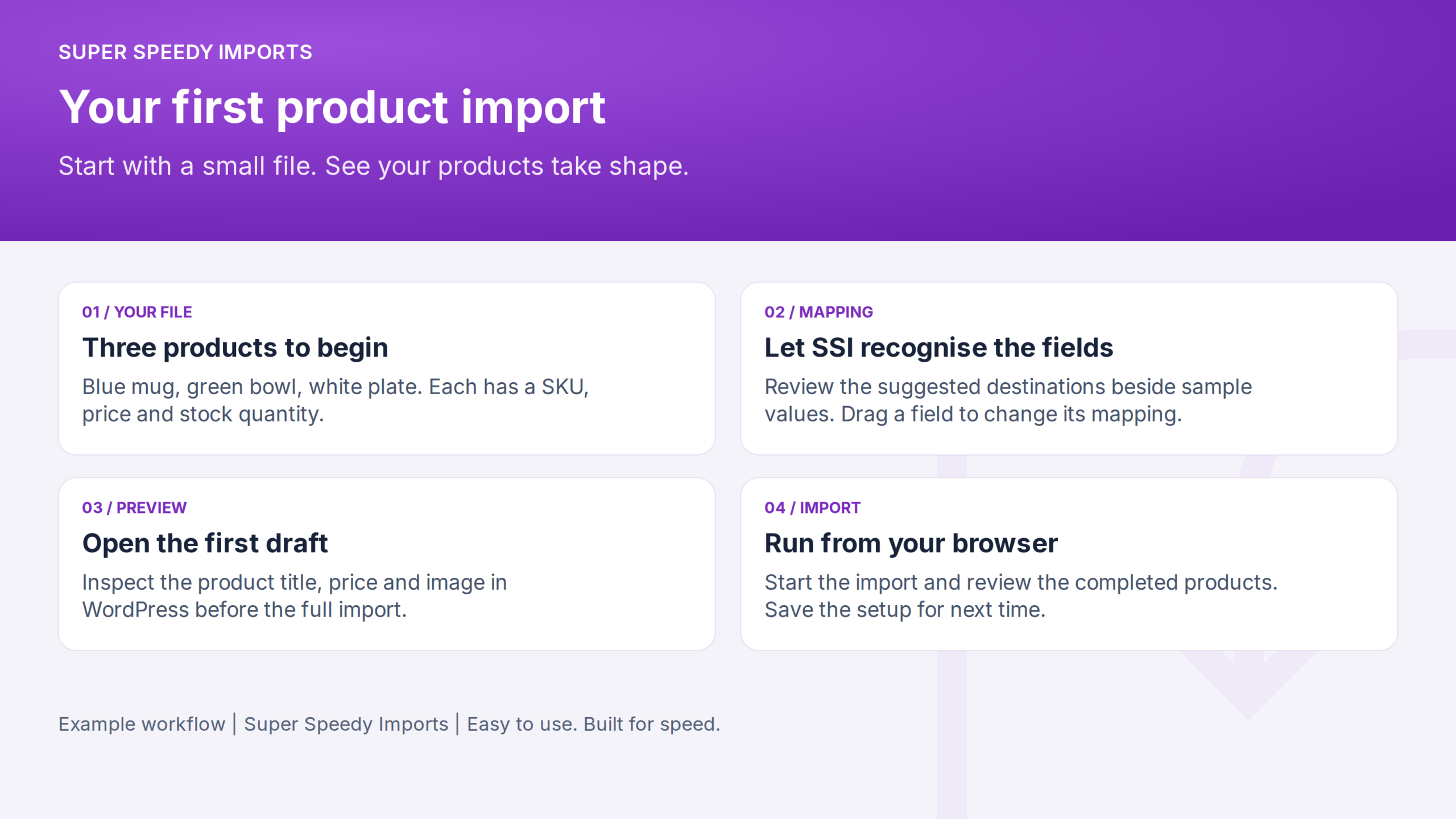
You can see what it picked immediately. Browse a sample row, drag a field to a different destination, combine values or add a fixed value. It’s all in the same screen.
Then click Preview first item. Open the draft product and look at what a customer would see: the title, price, description, image and product options. Discard the preview when you’ve finished, then start the import.
That is a much nicer first-import experience than filling in a long form and hoping the products will look right at the other end.
Go deeper: Import your first WooCommerce products · What the auto-classifier recognises · Tour the mapping screen
2. Keep a dropshipping catalogue in sync
The first import gets the shop open. The regular updates are what stop it selling things the supplier no longer has.
Say a supplier sends a new feed every morning. Yesterday a product had twelve available; today it has none. You want that stock change applied to the existing product, along with any new prices. You also want to keep the descriptions and categories you’ve spent time improving.
Give each supplier its own saved import and a consistent source file. Arrange for the latest feed to replace that file, then use the Schedule tab to run the import at the right time. The saved mapping and matching rules are reused on each run.
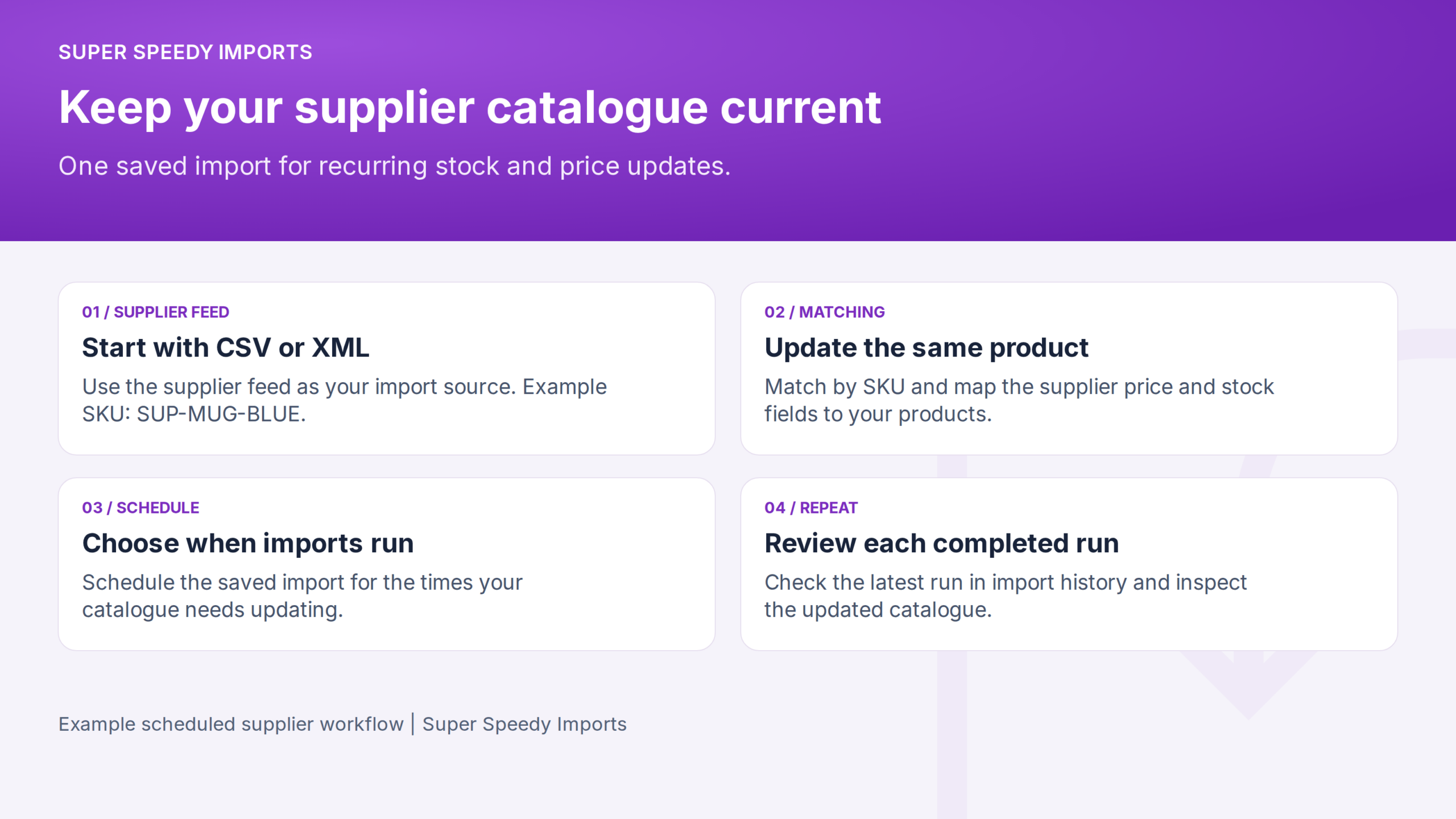
Match products by a stable identifier such as the supplier SKU. Choose the fields the feed should control, then choose how to handle products missing from a later file. A complete catalogue feed and a file containing only today’s changes mean different things; set that once for the supplier rather than making the decision again every morning.
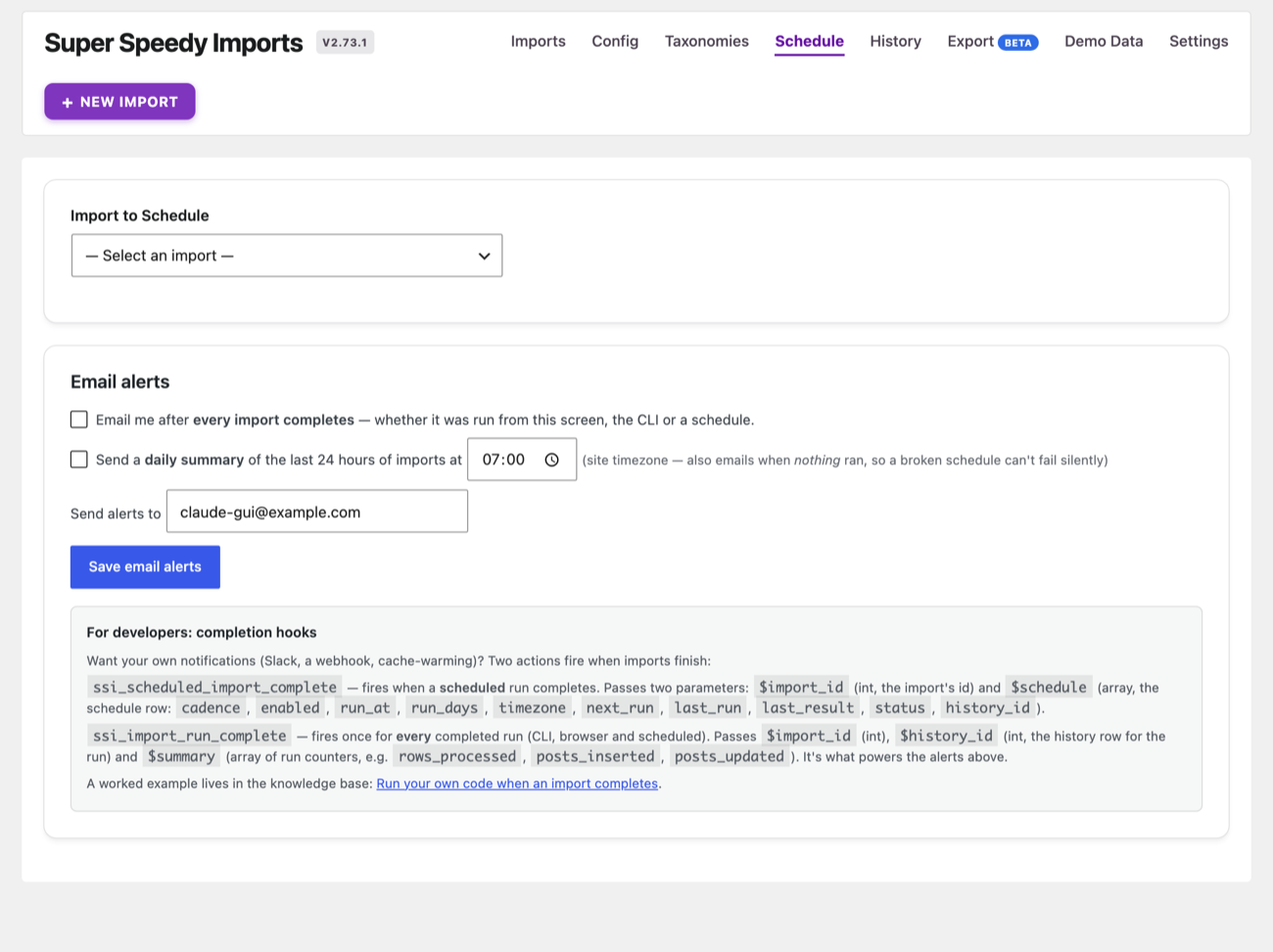
The Schedule tab offers hourly, daily, weekly and one-off runs. Email alerts can report completed imports or send a daily summary, including days when nothing ran. That last detail is useful: an empty inbox shouldn’t be your only indication that an expected stock update never happened.
For a remote-source job brought across from WP All Import, Super Speedy Imports retains the source details and refreshes that feed before the run. CSV and XML both feed into the same mapping and import workflow.
Go deeper: Scheduling imports and getting alerts · Choose your matching identifier
3. Keep affiliate prices fresh and your own reviews intact
You’ve written the review, compared the features, chosen the photographs and added your affiliate link. The merchant changes the price. Updating that price shouldn’t mean importing somebody else’s description over your article.
Create an update import that matches your existing products by SKU or another stable identifier, and map the fields you want the merchant’s feed to maintain. For an affiliate catalogue, that could be the price and product URL. Leave your titles, descriptions and other editorial fields out of that update.
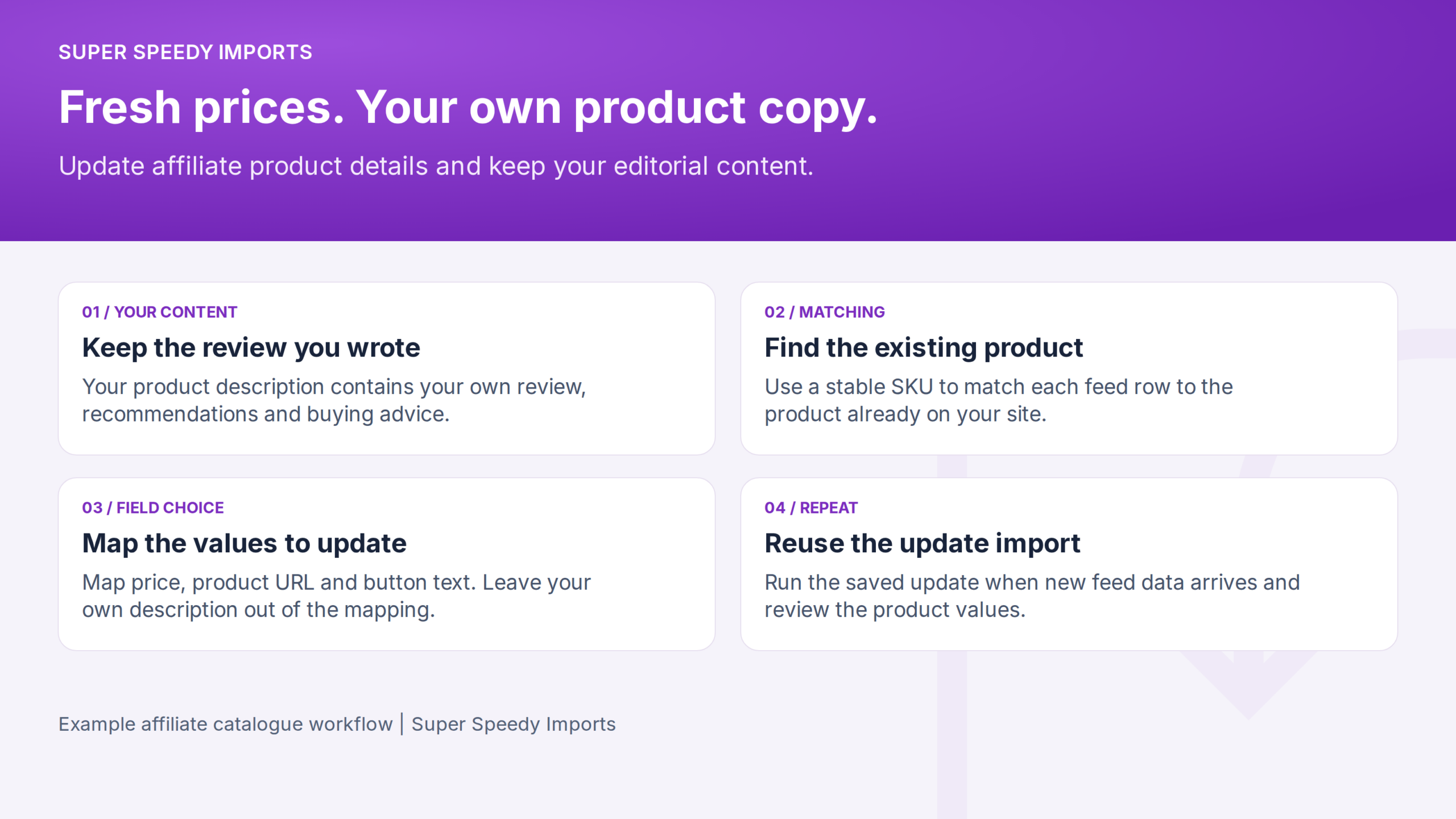
Imagine a product’s price dropping from £49 to £44. Run tomorrow’s file through the saved import and the same product gets the new price. Your review stays yours. So does the work you’ve put into making that page worth reading.
Super Speedy Imports handles external/affiliate WooCommerce products as well as simple and variable products. You can maintain product URLs and button text in an import too, or leave those fields under your own control.
This is also useful for an ordinary shop running a promotion. Update sale prices or stock across an existing catalogue using a small, focused file. You don’t need to resend every image and description to change a price.
Go deeper: Choose your matching identifier · Choose which import stages to run
4. Bring your WP All Import jobs across
If your WP All Import routine has become “start it, check it, restart it”, you’ve probably already thought about changing tools. Rebuilding all the mappings is the part that puts you off. You’ve already done that work once.
Super Speedy Imports has a built-in migrator for those existing jobs. Open Migration Tools, select the jobs to bring across and open the resulting imports in the visual mapper. The migrator brings the field mappings and import settings into Super Speedy Imports.
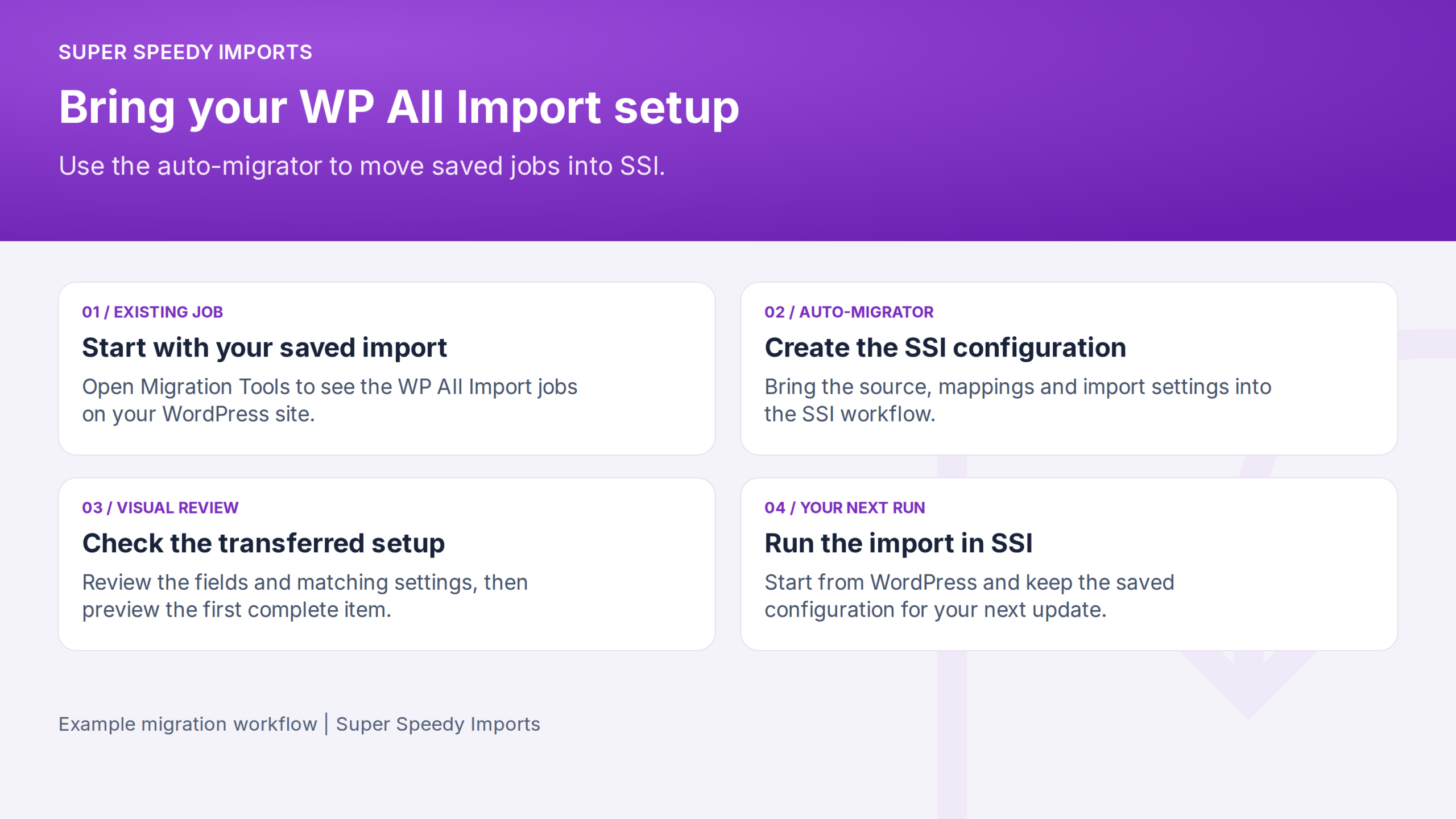
Preview an item, inspect the mapping and run the import. You can use the browser, the command line or a schedule for the same saved job.
The speed comes from how the import is processed. Super Speedy Imports stages the data and performs bulk database work, reducing the repeated per-product work involved in loading a catalogue. The browser interface sits on top of that engine; you don’t trade it away by choosing a visual workflow.
A slow import ties up the server for longer and leaves more time for a hosting interruption to get in the way. My aim is to get the job completed quickly and give you a result you can inspect. Our benchmarks show the timings, server setup and final data, so you can look past the headline.
Go deeper: Bring your WP All Import jobs across · Migration and feature comparison · Import benchmark results
5. Improve an existing catalogue, or import something besides products
Price and stock are only two of the things that change. Perhaps you’re adding product brands, reorganising categories, importing better images or adding variable products and their variations. A saved visual mapping is useful for those jobs too.
Map the fields you want to maintain, preview the result and run the update. For variable products, the parent and variation data are handled together. For images, the mapping can include the featured image and gallery.
Super Speedy Imports also imports WordPress posts, pages and custom post types, with custom fields and taxonomies. That makes it useful for publishing a collection of articles or maintaining structured content such as directory entries. The workflow stays familiar: source data, visual mapping, preview, import.
Go deeper: Import variable products and their variations · General quick-start guide · The visual mapping controls
Run the same import your way
I don’t want people to think that a fast import tool must be a developer-only tool. The ordinary workflow is in WordPress. The other ways to run it are there when they suit the job.
| How you work | Use this |
|---|---|
| You want to see the fields, preview a product and watch the import | The visual WordPress interface and browser runner. |
| A feed needs processing at a regular time | The Schedule tab for the saved import. |
| You already automate jobs on your server | WP-CLI, using the command shown for the import. |
| You work with an AI assistant | The MCP tools for inspecting and managing imports, mapping and execution. |
A saved configuration gives each of those routes the same mappings and matching settings. You don’t rebuild an import just because you change how you run it.
Read about MCP and AI-agent control or set up a schedule.
See the result and keep control
The first-item preview creates a separate draft you can inspect and discard. A completed run gives you its results and an entry in Import History. You can also remove records associated with an import, with controls for Trash and permanent deletion.
Those are useful controls when you’re trying a new supplier file. You can see what the mapping produces, review what a run did and decide which records to keep.
Read the record-removal guide for the available actions.
What about moving an entire website or importing orders?
Whole-site migration is a different job. Super Speedy Imports handles content and its related data; it isn’t intended to move a complete WordPress installation to another host.
Order, customer and subscription imports aren’t included today. The product, stock, price and content workflows above are where Super Speedy Imports is strong now.
Spend your time on the shop, not the import
For product catalogues, supplier updates, affiliate prices and WordPress content, Super Speedy Imports is the tool I recommend. I’ve built it to make the setup easy and to get the actual work finished quickly.
Start with the job you run most often. Give it your file, let the auto-classifier do the mapping, preview the result and run it in WordPress. Save that import and you’ve already done the setup for next time.
Comments