The Sale prices tab
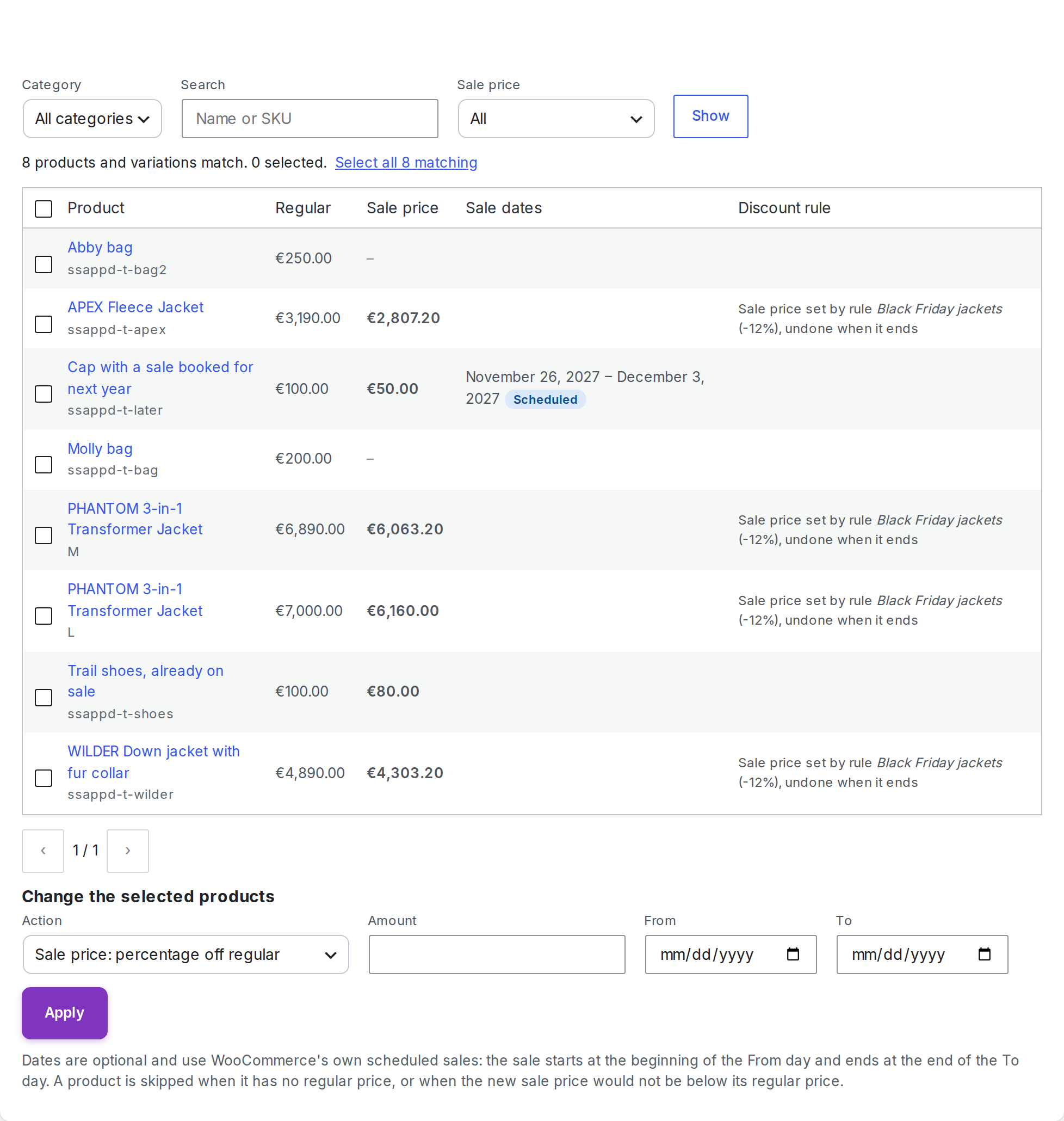
The Sale prices tab, next to the Discounts tab in Super Speedy > Ajax, finds products by category, name, SKU and sale status, and sets, schedules or removes their own sale prices in bulk. Each change is saved to the product through WooCommerce, exactly as an edit on the product’s own screen.
Use it for prices that belong to particular products. For a sale that ends and puts every product back by itself, use a rule on the Discounts tab instead.
Available since 0.2.0.
What it lists
Every product and variation with a price of its own, 50 to a page, with:
- its regular price;
- its own sale price;
- its sale dates, with a Scheduled tag when the sale starts later;
- the discount rule that applies to it, if any. “Sale price set by rule …, undone when it ends” means a rule wrote the sale price; “-12% by rule …: 88.00” means a display-only rule discounts it.
Variable products are listed as their variations, because a variable product has no price of its own. Grouped products are not listed. Drafts, private, pending and scheduled products are included along with published ones.
Find products
- Category. Sub-categories are included, and a variation counts by its product’s categories.
- Search. By name or SKU. Searching for a variable product lists its variations.
- Sale price. All, Has a sale price, Sale scheduled for later, or No sale price.
Choose products
Tick rows, use the box in the header to select the whole page, or click Select all matching to select every product the filters find, on every page.
Change them
Under Change the selected products, pick an Action, enter the Amount, and press Apply:
| Action | What is saved to each product |
|---|---|
| Sale price: percentage off regular | Regular price less the percentage |
| Sale price: amount off regular | Regular price less the amount, in the store’s base currency |
| Sale price: fixed price | That price |
| Remove the sale price | No sale price, and no sale dates |
From and To dates are optional. They are WooCommerce’s own scheduled sale: the sale starts at the beginning of the From day and ends at the end of the To day, in the site’s timezone. WooCommerce itself starts and ends the sale on those days.
A product is skipped, and counted under the result, when it has no regular price, or when the new sale price would not be below its regular price.
How the changes are saved
Each product is saved through WooCommerce, exactly as if it had been edited on its own screen, so every plugin that reacts to a product save (feeds, search indexes, caches, stock sync) sees the change.
The products are sent in batches of 25 with a progress bar, so a run over thousands of products does not time out. When the run finishes, the tab says how many were updated and how many skipped. Closing the page stops the run after the current batch, and the products saved before it keep their new price.
There is no undo on this tab: a change here is the product’s own sale price until you change it again. The Save Settings button at the bottom of the page does not affect this tab.
Changing the sale price of a product whose price a rule wrote counts as an edit by hand. The rule leaves that product alone for the rest of its sale and lists it under Edited since, not put back on the Discounts tab.
TEST mode
The Sale prices tab is not affected by Super Speedy Ajax’s TEST mode. It saves real sale prices to products, which apply to every visitor, as any edit on the product screen does.
Sale prices tab or a rule
| Sale prices tab | Discount rule | |
|---|---|---|
| Belongs to | The product | The rule |
| Ends | On the To date you set, or when you remove it | When the rule’s To time passes, or you switch it off or delete it |
| Afterwards | The product has no sale price | Each product gets back what it had before |
| Undo | None | Automatic |
| New products in the category | Not covered | Covered as they are added |
Further reading


Written for Super Speedy Ajax – Price Discounts 0.4.3.
Comments