Filter groups with an Apply button
By default every choice in a filter updates the products straight away. That suits a single filter, but not a car parts finder where the shopper picks a make, then a model, then a year, then a category: loading the products four times on the way to the one result they want is slow and distracting.
Turn on a group’s Apply button and the choices inside that group wait. Each choice updates the group’s own filters, so the model list shows only that make’s models, and the products load once, when the shopper presses the button.
Available since 6.87.0.
Turn it on
- Put the filters in a group, as described in Filter groups and the layout editor.
- Open Settings > Super Speedy Filters > Groups.
- In the group’s Apply button column, tick Choices wait for an Apply button. Three more settings appear:
- Button text: what the button says, for example Search parts or Show results. Leave it empty for Apply.
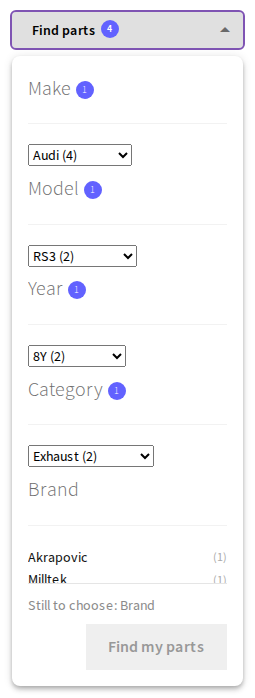
- Require a choice in every filter: the button stays disabled until each filter in the group has a choice, and a line above it names the filters still to choose.
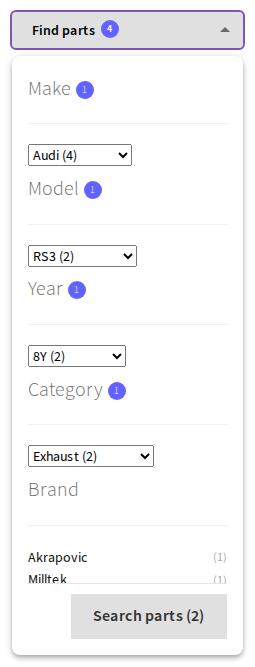
- Show the product count on the button: the button shows how many products the choices find, for example Search parts (2).
- Press Save groups and layout.

A Filter Group block picks up these settings when its Group field is set to the group.
What the shopper sees
- The button sits at the bottom of the group’s panel, below the filters. If the panel holds more filters than fit, the filters scroll and the button stays where it is.
- Each choice refreshes the filters in the group: their options and counts are for everything chosen so far. The products do not change yet.
- A dropdown in the group shows the option chosen, instead of going back to its placeholder text.
- Choosing again in the same filter replaces the earlier choice.
- Apply loads the products for every choice at once and adds one entry to the browser history, so Back returns to the products before Apply.
Filters outside the group still work straight away. Using one loads the products for its own choice, and choices still waiting in the group are dropped.
The count on the button is read from the counts the group’s filters show, so it costs no extra request. It appears once a single-choice filter in the group has a choice and its product counts are shown. With only multiple-choice filters chosen, the button shows its text alone.
A make, model and year selector from one taxonomy
Car parts stores often keep make, model and year in one hierarchical taxonomy: Audi > RS3 > 8Y. To show it as three step-by-step dropdowns:
- Add three taxonomy filters for that taxonomy, titled for example Make, Model and Year, each with Display Type set to dropdown.
- Set each one’s Hierarchy display to One level, and its Level to 0, 1 and 2. Level 0 is the top level.
- Give each a Drop Down Text such as Choose make, Choose model and Choose year.
- Put all three in a group with the Apply button on.
The Model filter waits, disabled and showing its drop down text, until a make is chosen; then it lists only that make’s models. The Year filter does the same for the model. Choosing a different make clears the model and year below it.
One level also works outside a group, and in the block editor, where the Super Speedy Filter block’s Hierarchy setting has a One level option with a Level field.
Search engines
The Apply button is a button, not a link, so it gives crawlers no new address to follow. Each filter’s own links are unchanged.
On a site running WPML or Polylang, the button text is a translatable string named group:<group id>:apply in the Super Speedy Filters domain, next to the group’s title.
Further reading
Written for Super Speedy Filters 6.87.0.
Fixing this on a real store?
Super Speedy Filters does it for you. Or get every Super Speedy plugin with the All Access Pass.
 Super Speedy Filters
Fast product filters and pretty, indexable permalinks on every archive
 All Access Pass
Every Super Speedy plugin, one licence, with updates and support.
Comments