Automatic column mapping
Mapping a supplier CSV to WooCommerce by hand is tedious: you match each column to the right field, work out which one is the SKU, spot the image URLs, and hope you have not missed anything. Super Speedy Imports does most of that for you the moment you load a file.
Review suggestions in the visual mapper
The auto-classifier uses names and sample data to suggest fields. Accept a correct suggestion, dismiss it or drag a source field to its destination. Browse sample rows in the Import Fields panel to check the values. You can adjust the suggestions using the same visual controls.
Ordinary field selection doesn’t need PHP. Some transformations and destinations described below require the paid edition. Use Preview first item to inspect a separate draft before running the whole file, then discard the preview. The preview opens as a separate draft.
How it works
When you load a CSV, the auto-mapper works in two passes and only maps a column when both agree.
First it reads your column names against a large alias list. It knows that “Stock Keeping Unit”, “Item number” and “Model” all mean SKU, that “Image src” and “Main image” mean the featured image, that “Availability” means stock status, and so on. Matching is tolerant of case, spaces, dashes, underscores, punctuation and camelCase, so “Product_Category”, “product category”, “In stock?” and “productCategory” all land.
Then it reads the actual data in the first few rows of each column and works out what the values really are: prices, GTIN, EAN and UPC codes (checked against their check digit), stock counts, stock statuses, image URLs, weights, slugs, hex colours, and category paths with whatever separator they use. This second pass does two jobs. It confirms a name match (a column called “price” that is full of URLs is not a price, so the match is vetoed), and it proposes a mapping for columns whose name matched nothing but whose data is unmistakable.
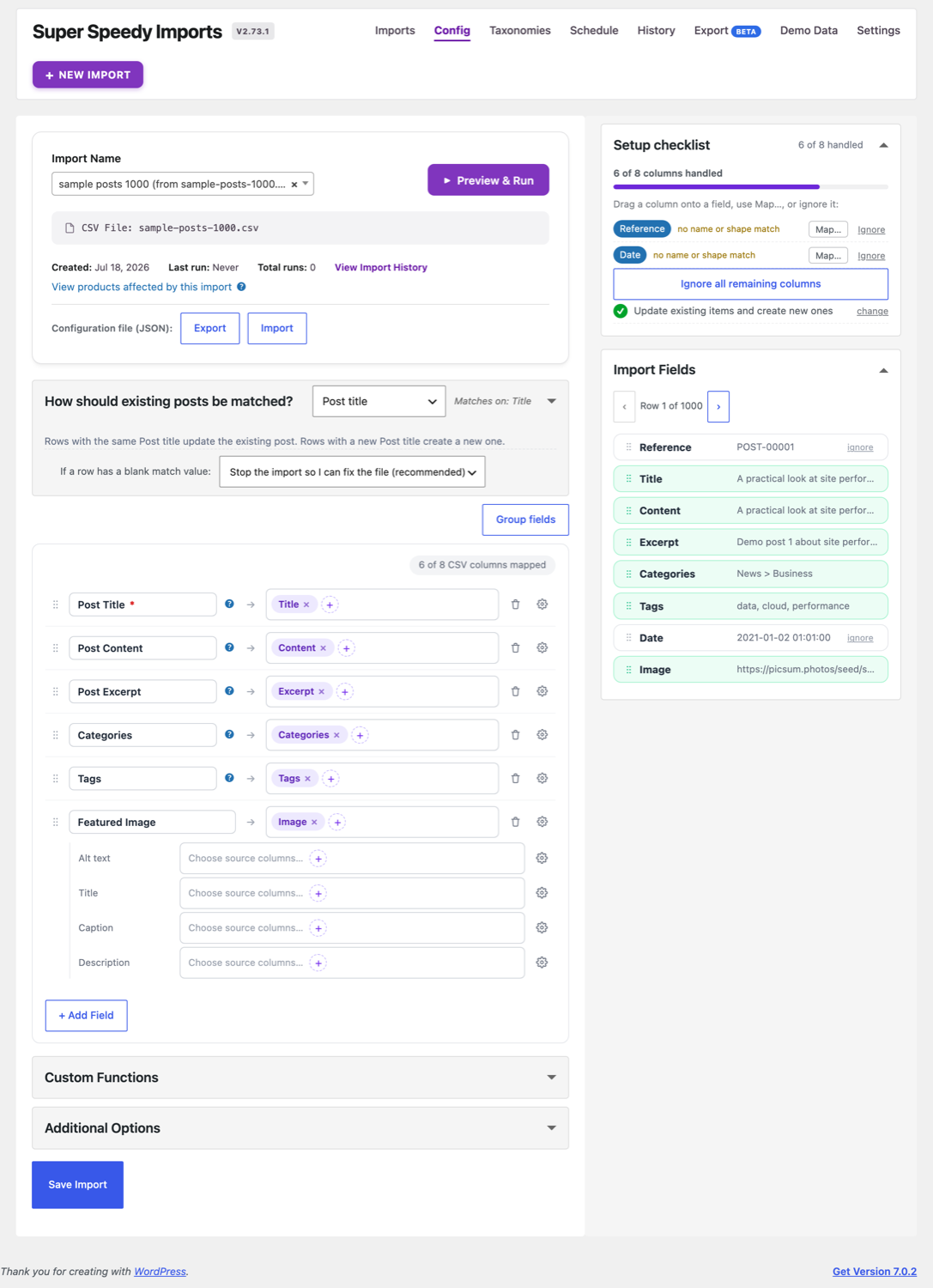
What New Import checks in the file
Before any mapping, New Import reads the file itself for the settings a wrong guess would make expensive:
- Field separator and decimal mark. It counts the decimals in the data, reading past the first rows until it has seen some, and offers the decimal mark the file uses. A comma-separated European price list with
"12,99"is offered Comma (,), not the dot its separator would suggest by convention. Check Decimal Point before creating the import: a price written in the other format is refused at import time and reported against its row and column, and that product’s prices are left as they were. - Excel “CSV UTF-8” files. Excel writes a byte-order mark before the header row. It is removed when the headers are read, so the first column auto-maps and can be the match column like any other. CSV, XML and JSON files are all checked for it the same way.
- Taxonomy term files. A CSV with one row per category, tag or other term is recognised as term data. It is refused for an import type that imports posts or products, because its slug and description columns would land on your items, and the message names the import type to use instead where one is installed. The same check applies to
wp ssi create.
wp ssi create passes its --separator and --decimal flags to the auto-mapper, so a semicolon-separated file with comma decimals is mapped from the columns it really has.
Everything it maps by name
The full list of what the auto-mapper recognises from column names alone. Every alias is punctuation- and case-tolerant, so “Weight (lbs)”, “weight_kg” and “Weight” all count as one.
Product fields: title (Name, Product Name, Title…), slug (Slug, Permalink, URL key, Handle, URL rewritten…), description (Description, Content, Body, Body HTML, Long description…), short description (Short description, Excerpt, Summary), status (Status, Published, Active, Visible, Product online — with automatic value translation, see below).
Identifiers: SKU (SKU, Stock Keeping Unit, Item number, Item code, Article number, Model, Reference, Product Code/SKU, Variant SKU…), GTIN/EAN/UPC/barcode/ISBN (including EAN13 and combined “UPC/EAN” columns — values are validated against their check digit before mapping), MPN / manufacturer part number.
Prices: regular price (Price, Regular price, RRP, MSRP, List price, Variant Price, Price tax excluded…), sale price (Sale price, Special price, Discount price, Offer price), sale price start and end dates. Shopify’s inverted pair is handled with the correct semantics: Compare At Price is the regular price and Variant Price is the selling price. Given two unnamed price columns, it works out which is which by comparing values row by row.
Inventory: stock quantity (Stock, Qty, Quantity, Inventory, Current Stock Level, Variant Inventory Qty…), stock status (Availability, In stock?, is_in_stock — including 1/0 conventions), manage stock, backorders, sold individually.
Shipping and tax: weight (including Weight (lbs), weight_kg, Variant Grams, Product Weight), length/depth, width, height (with unit suffixes), shipping class, tax status, tax class (including Magento’s tax_class_name).
Images: featured image (Image, Main image, Image Src, Base image, Photo…), gallery (Images, Gallery, Additional images, Image URLs…). Where these land depends on External Images — see below.
Taxonomies: categories (Categories, Category, Product Category, Collection — hierarchical paths with > or / separators detected from the data), tags, brand (Brand, Brand Name, Manufacturer, Vendor), colour, size, material(s), and any product attribute the file’s own structure reveals (see term data and pivoted attributes).
WooCommerce extras: downloadable, virtual, download limit, download expiry, purchase note, external/affiliate product URL and button text, ratings (Rating, Average rating) and review counts written as product meta.
Everything it maps by data shape
Columns whose names match nothing still map when the data is unmistakable: image URL columns and pipe/comma/semicolon-separated image URL lists, downloadable file URLs, check-digit-valid GTIN columns, stock-status vocabulary, category paths, a lone price column, a lone HTML column when no description is mapped.
Term data: descriptions, images and swatch colours
Attribute and taxonomy columns often travel with companions: a Color column alongside Color_Image, Color_Hex and Color_Description. The auto-mapper recognises that convention. Once a taxonomy source column is mapped, siblings named with an image, description or hex suffix are checked against their data (image URLs, prose, hex colour codes) and mapped as term data: the image becomes the term thumbnail (what Super Speedy Filters shows in its filter panels), the description becomes the term description (which Super Speedy Search indexes), and a hex column becomes the term’s swatch colour.
It also works in reverse. A column named Pattern that matched no alias, but which has a Pattern_Image or Pattern_Description sibling, is almost certainly an attribute — so if a pa_pattern taxonomy exists on the site it is mapped as one, term data and all. If the taxonomy does not exist yet, the mapper tells you to register it (Taxonomies tab) rather than guessing.
Pivoted attributes
Many exporters put the attribute’s NAME in one column and its values in another: WooCommerce’s “Attribute 1 name” + “Attribute 1 value(s)”, Shopify’s “Option1 Name” + “Option1 Value”, Squarespace’s “Option Name 1” + “Option Value 1”, Etsy’s “VARIATION 1 TYPE” + “VARIATION 1 NAME”. When the name column holds one consistent value (every row says Color), the pair collapses into a normal attribute mapping, and the visibility/global/default helper columns are recognised as part of the set. When the name genuinely varies per row, no single-column mapping can represent it — the mapper says exactly that instead of guessing.
Value transforms
Sometimes a column’s meaning is clear but its values speak another tool’s vocabulary. The auto-mapper attaches a translation instead of refusing: the WooCommerce exporter’s 1/0/-1 publish flags, TRUE/FALSE and Yes/No flags, Shopify’s active/draft/archived statuses, Magento’s 1/2 enabled/disabled, Magento’s “Default Category/” path roots (stripped), and Squarespace’s space-separated image URL lists (converted to the pipe convention). Hand-written configs can use the same mechanism (additional_options.value_transforms), and developers can register custom transforms with the superspeedyimports_value_transforms filter.
External Images
If the External Images plugin is active, image columns change destination. Instead of the featured image and gallery fields — which download every file into the media library — they are mapped to External Images’ URL fields: the primary column to external_image_url (a pipe-separated list there carries the featured image and gallery in one field), and a second image column to gallery_urls. Your products get their images served straight from the URLs and the media library stays empty, which avoids downloading those images during the import. Without External Images active, image columns map to the normal download destinations.
Which attributes drive variations
When a file contains variable products, the mapper does not blindly flag every attribute as a variation attribute. It reads the whole file and observes which attributes actually change between variations of the same parent — colour and size usually do; material, pattern or fit usually do not. Only the attributes that genuinely vary are marked as variation attributes, which is what keeps the variation dropdowns on the product page sensible.
Platform export formats it understands
The auto-mapper is tested against the formats real catalogues actually arrive in — the point is that migrating to WooCommerce should mean uploading your old shop’s export, not buying a migration tool.
WooCommerce exporter format (also what most migration plugins emit): maps nearly column for column — the punctuated headers, the “Meta: key” custom-field convention, sale price dates, tax status and class, backorders, sold individually, purchase note, shipping class, download limits, external URL and button text, and the pivoted attribute columns.
Shopify: a raw product export imports with zero manual mapping. Handle, Title, Body (HTML), Vendor, Product Category, Tags, the Option pivots, Variant SKU/Grams/Inventory Qty/Barcode, Image Src, and Status (translated). The Handle grouping is recognised as what it is — variant rows sharing a key — and Super Speedy Imports’ variations-only mode takes over: one variable product is synthesised per Handle and the Options become its variation attributes. The Compare At Price / Variant Price pair is mapped with the correct meaning.
WebToffee-style files: the tax:taxonomy, attribute:Name, attribute_data: and meta:key prefixed-header conventions are read directly, along with the raw post_title/post_status/sku-style field names those exports use.
Magento: name, descriptions, url_key, price and special_price, qty, stock flags, backorders, tax class, weight, base and additional images, and product_online (1/2 translated to publish/draft). Category paths get their / separator and comma-separated multi-paths configured automatically, with the shared “Default Category” root stripped. The store-scoping columns (store_view_code, attribute_set_code, product_websites), the dozens of use_config_* flags, display-size image duplicates and related/upsell/cross-sell SKU lists are each explained rather than left as noise. The two genuinely structural columns — configurable_variations and additional_attributes — are called out with what to do about them.
Squarespace: Title, Description, SKU, prices, stock, categories, tags, dimensions, Visible (translated), the Option pivots, and the space-separated Hosted Image URLs column (translated to a proper list). Product ID grouping is recognised and variants are synthesised into variable products the same way as Shopify.
Wix: the camelCase headers (handleId, productImageUrl, fieldType…) are read naturally; name, description, collection, sku, price, inventory, weight, brand and the semicolon-separated image lists map, and handleId grouping synthesises the variable products. The productOption columns are flagged for manual review — Wix splits option definitions and variant values across row types.
PrestaShop: Name, Reference, EAN13, prices (tax-excluded preferred), quantities, dimensions including Depth, Summary and Description, Tags, URL rewritten, Active (translated) and the semicolon-separated category and image columns.
Etsy: listings CSVs map title, description, price, quantity, tags, materials (as a product attribute), SKU, the numbered image columns and the VARIATION TYPE/NAME pairs.
BigCommerce: product rows map (name, code, brand, description, prices, stock, weight, category, images, UPC/EAN); the variant rows are honestly flagged — BigCommerce pairs them with products by row order and an [S]Option=Value syntax with no grouping key in the file, so variant linking needs a parent-reference column added.
What it deliberately will not guess
Anything ambiguous is surfaced instead of guessed: source-site database IDs (not portable between sites), upsell/cross-sell/grouped/related product references (they need the referenced products to exist first), downloadable file name/URL pairs, SEO plugin fields, RRP and cost prices (WooCommerce core has no field for them), currency codes, per-platform catalog-visibility vocabularies, on-sale flags (derived from the sale price in WooCommerce) and image-ordering columns. Each gets a one-line explanation of what it is and what to do — nothing is ever guessed into a field on a weak match, and nothing is left as a bare “unrecognised”.
Choosing how items are matched
Every import needs one field that identifies a row uniquely, so a re-import updates the right product instead of creating a duplicate. The auto-mapper picks the best available match key for you, in order of reliability: a clean SKU first, then the slug, then a GTIN, and only the product title as a last resort. A title is the weakest choice, because renaming a product would break future matching, so if it has to fall back to the title it says so and suggests you add a SKU column.
Variations and parent linkage
The auto-mapper also detects whether your file contains variable products. If it finds a product-type column with variation rows, or a parent-reference column (values like “Parent SKU” or “Variation of”) that resolve against the SKU column, it switches the import to the mixed parent-and-variation type and sets up the parent linkage automatically. If a parent-reference column is present but its values do not resolve, it leaves it unmapped and tells you why, rather than silently producing unlinked variations. Files that group variants by a shared key instead (Shopify, Squarespace, Wix) switch to the variations-only mode with parents synthesised per group.
Suggestions you accept or dismiss
Columns the mapper is confident about are mapped outright. Columns it nearly matched, or could not decide, are surfaced on the mapping screen as suggestions. A near miss appears as a dashed “ghost” row (for example “Colour to Product colour?”) with Accept and Dismiss buttons, so confirming or rejecting it is one click rather than a hunt through the field picker. It also flags ambiguities worth your eye, such as two price-shaped columns it cannot tell apart, so you can map the regular and sale price yourself.
Anything the mapper leaves unmapped is left for you to handle on the mapping screen. Nothing is guessed into a field on a weak match.
Importing a CSV that Super Speedy Imports exported
If you feed the auto-mapper a CSV that Super Speedy Imports itself exported, it recognises its own naming and configures the whole import end to end: every field mapping, the match key, taxonomies with their full paths, and variations. This makes moving a catalogue from one site to another close to one click. Export on the source site, import the file on the target site, and run it.
Importing from a URL
You do not have to download the file first. In New Import you can paste a link to a CSV, XML or JSON file and Super Speedy Imports fetches it server-side, applying the same safety checks as an uploaded file, and then auto-configures the import from it. There is no size limit of ours: your server’s PHP limits apply, exactly as they would for an upload. Fetching a file with the same name again keeps the previous copy in the previous folder of the imports directory, as an upload does.
The import also remembers the URL as its source and downloads the file again at the start of every run, on the browser, WP-CLI and scheduled runners, so the mapping is built once and each run reads the latest file. A CSV download that has lost a column the import was set up with stops the run before anything changes, names the missing column or columns, and keeps the previous file. Added columns are fine. You can switch any import to a URL, change its URL, or switch it back to an uploaded file with Change Source on the import’s screen; see Can SSI import from a URL or remote feed?.
XML and JSON files are mapped from the fields of the record path you confirm in New Import; see Importing XML and JSON feeds.
To see everything on the mapping screen after auto-mapping has done its work, read A tour of the import mapping screen.
Further reading


Written for Super Speedy Imports 3.64.0.

Comments