WP All Import vs Super Speedy Imports
Want faster results? Try Super Speedy Imports on your store.
Get Super Speedy Imports →Watch Super Speedy Imports and WP All Import side by side
See automatic CSV configuration, preview, saved-job migration and the speed comparison.
Upload your CSV. SSI reads a sample of the data, as well as the column headings, to automatically configure the import for you.
WP All Import vs Super Speedy Imports: both offer a visual WordPress import workflow. Choose SSI when you want automatic field recognition, drag-and-drop mapping, a draft preview and fast browser imports. Choose WP All Import when its specialist add-ons or advanced XML expressions are essential to your job.
Last updated: 15 September 2026. This comparison is written by the maker of Super Speedy Imports. Current workflow features are described separately from the older benchmark results.
A visual import workflow for ordinary WordPress users
Upload your file, let SSI recognise the fields, then see your data in the visual mapping editor. Drag fields into place, preview your first item as a draft and run the import in WordPress. The browser shows progress as your products or content are imported.
The auto-classifier uses column names and sample data to propose destinations. You can accept or dismiss suggestions and drag source fields into place. See the mapping screen walkthrough and how automatic mapping works.
What WP All Import offers
WP All Import has a drag-and-drop interface and specialist add-ons for WooCommerce and other WordPress data. Its documented XML tools include XPath filtering and expressions. It also offers an admin and frontend preview of simulated records.
Both products let you map incoming data, import products and repeat updates. SSI brings suggested mappings, source values, draft preview and browser progress into that workflow.
Ease of use and feature comparison
The SSI column describes the paid edition of Super Speedy Imports. Competitor Free and Pro differences are labelled in the table. Sources are linked below; “not documented” identifies a feature the reviewed guide does not establish.
| Feature | Super Speedy Imports | WP All Import |
|---|---|---|
| Setup in WordPress | Create, map and run imports in WordPress. No terminal required. | Visual import wizard in WordPress. |
| Field mapping | Drag source-field chips into destinations; edit mappings beside sample values. | Drag-and-drop mapping of source elements to destination fields. |
| Automatic recognition | Auto-classifier proposes mappings using headers, aliases and sample data. Accept or dismiss suggestions. | Unique-identifier auto-detection is documented. General data-shape classification equivalent to SSI is not established by the cited guides. |
| Check source rows | Browse source rows and inspect sample values while mapping. | Source-record browsing in the mapping interface. |
| Preview the imported result | Create a separate draft of the first complete item, inspect it, then discard it. | Documented simulated admin/frontend preview with record navigation; does not create imported records. |
| CSV and XML | CSV and XML. Upload XML through Migration Tools; conversion happens inside SSI. | CSV, XML, Excel and Google Sheets; available capabilities depend on package. |
| Import execution | Run Now in the browser with progress and issues. CLI is optional; scheduling is included. | Browser execution; optional WP-CLI and scheduling. |
| Repeat updates | Reuse saved configurations and match existing records, including products by SKU. | Saved jobs, unique identifiers and selected-field update controls. |
| WP All Import saved-job migration | Select a saved WP All Import job in Migration Tools and convert its settings into an editable SSI configuration. | Not applicable: these are the original WP All Import jobs. |
| Remove imported records | Remove records associated with an import, with confirmation and configured Trash/permanent deletion. Does not restore old values. | Manage Imports > Delete can remove imported records; missing-record handling is separately configurable. |
| History and issues | Import history, stage progress and row issue reporting. | Saved import history; keep the history files if you need to inspect past runs. |
| Product and content types | Posts, pages and WooCommerce products, including variable products, custom post types and advanced fields. | Posts and custom data; WooCommerce and other specialist targets depend on the relevant add-ons. |
| Images | Featured images, galleries and advanced product capabilities. | Image mapping and downloads; WooCommerce add-on for product-specific fields. |
| Export | CSV export is a beta feature, enabled by default; separate from importing XML. | WP All Export is a separate plugin, also sold in bundles. |
| Schedules and integrations | Schedule saved imports; configure matching and update rules in WordPress. | Manual cron or their scheduling service; documented specialist integrations include ACF, Meta Box and JetEngine. |
| Speed evidence | See the linked benchmark for tested versions, settings and catalogue outcomes. | WP All Import Pro benchmark with recorded versions and feed conditions. |
XML importing without an external converter
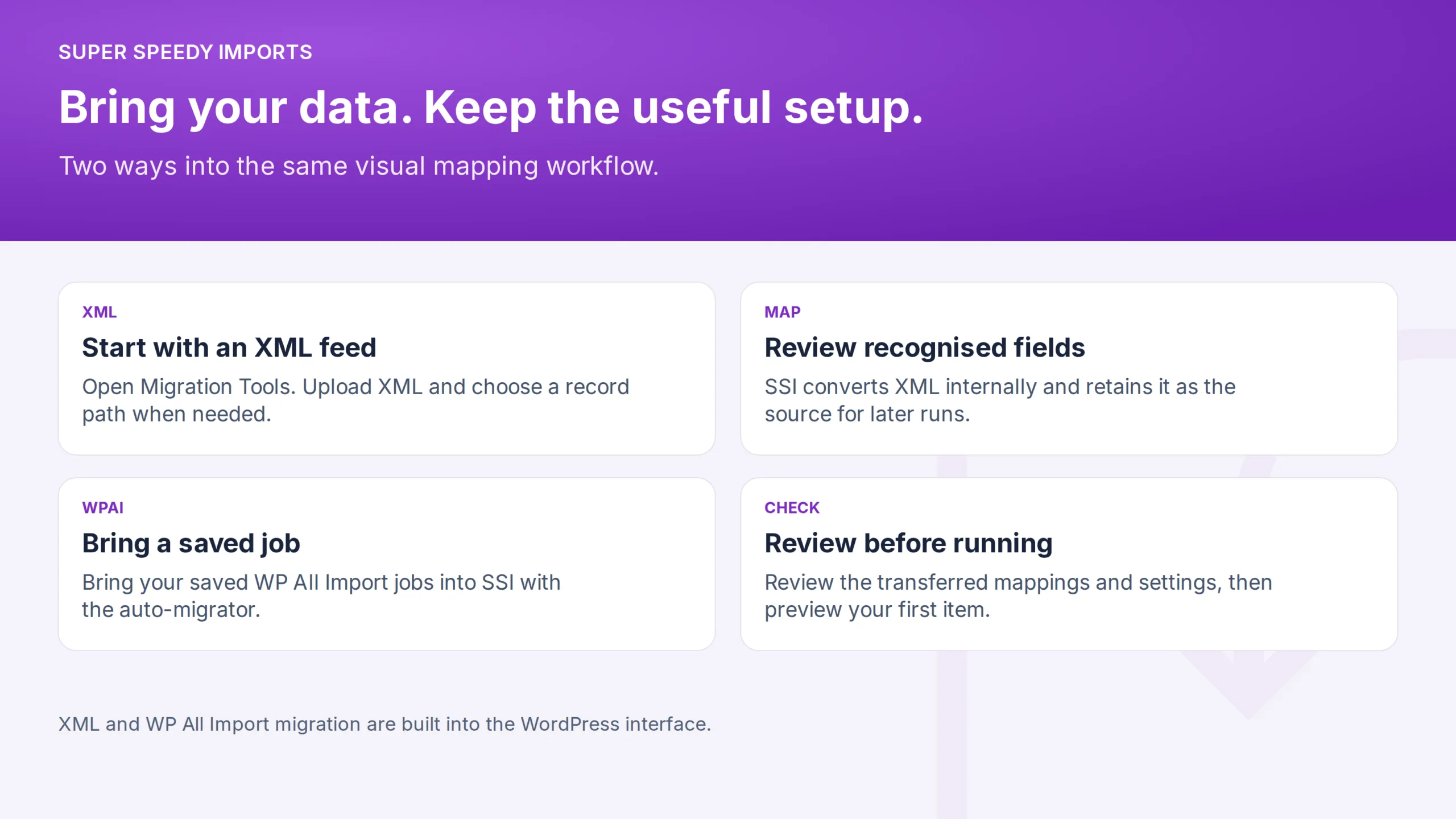
Upload XML in Migration Tools. SSI detects the record path and converts the file internally, ready for visual field mapping. You can choose a different record path, inspect the source values and run the import in the same browser interface you use for CSV.
Switching from WP All Import
Open SSI’s Migration Tools, select your saved WP All Import job and convert its settings into an SSI configuration. Your source, mappings and update settings are there to inspect and edit before you run it.
Preview the converted import, inspect the result and run it when you’re ready. The migration guide explains how mappings, matching and custom functions transfer. Follow the WP All Import migration guide.
Preview, repeat updates and removal
SSI’s first-item preview creates a separate draft through the import pipeline. Open it to inspect your mapped title, content and product fields, then discard the preview and run your import.
Save your mapping and use an identifier such as SKU to update the same products on your next run. Choose which values to update. SSI also gives you separate controls for discarding previews, removing imported records and deleting saved configurations.
Read the benchmark with its conditions
Read the WP All Import benchmark for the measured workload, software versions, test conditions and verified catalogue results.
Which one fits your job?
Choose SSI for a first product import or a recurring supplier feed when you want proposed mappings, a draft you can inspect and a browser run with progress. Small files benefit from those controls too. Choose WP All Import when your job relies on a specific supported add-on, advanced XML expression or data type outside SSI’s scope.
Compare the features your job needs before comparing licence prices. See current SSI plans and product details. Check current WP All Import packages.
Frequently asked questions
Does Super Speedy Imports need the command line?
No. Create, map, preview and run your import in WordPress. The command line is optional.
Does Super Speedy Imports import XML?
Yes. Upload your XML in Migration Tools. SSI detects the record path and converts the file internally into a working CSV, ready for visual mapping, preview and browser importing.
Can I migrate saved WP All Import jobs?
Yes. Select your saved WP All Import job in SSI Migration Tools and convert it into an editable SSI configuration. Preview the result and run it in WordPress. The migration guide explains the settings and custom-function handling.
Can I remove what Super Speedy Imports imported?
Yes. Use the import’s record-removal controls to move associated records to Trash or permanently delete them, according to your configuration. Deleting records does not restore earlier field values.
Sources and further reading
WP All Import setup · WP All Import preview · WP All Import deletion · Matching and recurring imports · Import history. Documentation checked 15 September 2026.
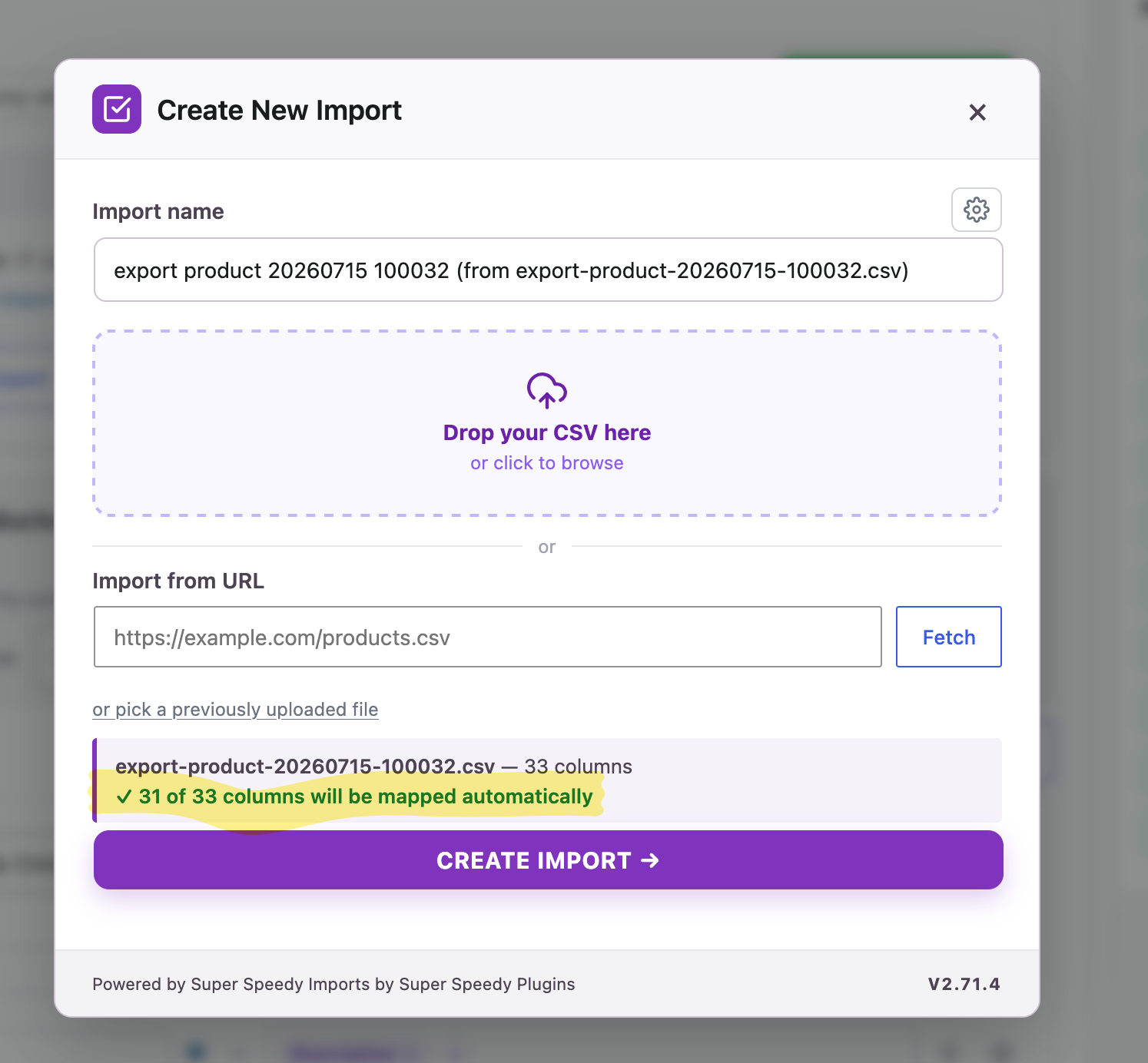
Import CSV and XML files with automatic field mapping, visual previews and fast imports inside WordPress. Bring your existing WP All Import jobs across with the built-in migrator.
What do others say about Super Speedy Imports?
We've been using this plugin on our live site for a few weeks now and it's been a phenomenal game changer for us. Before with WP All Import, importing products from a supplier would take so long that by the time the import was done, it wasn't even accurate anymore. It was also taking so many resources that our backend would slowly crawl and was near unusable. Now, imports take a few minutes and we can run imports multiple times a day and can keep our products very up to date. We're still moving some imports from WP All Import over to this, but this plugin has been amazing for us. Thank you so much!
This plugin is amazing! I was using WP All Import and my import job took over an hour. With Super Speedy Imports it is taking 111 seconds! That is not a typo. I verified the data. Just amazing. I can fully recommend this plugin.
Super Speedy Imports has made a huge difference in how we manage our large WooCommerce catalog. We're able to update thousands of products incredibly quickly, and the support has been outstanding. Dave has personally worked through a few issues with us, listened to our feedback, and released fixes extremely quickly. It's rare to get this level of support directly from a developer. Very happy with both the plugin and the support!
Super Speedy Imports Knowledge Base
View full Knowledge Base →- Allowing SSI to download images from private or loopback hosts
- Controlling which stages of an import actually run
- Customising Imports using SQL Filters
- Trashed items and deletes
- Undoing an import
- Wiping WordPress for a fresh SSI import
- Adding compatibility for other plugins
- Architecture Overview
- Building an Import Type Add-on: the Term Descriptions Case Study
- Building change-listener integrations: the back-in-stock notifiers
- CLI reference
- Creating Add-ons for Super Speedy Imports
- Creating Custom Templates for Super Speedy Imports
- Run your own code when an import completes
- Can I attach images already on the server without downloading them again?
- Can I be notified, or run code, when an import finishes?
- Can I delete what an import brought in?
- Can I import into a custom post type, not just posts and products?
- Can I import XML?
- Can I preview before running the whole file?
- Can I run several supplier imports at the same time?
- Can I run SSI imports from a cron job?
- A tour of the import mapping screen
- Automatic column mapping
- Choosing your unique identifier
- Complete Guide to Updating Stock & Prices with Super Speedy Imports
- Controlling Super Speedy Imports with MCP
- Delayed Image Import: what happens to your images on each import
- Handling duplicate term slugs
- Import modes and what each stage writes
Articles about Super Speedy Imports
View all articles →Super Speedy Imports compared versus other products
- Dropshipping XML Free vs Super Speedy Imports
- Spreadsheet to WordPress vs Super Speedy Imports
- Product Import Export for WooCommerce vs Super Speedy Imports
- Datafeedr vs Super Speedy Imports
- WooCommerce Product CSV Import Suite vs Super Speedy Imports
- Import Export Suite for WooCommerce vs Super Speedy Imports
Want faster results? Try Super Speedy Imports on your store.
Get Super Speedy Imports →
Comments