Real sale prices or display only
Every discount rule has a setting, How the discount is applied. It decides whether the rule writes a sale price into each product, or only changes the price shoppers are shown. The difference matters for sorting by price and for price filters.
Available since 0.4.0. Display-only rules are available since 0.1.0.
The two choices
| Change each product’s sale price (recommended) | Display only: change no product | |
|---|---|---|
| What happens | The rule writes the discounted price into each product’s Sale price field, records what it changed, and puts every product back when the sale ends. | Nothing is written to any product. When WooCommerce reads a product’s price, the add-on answers with the discounted price. |
| Shop, product page, basket, checkout, orders | Discounted price | Discounted price |
| Sorting by price | Uses the sale price | Uses the old price |
| WooCommerce’s price filter, and filter plugins such as Super Speedy Filters | Use the sale price | Use the old price |
| Feeds, search indexes and other plugins that read stored prices | See the sale price | See the old price |
| Cost of saving the rule | A bulk write, then WooCommerce’s save hooks run in batches | One settings save, whatever the number of products |
Why sorting and filters need real sale prices
WooCommerce sorts by price and filters by price from the prices stored in the database, not from the price shown on the page. A display-only rule changes the price shown and leaves the stored price alone, so a shopper filtering up to 50 does not find a 60 product discounted to 45, and a sort by price places it as if it still cost 60.
A rule that changes sale prices writes the sale price where WooCommerce looks for it: each product’s sale price and active price, WooCommerce’s product price lookup table, and the price range of each variable product. Sorting, the price filter and filter plugins all see the sale.
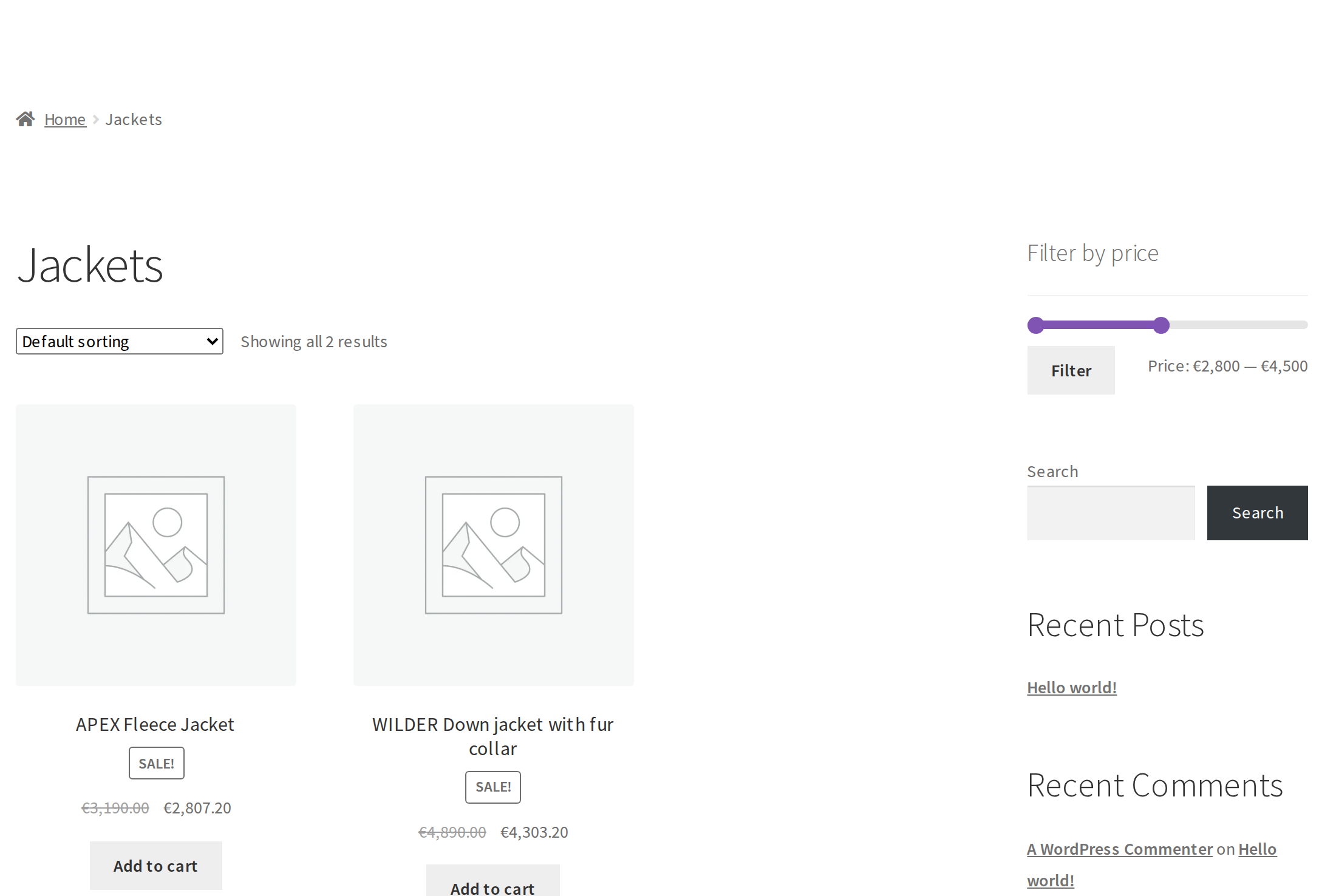
- Change each product’s sale price: any sale where shoppers sort or filter by price, and any store with product feeds or a search index
- Display only: a short flash sale where sorting and filtering by price do not matter, on a very large catalogue
What saving a rule does
When you save a rule that changes sale prices, every product’s sale price is written there and then, in bulk, so the sale is on the shop, in sorting and in filters the moment the save finishes.
WooCommerce’s save hooks then run for every changed product, so feeds, search indexes, caches and filter plugins catch up. Running the sale price updates covers how those run and where to see their progress.
The rule writes its prices again, or puts products back, by itself:
- when its From time arrives, and when its To time passes;
- when you switch it off, delete it, or change it;
- when a product is added to the rule’s category, or edited, during the sale;
- when Super Speedy Ajax goes to TEST mode, or Price Discounts is switched off.
Which rule set a price
Wherever you see a product, you can tell when a rule set its sale price.
- Products list. A purple tag with the discount sits beside the price. A variable product gets the tag when a rule set any of its variations’ prices.
- Sale prices tab. The Discount rule column reads “Sale price set by rule …, undone when it ends”.
- Product edit screen. A note under the Sale price field names the rule and says what the product goes back to when the rule ends.
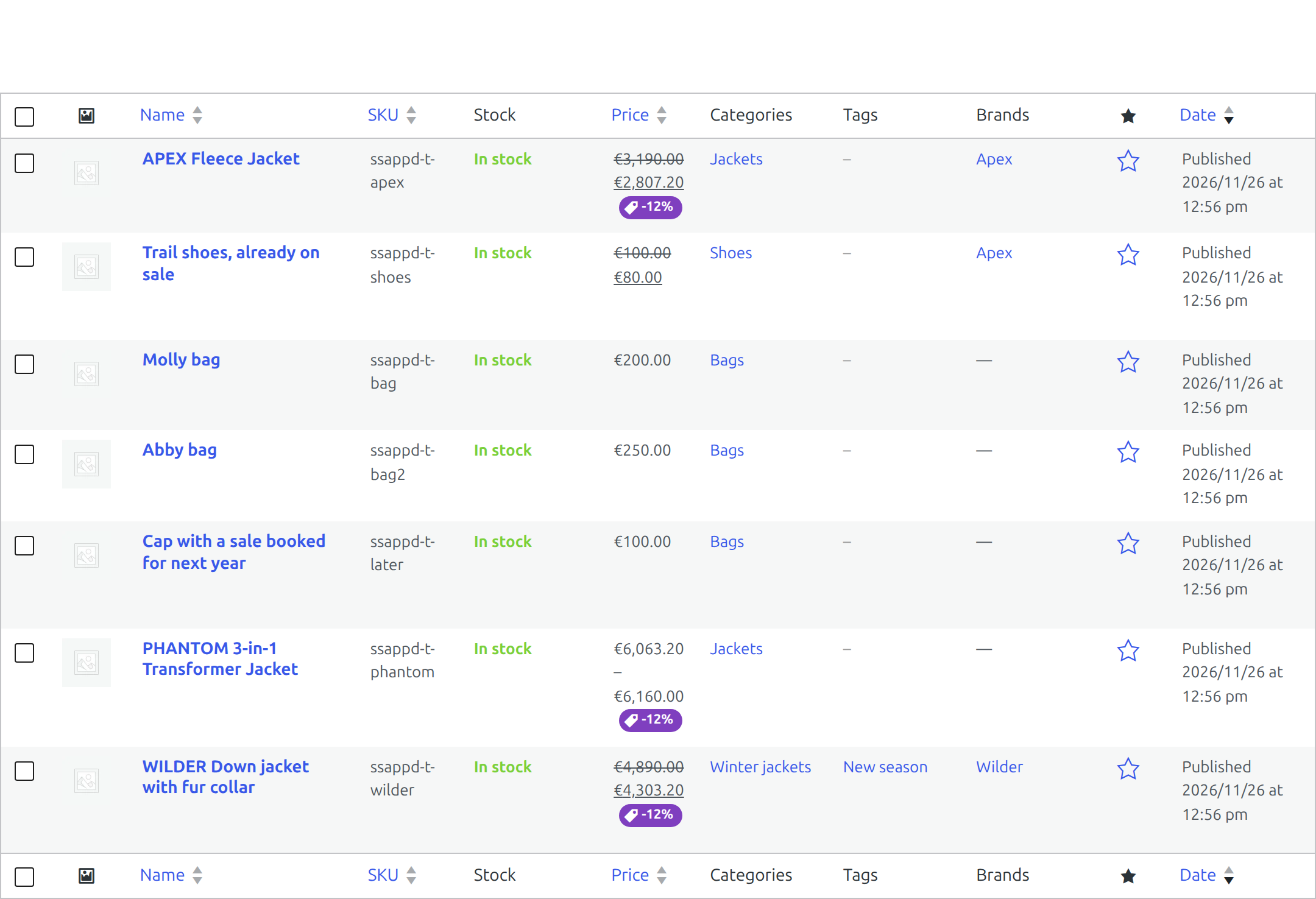
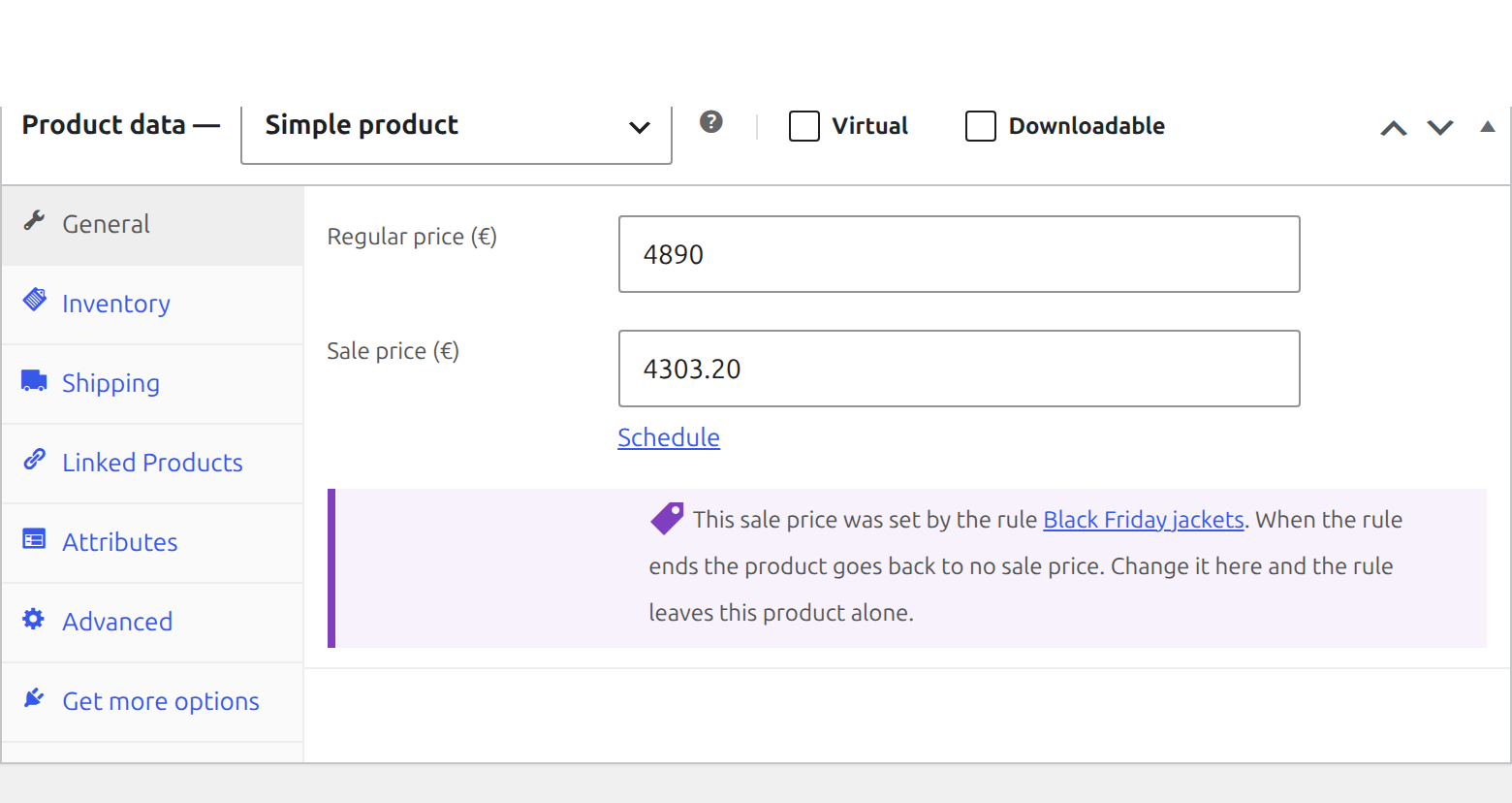
Change the sale price on this screen and the rule leaves the product alone from then on. When a sale ends explains what happens to it.
Display-only rules on the product edit screen
While a display-only rule sets a product’s price, its Sale price field is drawn as virtual: a dashed purple border, the rule’s price as placeholder text and a tag with the discount inside the field. A box directly underneath names the rule (linked to the Discounts tab), the price shoppers pay and, for a rule with a To date, when it ends. Each variation of a variable product gets the same.
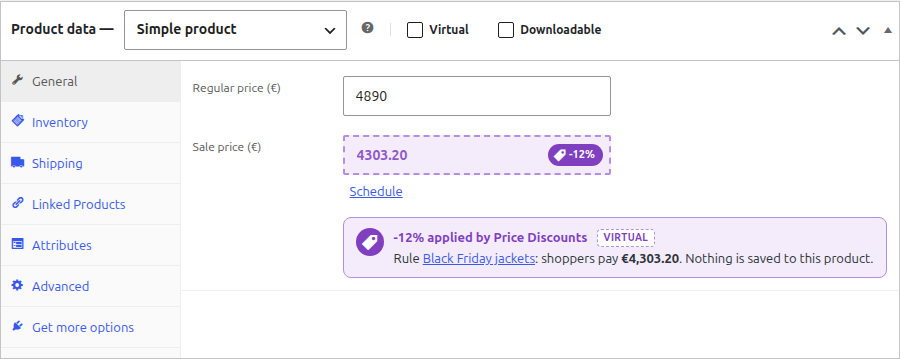
The field itself stays empty, because the product has no sale price of its own, and saving the product does not store the discounted price.
Typing a sale price into the field gives the product its own sale price. The field returns to normal and the box turns amber and says what the rule then does, following its “If a product has its own sale price” setting.
TEST mode
Discount rules follow Super Speedy Ajax’s TEST and LIVE switch. In TEST mode:
- a rule discounts nothing for ordinary visitors, and only the secret test link sees it;
- a rule that changes sale prices writes nothing to any product;
- switching from LIVE back to TEST puts every product back.
Going LIVE writes the sale prices straight away while the Discounts tab is open.
Switching between the two choices on a rule is safe at any time. Change a rule to display only and save, and every product it wrote is put back as its When the sale ends setting says, while shoppers keep seeing the discount.
Further reading
 Super Speedy Ajax – Price DiscountsSale prices by category, brand or product, put back when the sale ends
 Super Speedy Ajax PricesFully cache your shop – correct prices, stock and dynamic pricing for every visitor
 Super Speedy FiltersFast product filters and pretty, indexable permalinks on every archive
Written for Super Speedy Ajax – Price Discounts 0.4.3.
Comments